m3e-canvas

Sketch Material 3 Expressive screens in the browser, link them, tap through them, and copy a prompt for your AI coding tool.



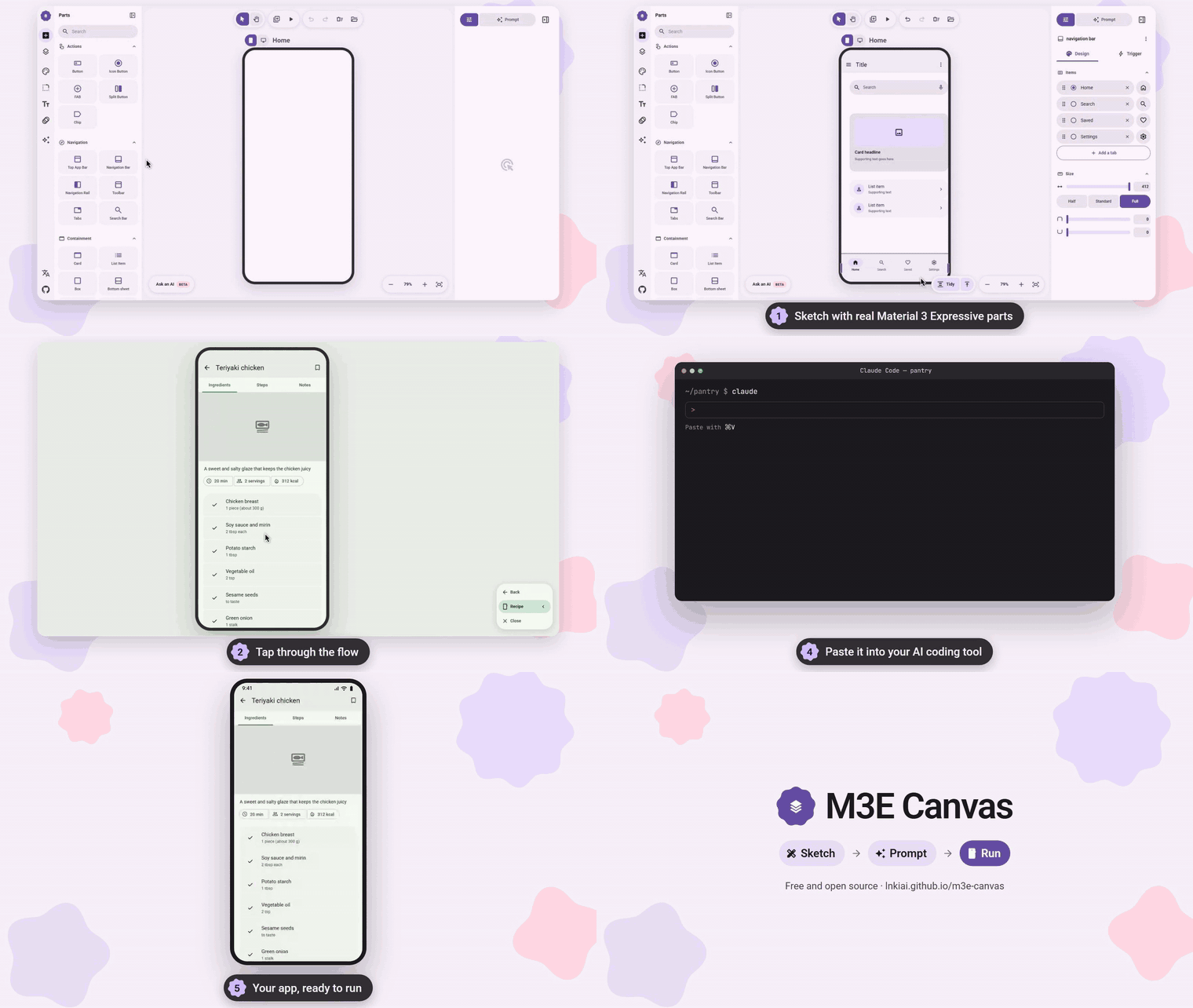
Sketch the screens, tap through the flow, copy the prompt, and let your AI coding tool build the app. (mp4)
M3E Canvas is a free, open-source sketchpad for app screens made of real Material 3 Expressive parts. It runs entirely in your browser: no account, no server, nothing to install. What you sketch becomes a precise prompt that any AI coding tool that takes one, such as Claude Code, Codex, Gemini CLI or Cursor, can turn into a working app.

- Sketch — Drag parts onto phone or desktop screens. They snap together and line up on a 4dp grid.
- Tap through — Link parts to screens and press Preview to try the flow, transitions included.
- Copy the prompt — The whole design becomes a short brief in your language. Paste it into your AI coding tool.
 What's inside

 Real M3 Expressive parts — Buttons, FABs, bars, tabs, cards, lists, sheets, pickers, carousels, loading indicators and more, each with its own panel for text, style, size and what a tap does.
 Screens and flow — Phone and desktop screens, screens that scroll, taps and swipes that open other screens with the transition you pick, and arrows that show the whole flow.
 Theme in one place — Color, shape, type and motion: seven palettes or your own seed color, light and dark, three contrast levels, corner styles, fonts and the expressive spring motion.
 Optional AI help — Bring your own key to draft a design or write notes for you, or copy an instruction for a coding agent that replies with a share link. Keys never leave your browser.
Everything it can do
- Parts – buttons, icon buttons, FABs and extended FABs, FAB menus, split buttons, chips, top app bars, navigation bars and rails, floating toolbars, tabs, search bars, cards, list items, boxes, bottom sheets, dialogs, snackbars, text fields, dropdowns, switches, checkboxes, radio buttons, sliders, date and time pickers, text, images, carousels, camera and map placeholders, dividers, the shape-morphing loading indicator and wavy progress indicators. Every part has a panel for its text, style, size and alignment, and a trigger tab for what a tap does.
- Magnetic connections – bring buttons, chips or list items close and they fuse into a connected group; the corners soften where they meet.
- Phone and desktop screens – add as many screens as you like. Switch any screen between a 412×892 phone and a 1280×800 desktop from its label: bars stretch, a navigation bar becomes a rail and back again, and the parts are laid out again. Same-named screens are written into the prompt as one screen at two widths.
- Screens that scroll – make a screen longer than its device and its body scrolls under the bars in the preview. Drag the grip on the bottom bezel, or pick 1x to 3x in the screen panel.
- Tap and swipe to navigate – give any tappable part, app bar icon or navigation destination a target screen (or "back") and a transition: slide from any side, fade, expand or none. Screens can also open others on a swipe. The preview plays it all, and back runs in reverse.
- Layers and groups – a layers panel per screen to change the stacking order; group parts to keep their overlap and move them as one, then copy and paste whole selections across screens.
- Theme – seven palettes or one seed color that becomes a full Material 3 scheme you can fine-tune, light and dark, three contrast levels and dynamic color. Square, rounded or full corners for every part at once. Roboto, Roboto Flex, Roboto Serif or the system font. The standard or the expressive spring motion, which also drives the preview.
- Prompt – the whole design or a single screen as a concise brief in Japanese, English, Chinese or Korean, with your notes on what each part does. Rows, overlaps and aligned grids of cards are spelled out, so the generated layout keeps them. Choose Android or the web as the target, edit the text before copying, or save a screen as a PNG.
- Tidy – one button snaps bars to the edges and the FAB to the corner, joins neighbouring items, and stacks the rest on 16dp margins. Press it again to undo.
- AI helper (optional) – bring your own key for OpenAI, Claude, Gemini or DeepSeek to draft a design from a sentence or write a part's behaviour note and a screen's description. Every rewrite can be undone. The request goes straight from your browser to the provider.
- Share links – copy a link that opens your design on anyone's canvas, or an instruction for Claude Code, Codex or another agent: it reads agent.md, sketches what you described, and replies with such a link.
- Everything else – alignment guides and a 4dp grid, undo and redo, keyboard shortcuts, a keyboard-usable parts panel, favorites, install as an app, and autosave in your browser.
- On a phone – one fixed screen and a buttons-only editor with bottom sheets. The full editor is for desktop browsers.
 Keyboard
| Key | Action |
|---|---|
V / H |
Select / hand tool (hold Space to pan) |
Wheel, Ctrl + wheel |
Pan, zoom |
+ - 0 |
Zoom in, zoom out, fit |
Ctrl+Z / Ctrl+Shift+Z |
Undo / redo |
Ctrl+C / Ctrl+V |
Copy / paste parts, also across screens |
Ctrl+D |
Duplicate |
Ctrl+G / Ctrl+Shift+G |
Group / ungroup |
Shift + click |
Add to the selection |
Arrows (Shift = 8dp) |
Nudge |
Ctrl + drag |
Move without snapping (no guides, no 4dp grid) |
Delete |
Delete part or screen |
P |
Preview |
 Run it locally
npm install
npm run dev        # http://localhost:3000
npm run build      # static export to ./out
The app is a static Next.js export. To host it under a sub-path (for example a GitHub Pages project site), set NEXT_PUBLIC_BASE_PATH=/your-repo at build time. .github/workflows/deploy.yml does this and publishes out/ to GitHub Pages on every push to main.
 Contributing
Bug reports, part requests and pull requests are welcome. CONTRIBUTING.md explains the setup, the conventions (English comments, four languages for every string) and where each kind of change lives. Questions go to Discussions.
 Support
M3E Canvas is free and MIT-licensed, and stays that way. If it saves you time, you can sponsor the work on GitHub; it pays for the hours that go into new parts, the prompt, and reviewing contributions. No feature is behind sponsorship.
Thanks to the sponsors who keep this going:

 Thanks
Thanks to everyone who has contributed code, ideas and reviews:











 Credits
- Loading indicator shapes and animation model: material-components-android (Apache-2.0) via Aler1x/m3-loading-indicator. See
NOTICE. - Icons: Material Symbols (Apache-2.0). Fonts are loaded from Google Fonts.
 See also
- matraic/m3e – Material 3 Expressive as Lit web components (MIT), with React bindings and an icon package. A good home for the screens you sketch here.
- Beer CSS – Material Design 3 as a plain CSS framework (MIT). Another way to build the web version of a screen you sketch here.
 Contact
For anything that does not fit an issue, such as collaboration or press, get in touch:
 License
MIT © lnkiai