avdbuddy
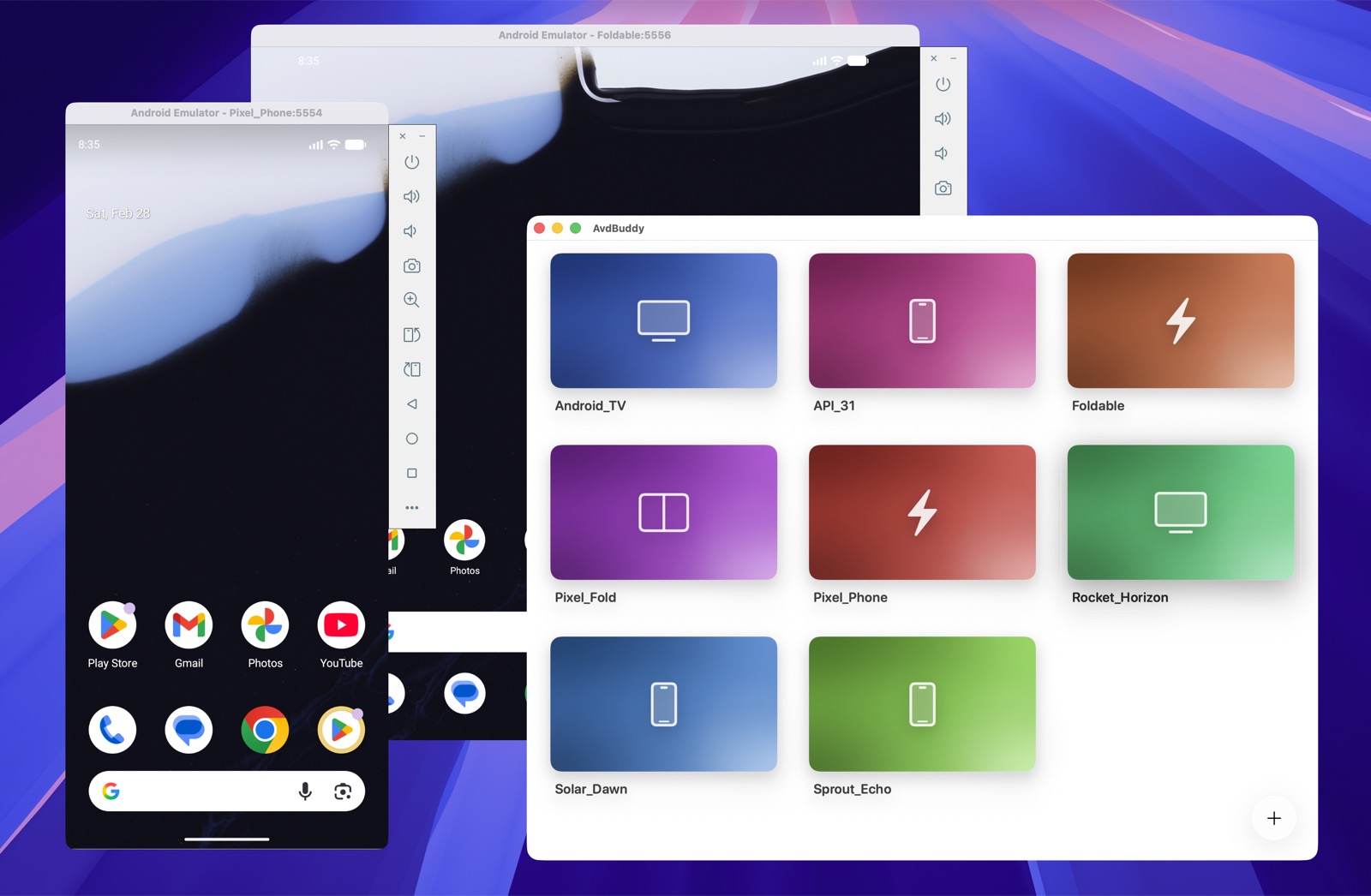
AvdBuddy is a native macOS app for managing Android Virtual Devices without going through Android Studio.
It focuses on the common emulator workflow:
- browse your existing AVDs from a visual home screen
- launch an emulator with a double click
- create new AVDs through a guided wizard
- duplicate, rename, and delete AVDs
- download Android system images from Google when needed
What It Does
AvdBuddy reads the Android SDK and local AVD setup on your Mac, then gives you a faster UI for:
- viewing all AVDs in one place
- distinguishing them visually with stable per-device gradients
- creating phones, tablets, foldables, TVs, and Wear OS emulators
- selecting Android versions, variants, architecture, storage, RAM, SD card, and Google Play services options
Requirements
To build and run AvdBuddy from source, you need:
- macOS
- Xcode with command line tools (
xcodebuild)
To use AvdBuddy with Android emulators, you also need:
- Android SDK command-line tools
avdmanagersdkmanager- Android Emulator
adb
It looks for the SDK in:
ANDROID_SDK_ROOTANDROID_HOME~/Library/Android/sdk
AVD storage defaults to ~/.android/avd (or your Android environment override).
Use the toolbar's Settings button to choose a different emulator storage folder,
including a folder on an external SSD. The selection is remembered and used for
browsing, creating, launching, duplicating, renaming, deleting, and revealing devices
in Finder. Switching folders does not move existing devices or change Android Studio's
settings. Select a folder containing the .ini and .avd files, or create an empty
folder using Browse to store new devices there.
System images are managed separately under the selected SDK's system-images
folder. Settings shows their actual location, including symlink destinations, and
flags unavailable storage. Changing the AVD folder does not relocate system images.
External storage must be connected before using devices or images stored there.
Installation
You can install AvdBuddy in either of these ways:
Download from GitHub Releases
Download the latest macOS DMG from GitHub Releases, then open AvdBuddy.app from /Applications.
Install with Homebrew
Install directly from the shared tap:
brew install --cask alexstyl/tap/avdbuddy
Or tap first, then install:
brew tap alexstyl/tap
brew install --cask avdbuddy
Homebrew installs AvdBuddy.app into /Applications.
Development
Run the test suite:
xcodebuild -project AvdBuddy.xcodeproj -scheme AvdBuddy -destination 'platform=macOS' test
Run the project with the provided macOS script. It builds the AvdBuddy scheme in Debug and launches the app:
./scripts/runMac
Homebrew Packaging
AvdBuddy can be distributed as a Homebrew cask from a shared tap repository. Homebrew installs AvdBuddy.app into /Applications. The app still requires Android SDK tools on the machine in order to manage emulators.
To publish a Homebrew release:
- build and notarize the macOS DMG with
./scripts/releaseMac - upload the versioned artifact, for example
AvdBuddy-0.3.0.dmg, to GitHub Releases - update the Homebrew cask in your shared tap repo, for example
alexstyl/homebrew-tap, with the newversionandsha256
The cask source for the tap is included in packaging/homebrew/avdbuddy.rb. A short setup guide lives in packaging/homebrew/README.md.
Credits
Inspired by VirtualBuddy.