penecho

AI that shows, not just tells.
Bring a question, a sketch, or your notes. PenEcho's built-in AI — or Codex, Claude Code and any MCP client — shows you the answer as diagrams, documents and working widgets, right beside your work.









What's new in 1.4 · Quick start · Connect your AI (MCP) · Docs · Support PenEcho · Discord
English · 简体中文 · 日本語 · 한국어 · Русский · Español · Português · Français · Deutsch

From a hand sketch to an interactive result in one canvas.

▶ Watch with sound and chapters · Download MP4
Smart Assist · PenEchoLLM · Notes & Cards · live graphs · simulations · 3D
 PenEchoLLM suggests the next step Pause after writing and PenEchoLLM ranks what you need next: Solve, Typeset, Plot graph, Make diagram, Organize as Note and more. One tap and the answer lands where you wrote, with the next step already suggested. It learns from the suggestions you choose, on your device. Free to try every day, no API key needed. |
 Notes & Cards keep what matters Circle a formula, sketch or answer and keep it as a knowledge card or work note, with your original handwriting. Cards are categorized automatically and collected in the Library, where you can search, bookmark, review and bring them into any canvas. |
What you can do
 Sketch, then ask Handwriting, equations, text and images on an endless canvas. PenEchoLLM suggests the next step when you pause. |
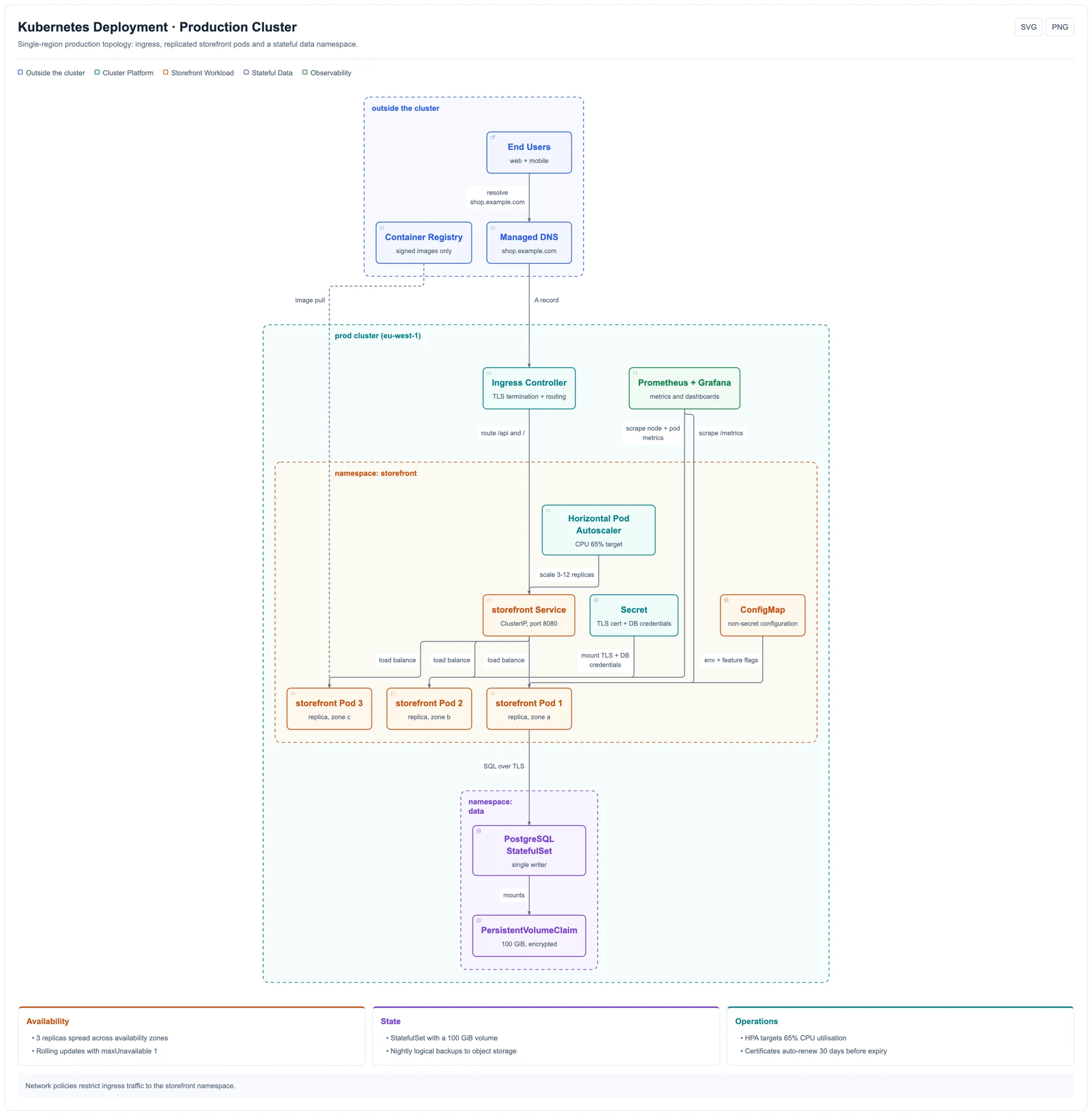 Professional diagrams Architecture, sequence and workflow diagrams with automatic layout. Export SVG or PNG. |
 Working widgets Calculators, quizzes and prototypes that run on the canvas and can be favourited or shared. |
Quick start
| Get started | |
|---|---|
| Desktop app | macOS and Windows from GitHub Releases. Includes everything, updates itself. |
| npm | Node.js 22.19+. Run npm i -g penecho then penecho and open localhost:3888. |
| Browser | Sign in at penecho.ai for hosted models and Cloud canvases. Nothing to install. |
npm install -g penecho
penecho             # opens http://localhost:3888
[!TIP] On first start, choose a six-digit access code (or open access on a trusted network). Add a model in Settings → AI & connections: your own API key, a signed-in Codex / Claude Code / Kimi CLI, or PenEcho models.
Run from source
git clone https://github.com/penecho/penecho.git
cd penecho
npm install
npm start
Connect your AI agent (MCP)
Keep talking in the agent you already use. PenEcho gives the work a place to live — your agent draws on the canvas, you mark it up, and it reads your feedback on the next turn.
In PenEcho, open Settings → MCP service and turn on the current canvas.
Use Auto configure for a supported client, or copy the generated setup prompt into your client (Codex, Claude Code, Kimi, Cursor...). For a global npm installation, clients that accept
mcpServersJSON can also use the compatibility entry below:{ "mcpServers": { "penecho": { "command": "penecho", "args": ["mcp"] } } }Ask: “Show the architecture we discussed on my PenEcho canvas.”
Cloud Canvas beside your chat: one paste, no install
Paste this into Claude Code, Codex, Cursor or another MCP agent:
Set up PenEcho Canvas for me:
1. Download https://penecho.ai/downloads/penecho-cloud-plugin.zip, unzip it, and follow its INSTALL.md for the app you are running in.
2. Add the PenEcho MCP server https://penecho.ai/mcp. If it needs authorization, open the authorization page once; I'll choose "Continue as guest".
3. Confirm the PenEcho tools respond, then tell me it's ready.
From now on, when I ask you to draw, diagram or show something on a canvas, use PenEcho and open the canvas beside our chat.
Then just ask:
- “Draw this project's architecture on the canvas.”
- “Turn our login flow into a sequence diagram on the canvas.”
- “Make an interactive binary-search demo on the canvas.”
- “Read my handwritten notes on the canvas and revise the diagram.”
The canvas opens beside your chat: in Codex's right panel, the Claude desktop browser pane, or your default browser. No account is needed; choose Continue as guest if asked. Sign in only when you want to save to Cloud. MCP uses no PenEcho credits. Claude Chat and Cowork install through the app's own plugin upload or connector settings (.plugin file). See installation details.
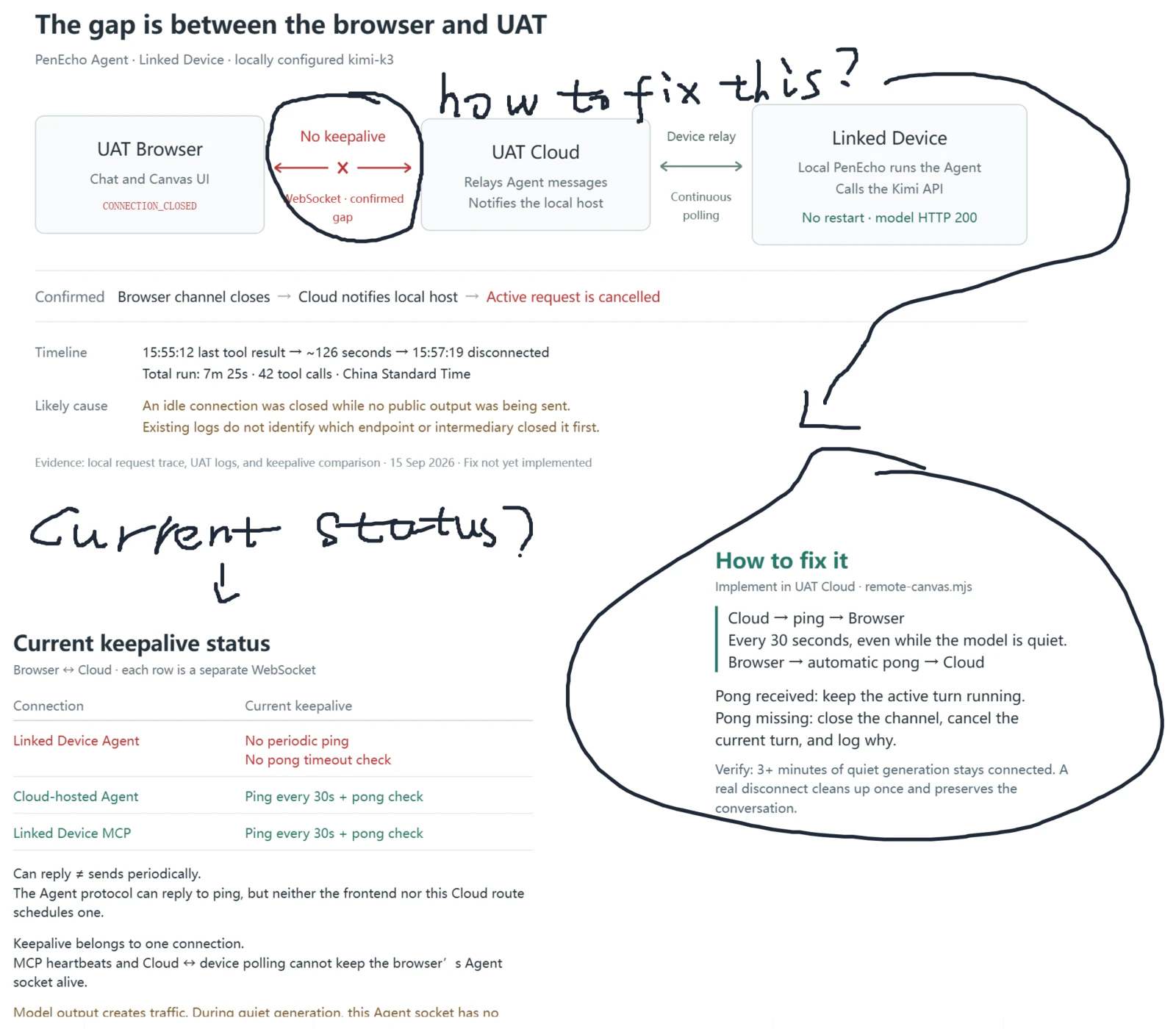
An architecture discussion from Claude Code, annotated by hand on the canvas.
[!NOTE] Agents only see canvases you turn on. Local MCP stays on your computer; Cloud MCP uses separate OAuth authorization and supports guest browser drafts. MCP guide →
Diagram gallery
Kubernetes cluster |
 Monolith → microservices |
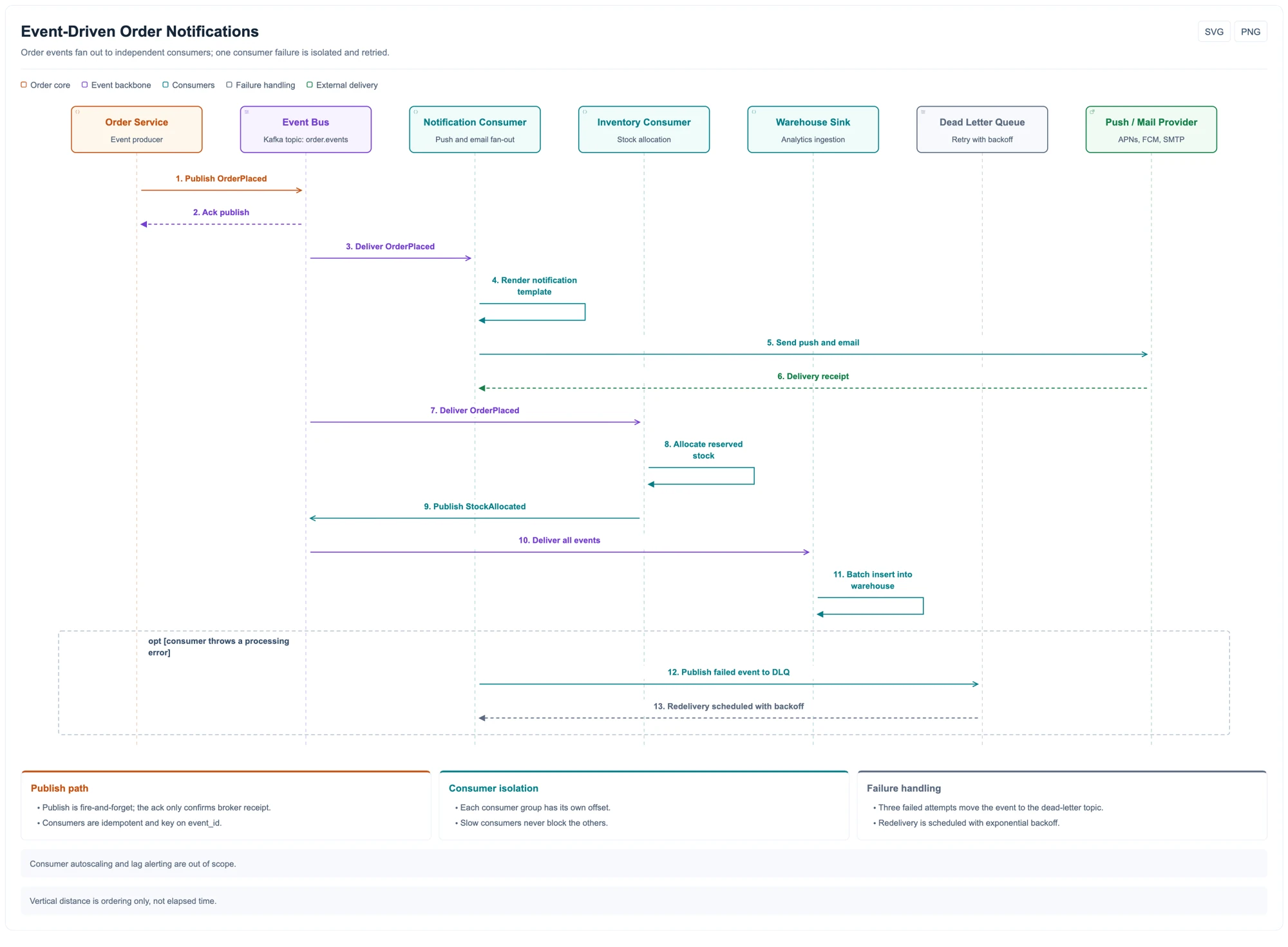 Event-driven notifications |
 How MCP reaches the canvas |
 Release: parallel tasks |
 Multi-region rollout |
Click any diagram for the full-size version.
How it works
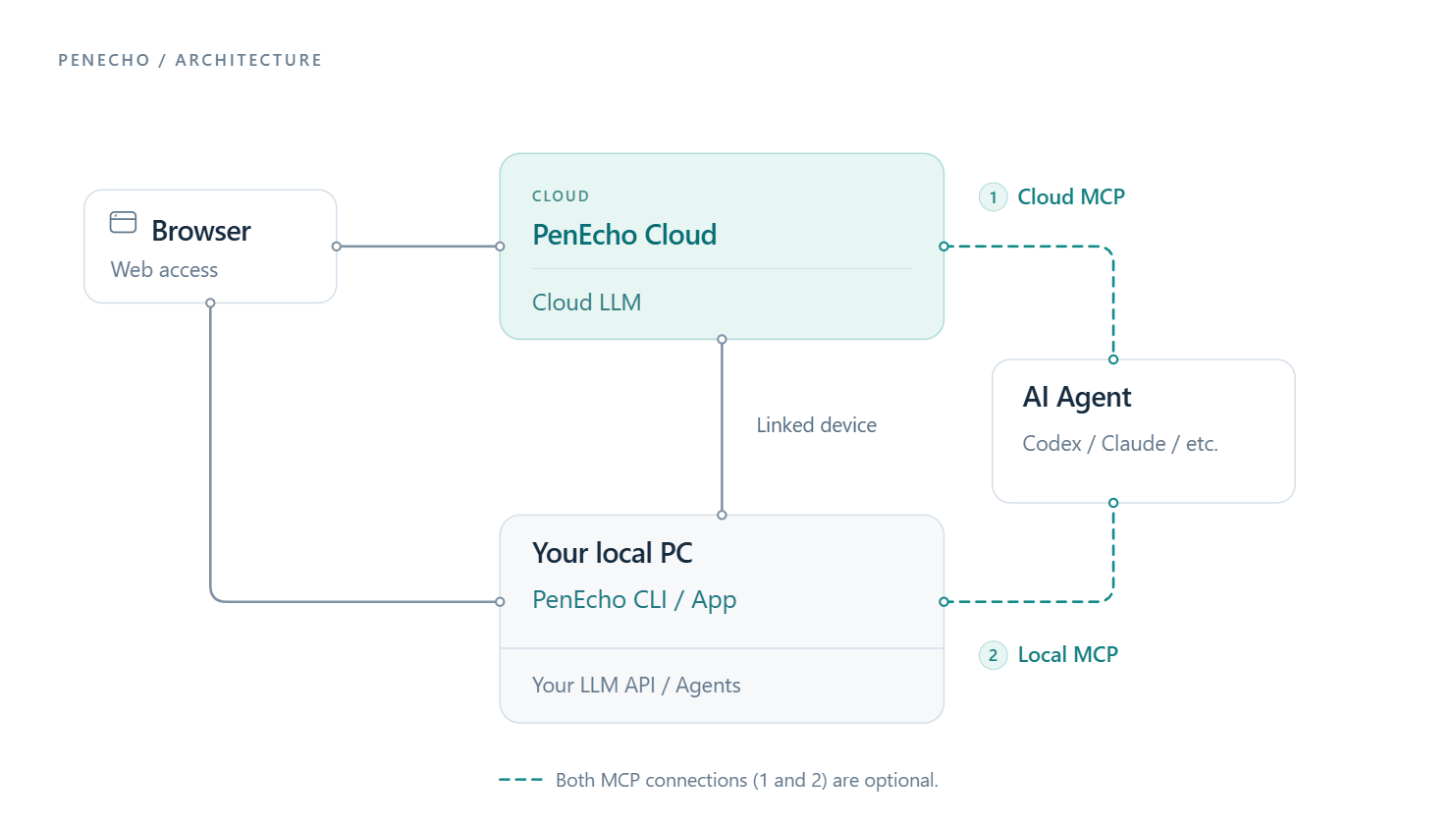
- On your computer — the desktop app or CLI serves the canvas and uses your own model API or agent CLI.
- In the cloud — penecho.ai adds hosted models, synced projects and favorites, and can reach your linked computer.
- Your agent — connects through Local or Cloud MCP. Both are optional.
Details: architecture notes.
Choose your AI
| Connection | Cost | Best for |
|---|---|---|
| PenEcho models — sign in, pick a model | Account credits | Getting started, no keys |
| Your model API — OpenAI- or Anthropic-compatible | Your provider | Full control of model and cost |
| Your CLI — Codex, Claude Code or Kimi, signed in | Your plan | Reusing a subscription you have |
Which model and effort to pick: recommended models (updated with each release).
Recommended models
These recommendations balance answer quality against the latency of PenEcho's real canvas workload, based on current hands-on testing; actual response time varies with the provider, canvas complexity, and reasoning behavior.
| Model | Effort | Notes | Recommended use |
|---|---|---|---|
Claude Opus 4.8 / 5.0 (claude-opus-4-8 / claude-opus-5-0) |
medium |
Strong quality with a better latency balance | Everyday canvas work |
Claude Opus 4.8 / 5.0 (claude-opus-4-8 / claude-opus-5-0) |
high |
Higher reasoning quality, longer and more variable waits | Complex handwriting, mathematics, diagrams, or layout |
Fable 5 (claude-fable-5 or fable) |
medium |
Often around half the response time of gpt-5.6-sol at xhigh |
Fast, high-quality general use |
Kimi K3 (kimi-k3) |
medium |
Very good quality; medium keeps the balance practical |
Recommended Kimi default |
gpt-5.6-terra |
low to high |
Surprisingly strong and responsive | Flexible quality and latency targets |
gpt-5.6-luna |
xhigh |
Very good canvas results with strong speed | Quality-first, still responsive |
gpt-5.6-sol |
high |
Good enough for most requests, more responsive than xhigh |
Default when responsiveness matters |
gpt-5.6-sol |
xhigh |
Very good but slower and more variable | Difficult canvas tasks |
deepseek-v4-flash-vision-exp |
medium |
Good | Vision-capable work through the DeepSeek API |
glm-5.3-flash |
medium |
Good | Fast work through the GLM Anthropic-compatible API |
What's new in 1.4.0
- Smart Assist with PenEchoLLM: context-aware actions for handwriting, text and images, ranked by PenEchoLLM, with quick answers, visual creation and follow-up questions.
- Lasso AI: circle any part of the canvas to solve, visualize, animate or organize just the selected content.
- Notes & Cards: turn canvas content into reusable notes and knowledge cards; browse, search and bring them into other canvases.
- Widget refinement: refine results through written feedback and contextual actions, with clearer controls and better content fitting.
- Canvas polish: improved pen gestures, stroke deletion, navigation and collaboration with Agent and MCP.
Watch the 1.4 tour → · Full changelog →
Support PenEcho
Help keep PenEcho's open-source canvas improving. Your support funds development, bug fixes, cross-platform testing, accessibility, and documentation.

Choose Buy Me a Coffee for a quick thank-you, or GitHub Sponsors for monthly or one-time support. Contributions support open-source maintenance; they do not purchase a commercial license, dedicated support, or guaranteed features.
Community
| Discord | Discussions | Issues | Contributing |
|---|---|---|---|
| Chat with the team | Ideas and questions | Report a bug | Run npm run check first |
Licensed under AGPL-3.0-only; commercial licence available. Trademark policy · Contributor agreement.
Diagram renderers adapt SVG and geometry helpers from Archify by tt-a1i (MIT). See NOTICE.