hermes-android
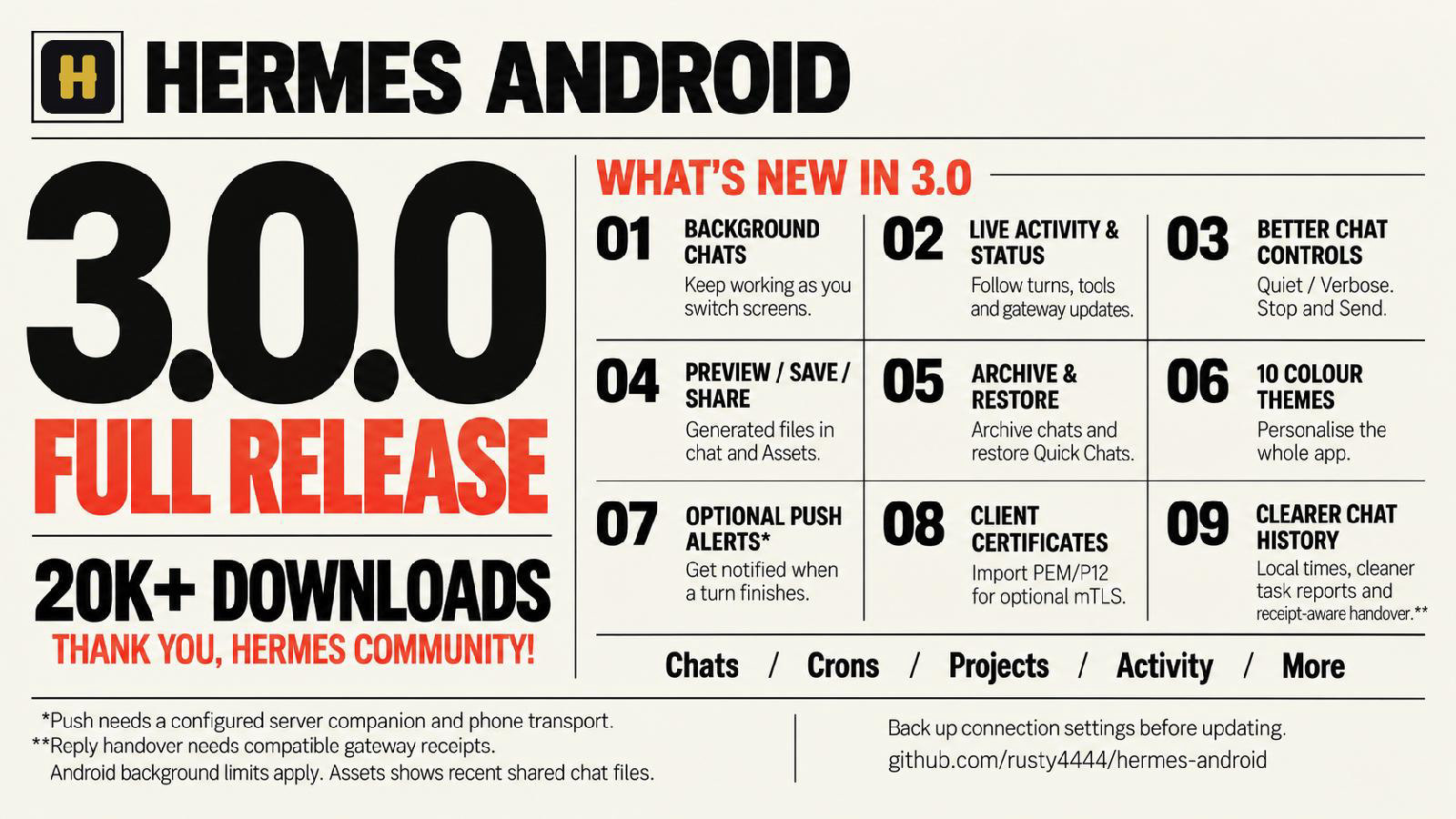
Android client for Hermes Agent — chat with your Hermes sessions from a phone or tablet over local Wi-Fi or a private Tailscale network.
Screenshots
Ten fresh Android emulator captures, each using a different colour palette. These show the production-signed RC3 UI retained in 3.0.0, with illustrative demo conversations and files rather than private account data. The live-work example uses a local test gateway, not a model response. See capture details.
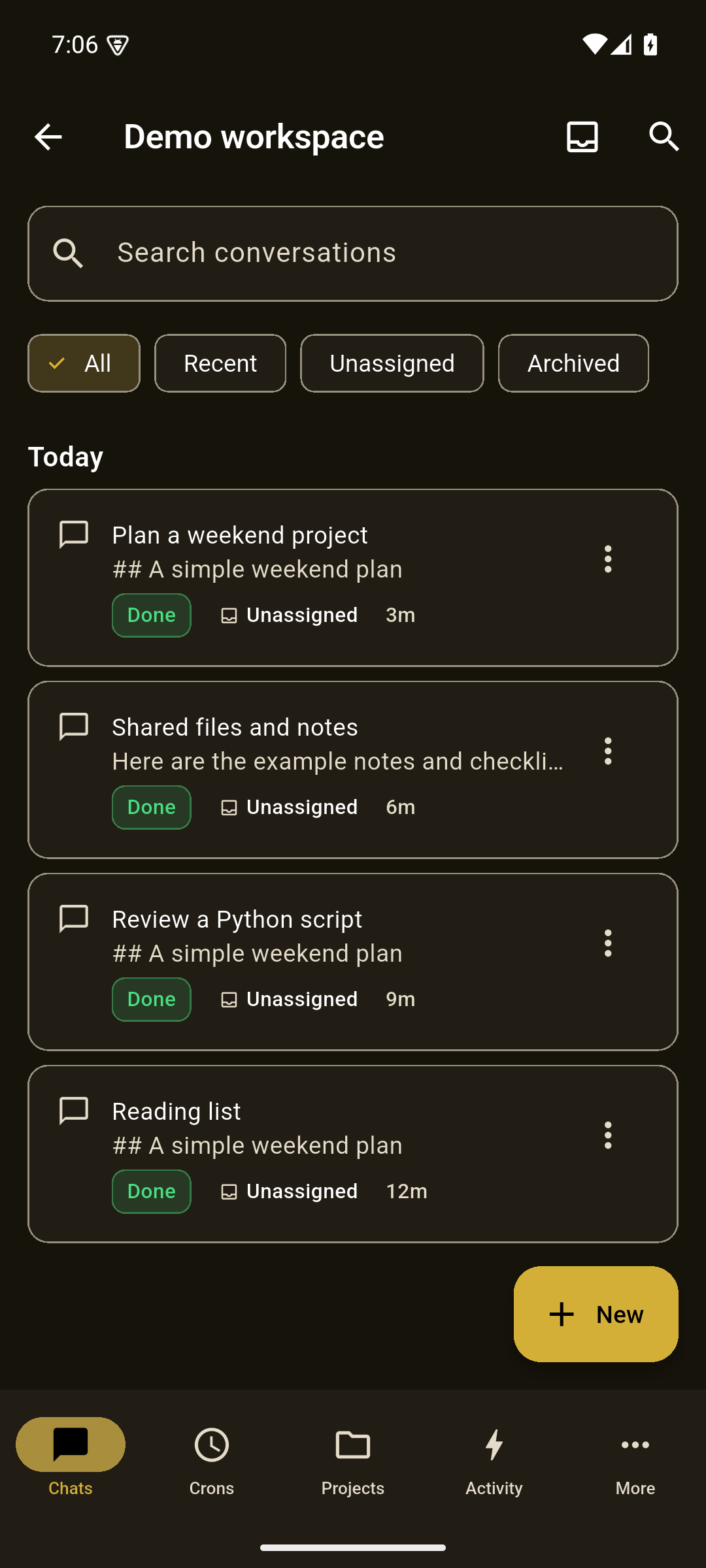 Chats · Gold · dark |
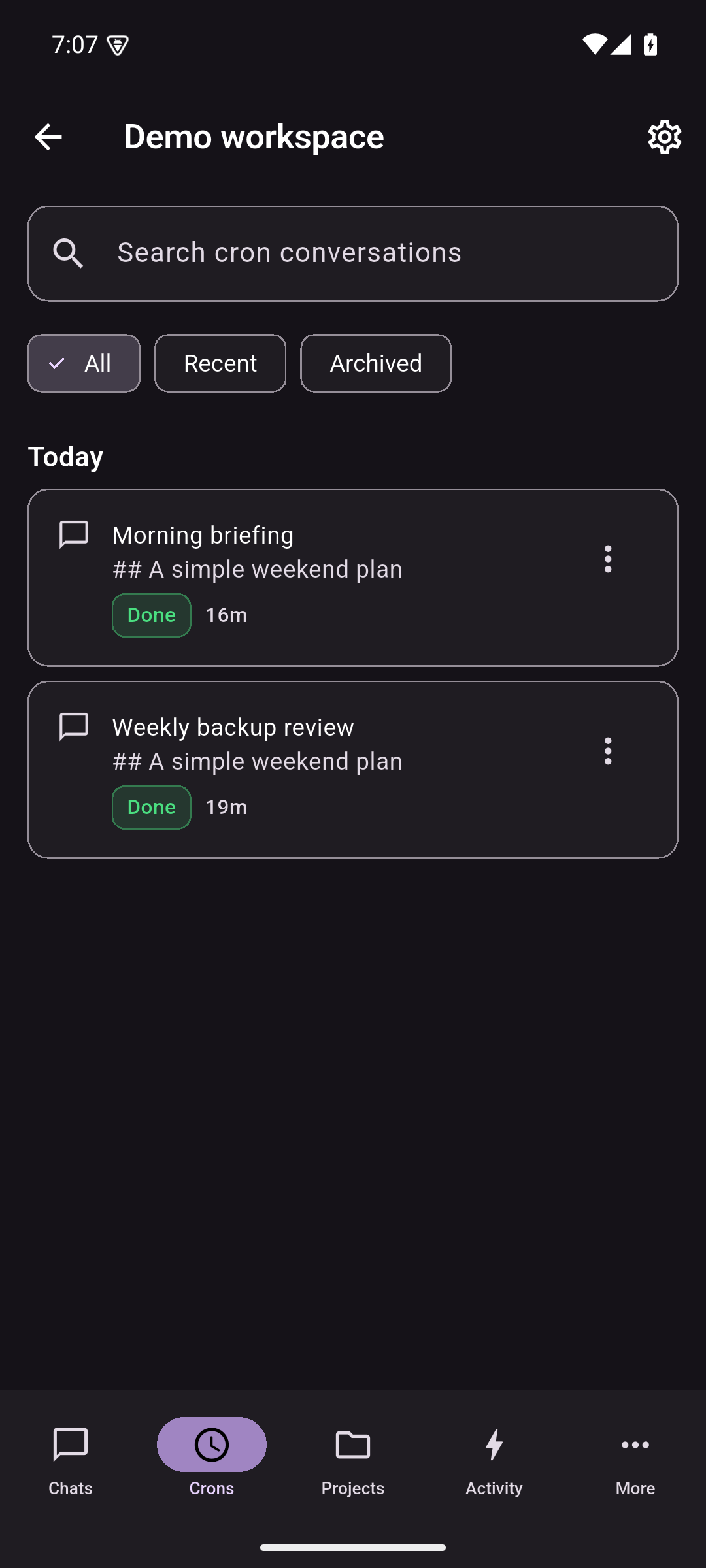 Crons · Purple · dark |
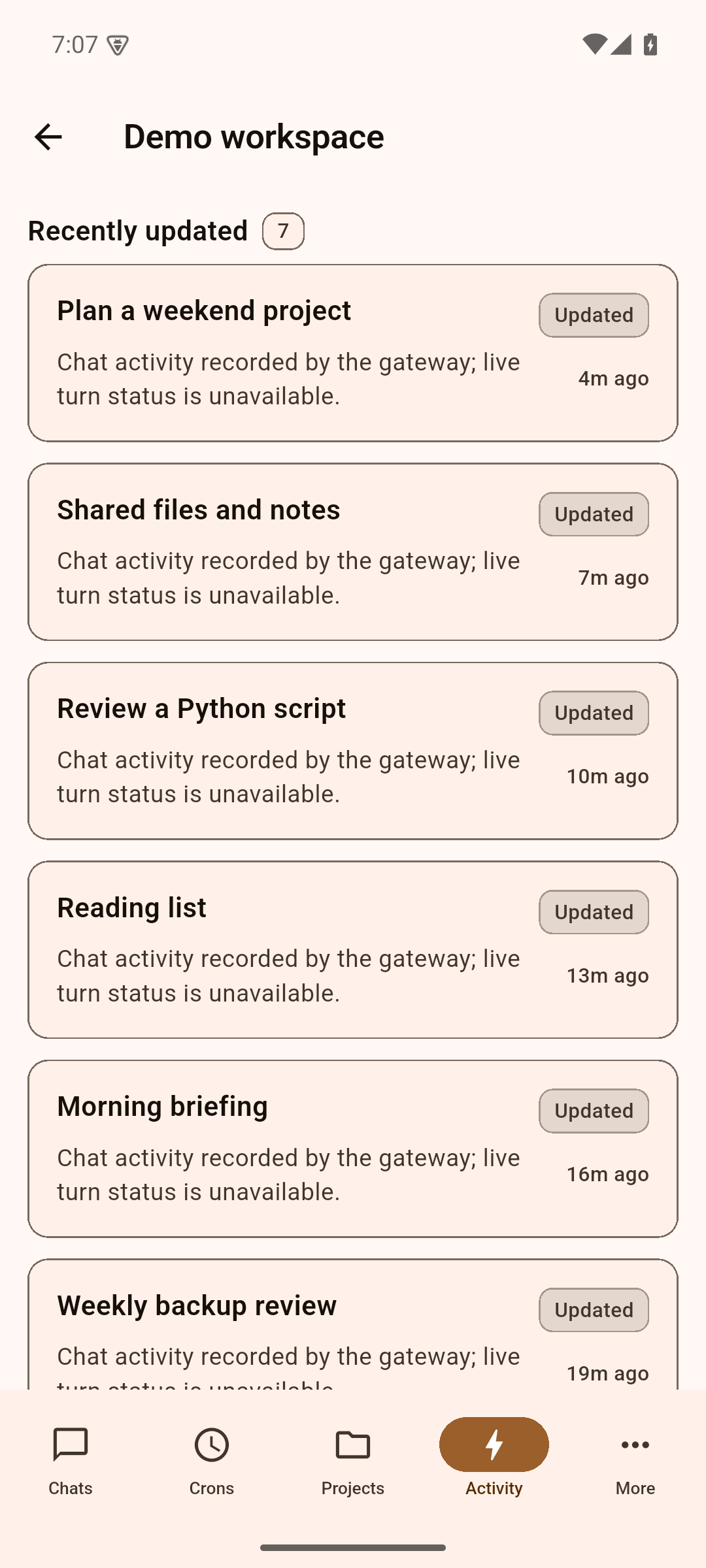 Activity · Orange · light |
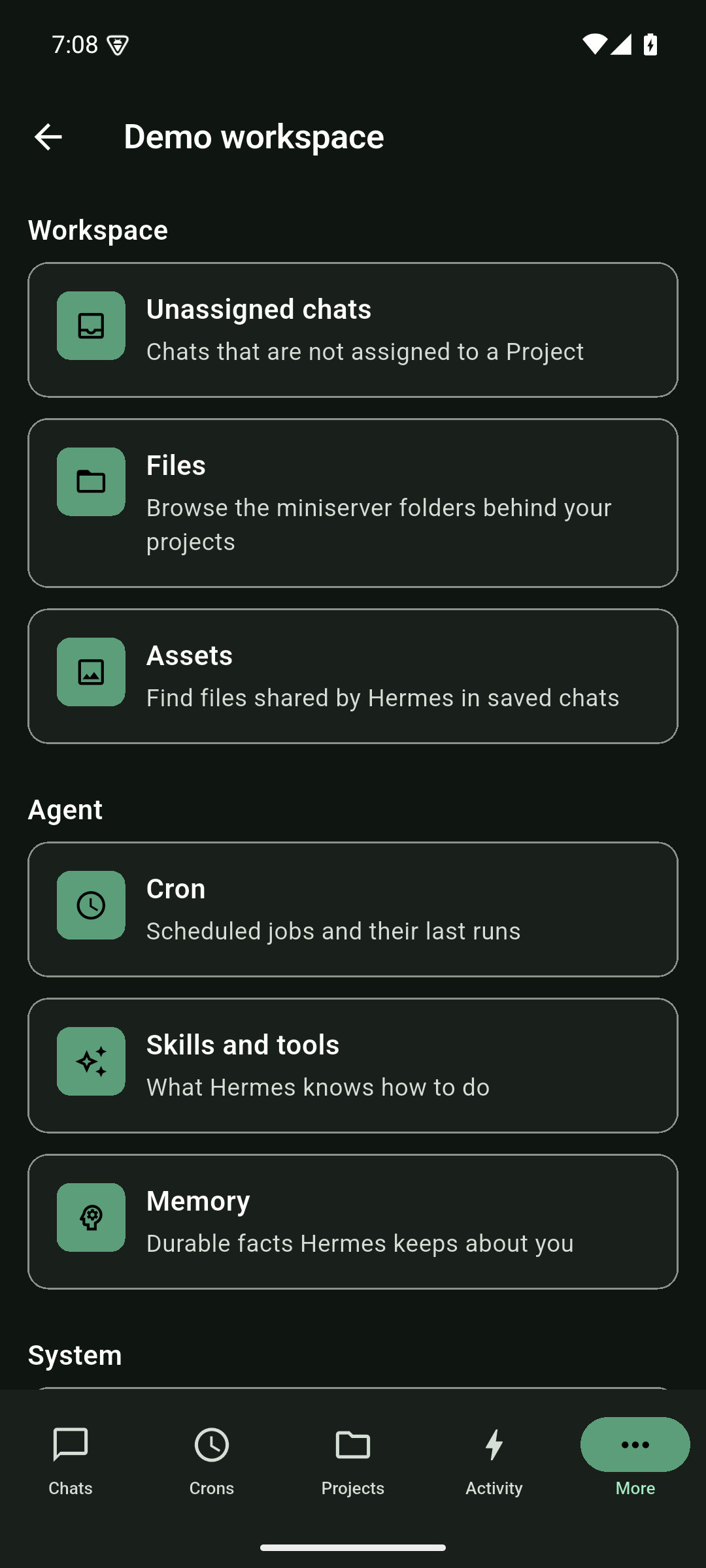 More · Green · dark |
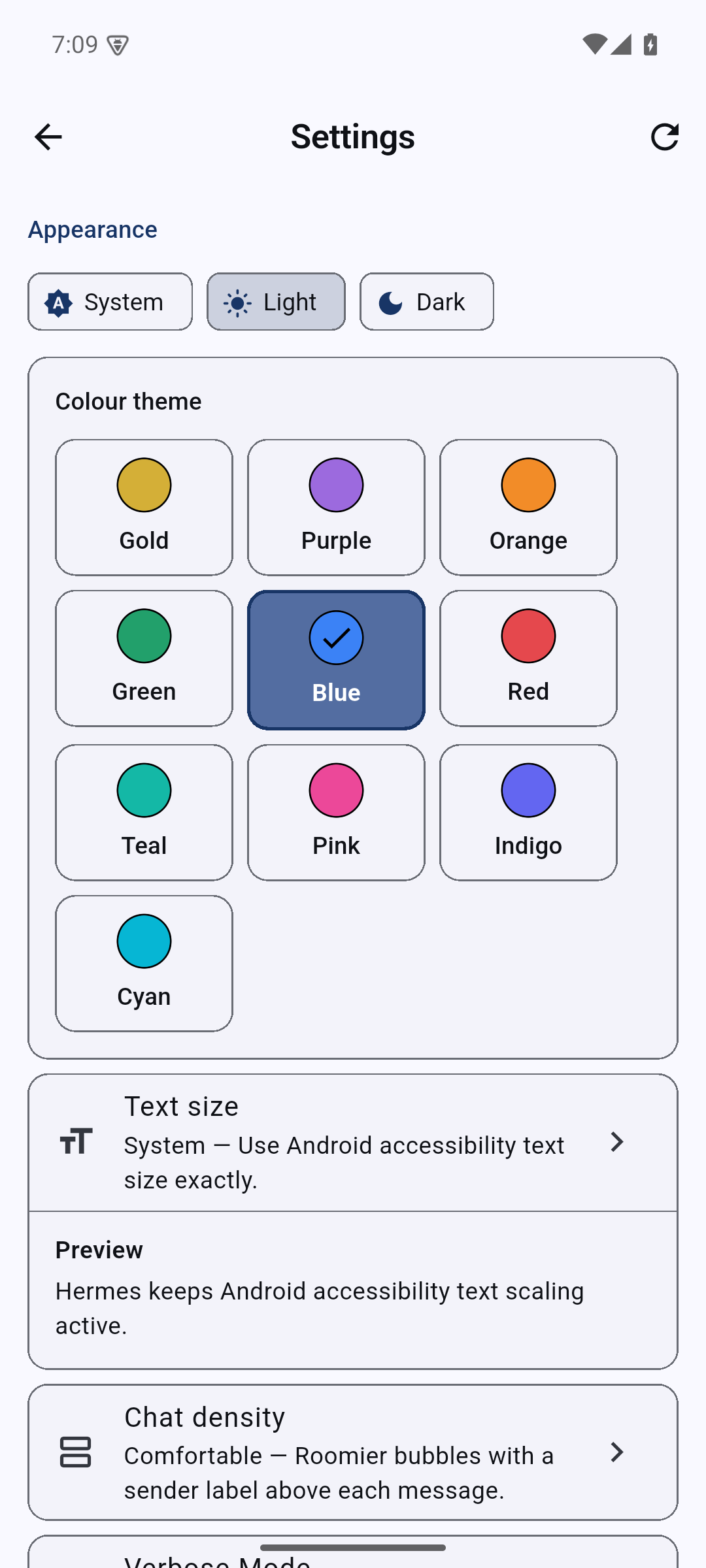 Settings · Blue · light |
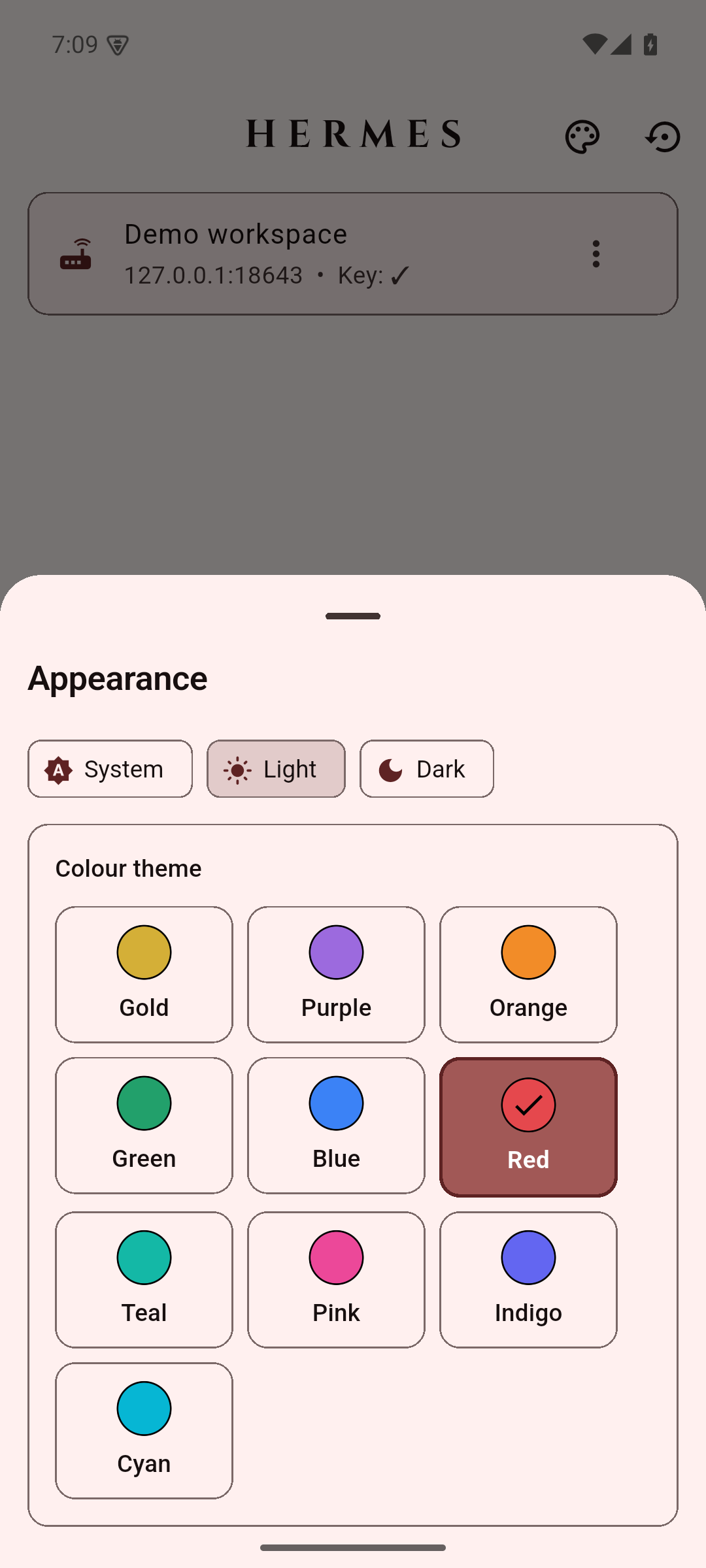 Appearance · Red · light |
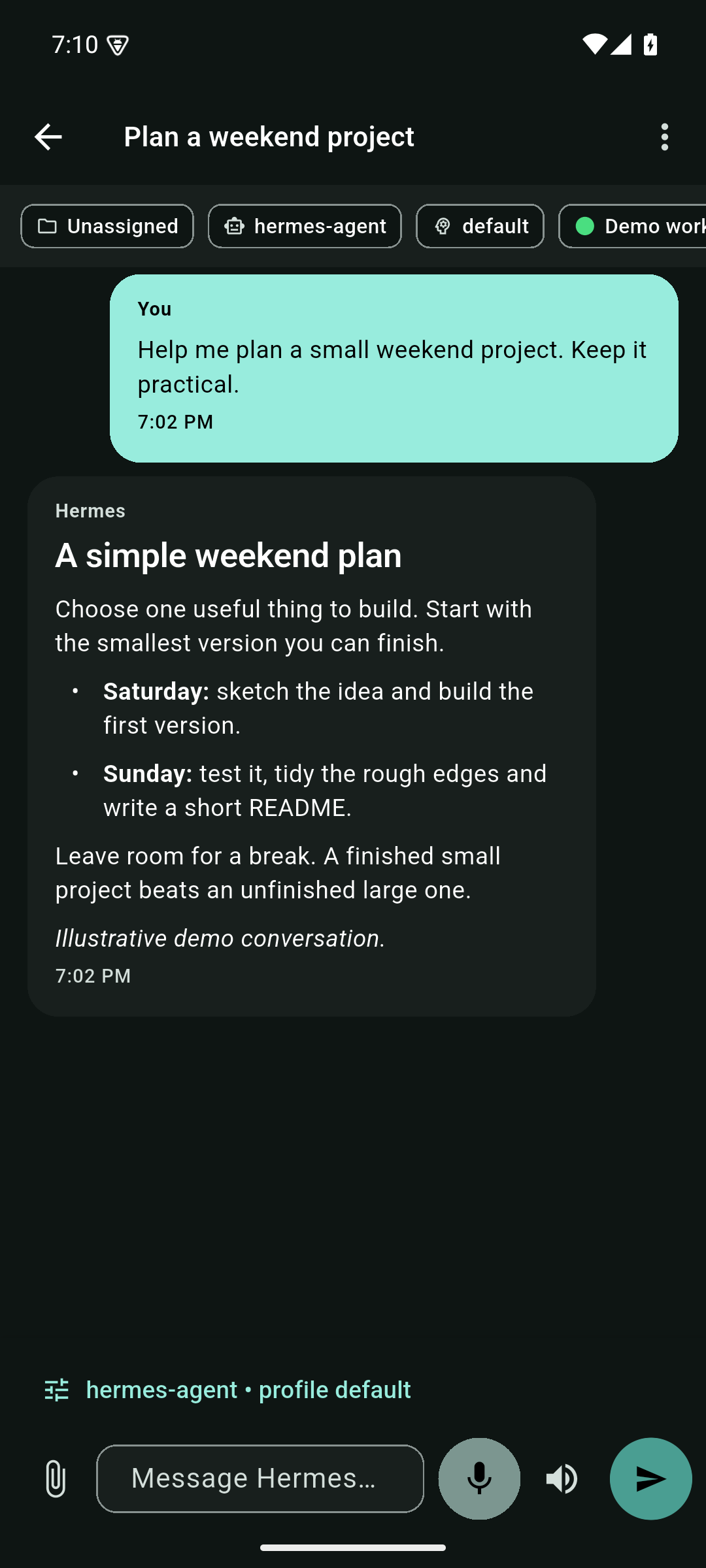 Conversation · Teal · dark |
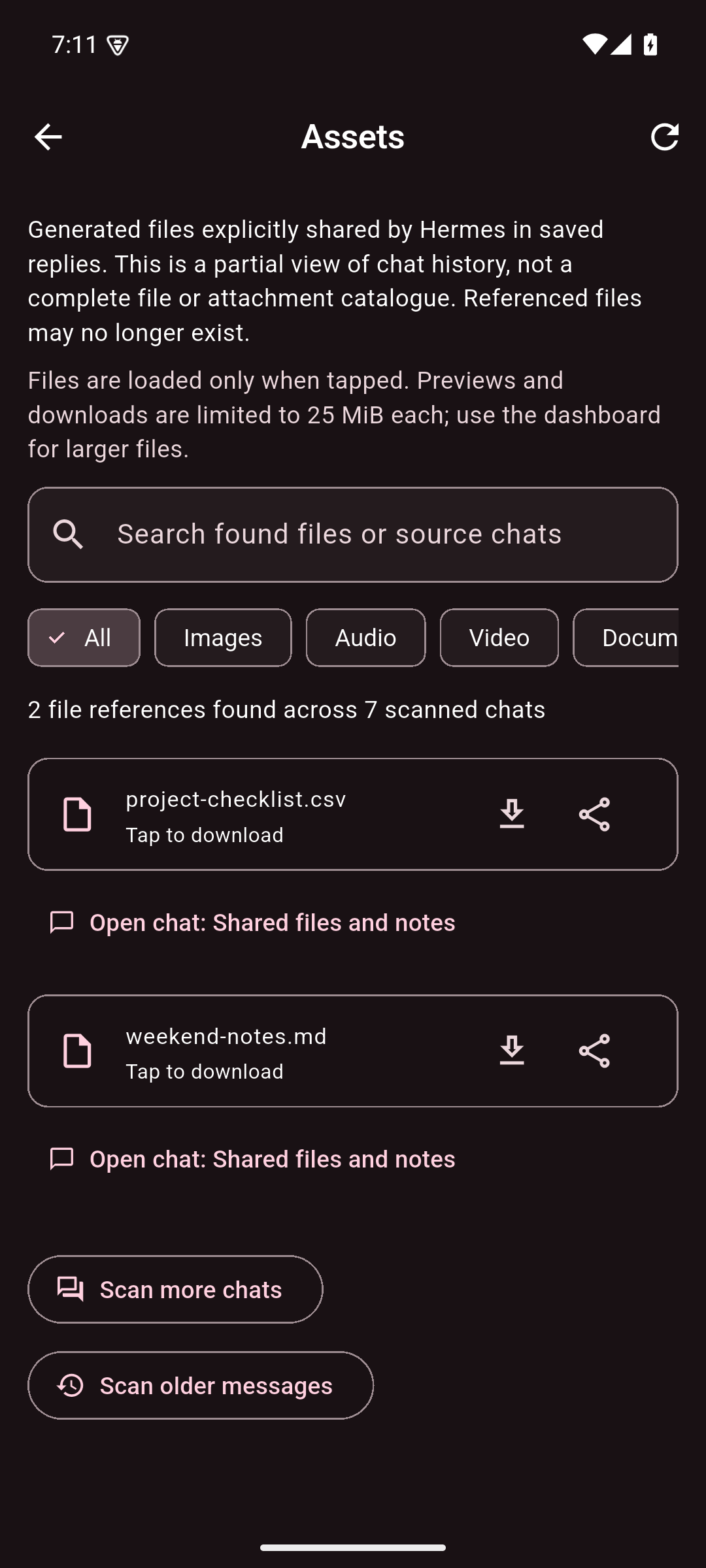 Assets · Pink · dark |
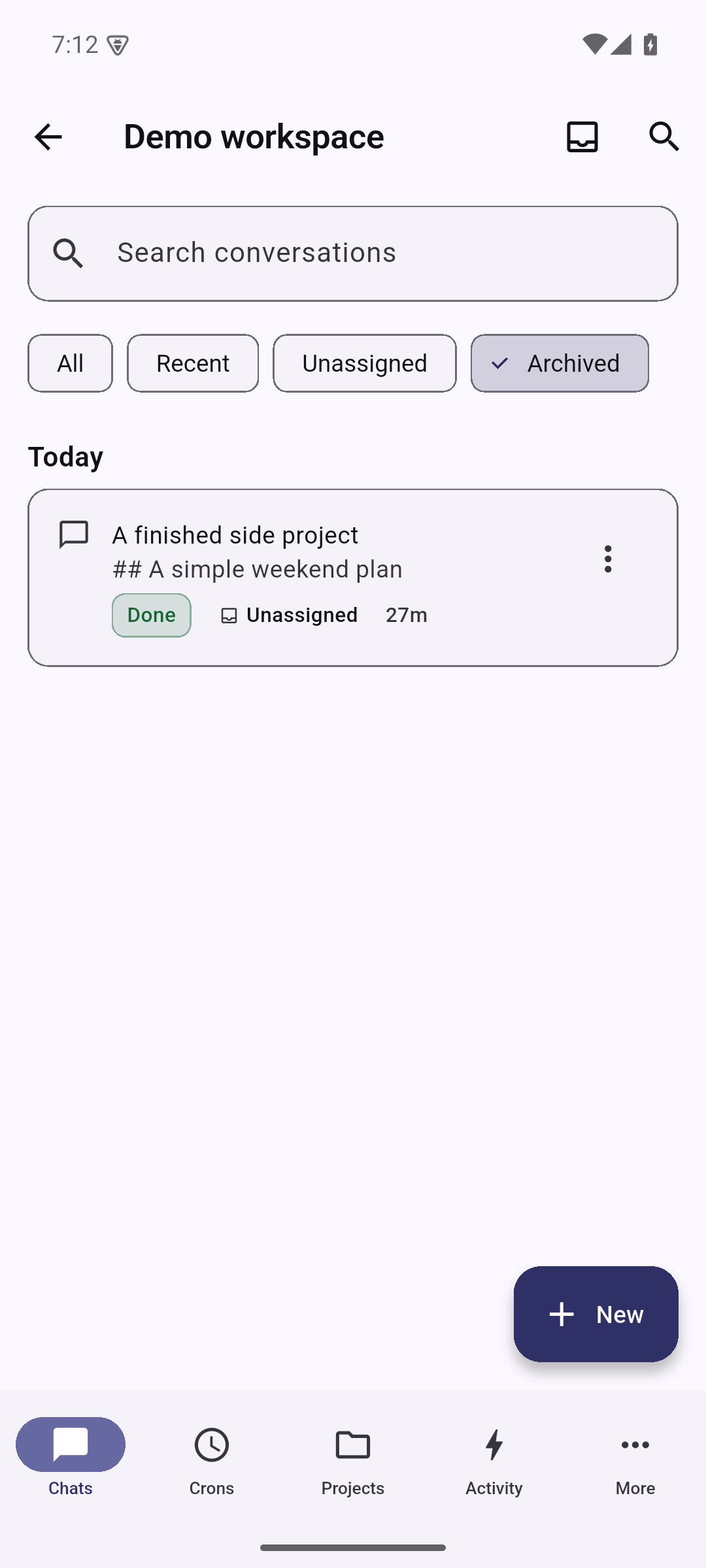 Archived chats · Indigo · light |
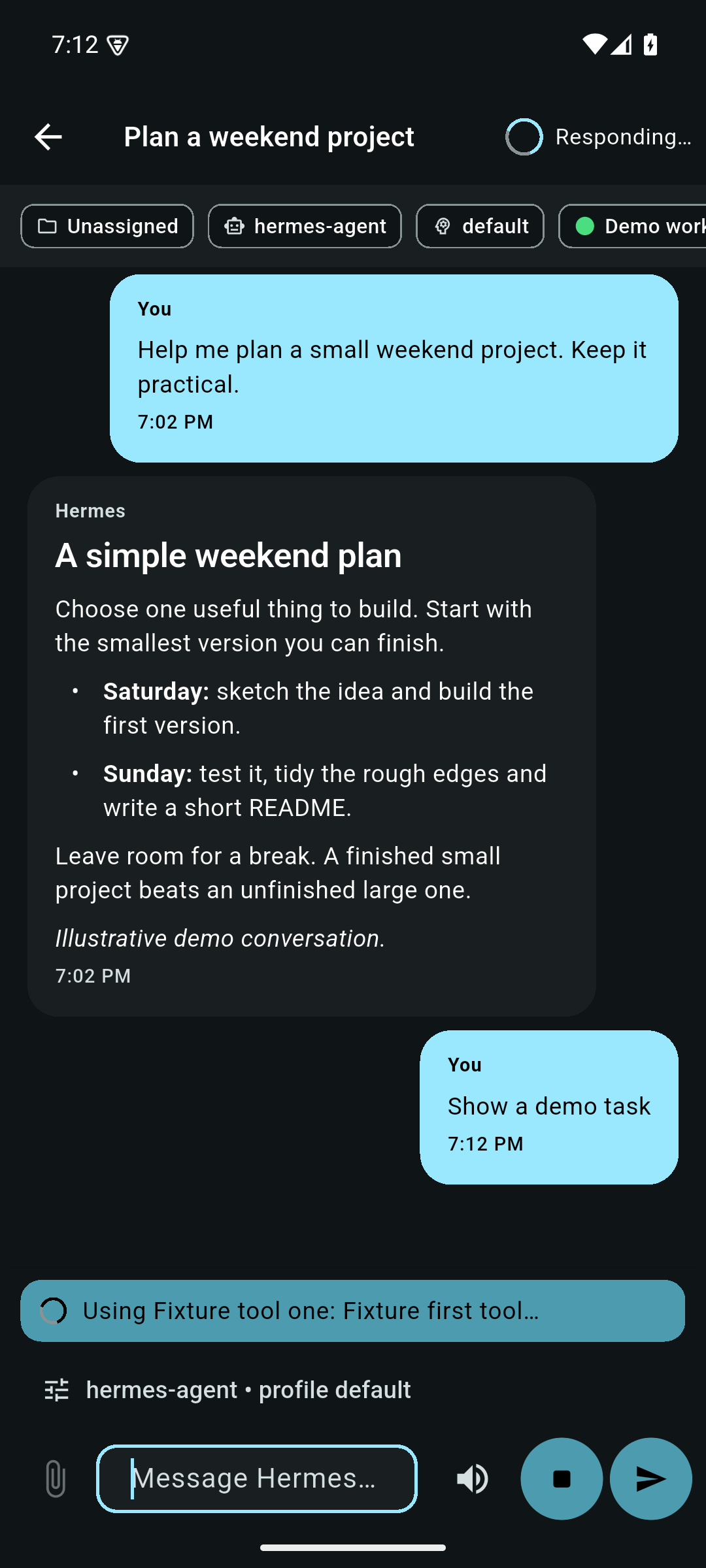 Live work and Stop/Send · Cyan · dark |
v2.0.0 merges the community Remote Gateway edition contributed by @CristianGCiocoi, with review and testing from @AI-Guru and @grunjol. The merge brings a unified Desktop Gateway JSON-RPC transport, per-chat model selection, multi-attachment uploads, durable turn recovery, voice dictation, and a comprehensive test suite. See CHANGELOG.md for the full list and the merge PR thread for the community discussion.
Current release
3.0.0 (base build 3003) is the stable release, based on the RC3 application code. It uses the existing production package, com.hermesagent.hermes_android, and release signer. Export an encrypted configuration backup before updating; 2.1.33 and all 3.0 RCs can upgrade in place with the matching APK.
| Download | Device | Version code |
|---|---|---|
| ARM64 APK | Most current Android phones/tablets | 30032 |
| ARMv7 APK | Older 32-bit ARM devices | 30031 |
| x86_64 APK | x86_64 Android devices/emulators | 30033 |
Release and checksums · All changes since 2.1.33 · Full changelog
Debug builds use the separate com.hermesagent.hermes_android.dev package and Android debug certificate. Older production APKs have lower version codes; downgrading can require uninstalling and restoring a backup.
Before updating
- Updating the APK does not install or configure Hermes host software or the optional mobile-push server companion.
- Quiet mode requires completion metadata for each reply. If an older gateway's saved answers are missing in quiet mode, enable Verbose Mode. Saved/live duplicate handover also needs the gateway's optional complete
persisted_turnreceipt and fresh history; older gateways can retain both sources. - Assets is partial discovery of shared files, not a complete attachment or filesystem catalogue. Downloads are limited to 25 MiB per file.
- Protect encrypted backups and their passwords. Backups can contain connection secrets and imported client private keys. See the upgrade notes and compatibility limits.
Update checks
The app checks GitHub Releases on ordinary launches. An answered check limits requests to once every 12 hours; offline attempts may retry on the next launch. The dialog offers a newer build but does not download or install it. Later asks again on the next launch; Skip this version stays quiet until another version appears. Shares and Quick Chat shortcuts are not interrupted. In Settings → About, use Check for updates or disable Check for updates on launch. Backups include these choices, not HTTP response caches.
Background notifications: server setup required
Background push requires the paired mobile-push server companion, installed and enabled separately for the saved connection's Hermes profile. Updating the Android APK alone does not install it, and the phone's Refresh / retry only rechecks availability—it cannot install server software.
The server operator must copy server/mobile-push into the profile's plugins,
generate a private VAPID key, authorise the verified dashboard login in the
companion's policy, and enable both the plugin and policy. Current Hermes plugin
enablement prepares its declared Python dependencies through package management.
Activate it in the dashboard and the gateway/turn processes that load its hooks
and sender worker: use supported live activation/reload, or restart affected
processes after draining active work when a new managed generation is selected.
Current host support is limited to the dashboard's launch profile in trusted
in-process mode; secondary-profile hosts cannot forward the required verified
login. Verify both the API and worker are active. Follow the
server installation runbook,
then enable Settings → Background notifications on the phone and grant Android
notification permission. See the phone setup guide.
Built-in Google-backed transport needs working Google Play Services on the phone, but no Firebase project, Firebase credentials or separate distributor app. An external UnifiedPush distributor is an optional phone transport, not the server companion; Google-free devices need that alternative. Neither transport removes the server prerequisite or guarantees background delivery.
Navigation in 3.0.0
The bottom bar is Chats → Crons → Projects → Activity → More. Chats is the default screen; the separate Home tab has been removed.
- Chats lists human conversations with search and All, Recent, Unassigned and Archived filters. A compact Needs you / Running now section appears above the list only when the device has observed relevant work. Use Chats → Archived for archived conversations, including expired Quick Chats; the duplicate archive entry has been removed from More.
- Crons lists conversations produced by scheduled jobs, including older runs and runs whose job has since been deleted. It has its own search and All, Recent and Archived filters. Cron conversations do not appear in Chats. The settings button opens the existing cron-job manager; More → Cron remains available too. Script-only jobs without a conversation are still inspected through the job manager, not invented as chat sessions.
- Projects, Activity and More retain their existing roles.
Both conversation browsers show a small first preview while history loads. Older history is not silently cut off after 2,000 rows. Archived history uses the saved dashboard connection and profile; a failed read keeps available rows and offers Retry rather than claiming the archive is empty.
Chat guidance and shared files
- Send while Hermes is working: the composer keeps separate Stop and Send buttons. Remote Gateway sends text as guidance for the current run without interrupting it. Legacy REST uses an explicitly labelled Stop and send action instead. See Sending while Hermes is working.
- More → Assets browses generated files explicitly shared in saved Hermes replies, plus recognised successful image-generation results. The same file cards appear in the chat timeline, including filesystem Markdown links. Tap to preview images, PDF pages or text; use Download to choose a save destination, or Share to send a file to another app. Other binary formats show file information and remain downloadable. History scans are incremental and downloads are lazy, with a 25 MiB per-file limit. This is not a complete attachment or filesystem catalogue. See Browsing chat assets.
Remote Gateway edition highlights
- One Desktop Gateway JSON-RPC session for text, images, and files.
- Copy/select text, Read aloud, Stop, Edit and resend, Regenerate, and export.
- Up to 10 Remote Gateway attachments per draft, capped at 64 MiB total; generic files retain the 16 MiB per-file limit.
- File-backed app cache, metadata-sanitized JPEG/PNG/WebP images, ordered sequential upload, accessible reordering, remove, and individual retry. Sanitized JPEG inputs remain JPEG; PNG and WebP inputs are emitted as PNG.
- Legacy REST remains fail-closed to one image and does not expose multi-select.
- Per-chat model and thinking effort without changing the profile default.
- Search, Rename, Branch, and Delete for remote conversations.
- Rename a chat from its Chats row's action menu or the open chat's top-right menu. The title saves to Hermes and appears on other devices after refresh; REST-only connections also support Rename. See Renaming chats.
- Move conversations into a Project or between Projects from the Chats action menu. Destination Projects need a server folder. See Moving chats.
- Pin and unpin chats on this device from the Chats action menu. Local pins stay above the dated chat list, including when a chat has moved past the first page; they do not change Hermes's server-side pinned flag or another device's ordering. Pins are saved per connection and included in app backups.
- New chat inside a Project uses that Project's server folder as the session working directory before the first prompt, so the chat appears in the Project on refresh. Project card chat counts refresh when you return from a Project or reselect the Projects tab. A Project without a folder cannot file chats on stock Hermes: add a folder first rather than opening an unassigned chat. Quick chat remains deliberately unfiled.
- Native approval, sudo/secret, clarification, reasoning, tool activity, notifications, background results, reviews, and subagent status. Expanded tool cards show a time for each call, and a collapsed card shows the latest known activity. Live events use the phone's observation time; persisted results use the server's recorded time. Unknown times are not guessed.
- Tap a delegated task to inspect its recorded messages, tool arguments/results and exposed reasoning in a read-only sheet or dialog above the parent chat. Missing durable references show an unavailable explanation; omitted compression segments show Partial history. See Task timelines.
- Follow text, exposed reasoning and consecutive tool groups in receipt order across REST/SSE and Remote Gateway replies. Expanding a card keeps that choice while its contents update. Tool sections start collapsed on each chat visit, showing only the current call (or the latest call when none are running). Tap to view the full group; leaving and reopening the chat resets that choice. Enable Verbose mode to see these sections; they start collapsed.
- Activity shows app-observed Remote Gateway turns: waiting for input, running, failed and completed, plus an explicit unconfirmed state during recovery or when an outcome cannot be proven. Recent turn metadata survives app restarts; no prompt, response, title or approval content is stored there. It also lists gateway chats updated within seven days, including REST-only connections and chats started elsewhere. These are labelled Updated, not assumed to be running or completed. The tab refreshes while visible, pauses beneath other tabs/chat routes and in the background, supports pull-to-refresh and opens the relevant chat. A bounded gateway scan is labelled partially loaded rather than claiming no activity or an exhaustive count. This is not a complete server audit log: live outcomes from other clients and historic per-turn outcomes predating this build are unavailable.
- Persistent reconnect/session resume and defensive retry handling.
- App-owned stock Gateway turns outlive an open chat route. Reopen a chat to reattach, including while other chats run. Pending markers survive process restart; the app checks server history without resubmitting uncertain prompts.
- Background protection uses one foreground service with a required disclosure and quiet per-chat ongoing entries. Notification taps open the relevant chat; permission, preferences and Android lifecycle restrictions still apply.
- Background notifications can use built-in Google-backed delivery without a separate app or manual push details. External UnifiedPush remains available. Enable the separate server companion and opt in on the phone; server policy controls which current and future chats are eligible. See Background work and push.
Gateway transport compatibility
Stock Hermes Agent releases do not advertise the experimental
capabilities.turn_recovery v2 contract in gateway.ready. The app uses the
stock Desktop Gateway transport for those connections. Its app-owned session
keeps user-started turns across chat navigation and reconciles persisted history
after reconnect or process restart. It does not resubmit an uncertain prompt.
After an outage, the app keeps recovery pending until it can verify the server's
state. A proven-idle turn with no recorded terminal outcome becomes inactive
with an outcome-unknown status. It does not generate a completion alert.
In Verbose Mode, saved history and retained received output remain independent
sources. A complete gateway persisted_turn receipt plus fresh history containing
all addressed rows can prove the handover to saved content and remove the covered
live copy. Matching text, an admission baseline or idle status cannot prove it.
Older gateways or lagging history may retain repetition across sources. Received
output is bounded and temporary within the app/connection session, not an offline
transcript archive. See Chat presentation.
The experimental v2 path adds a separate durable exactly-once recovery contract when the gateway advertises support. A legacy-transport capability notice refers to that contract; it does not mean stock chat reattachment is unavailable. Neither transport guarantees an Android background connection or delivery after Force stop.
See CHANGELOG.md for the complete release history and docs/HERMESAPK_DEVELOPMENT_LOG.md for the sanitized implementation and validation record.
What's new in v3.0.0
These highlights cover the whole 2.1.33 → 3.0.0 change set, not just RC3.
- Ten full-app colour themes with independent light/dark/system appearance, live updates and backup/restore. See Appearance.
- Default Chats → Crons → Projects → Activity → More navigation, separate scheduled conversations, verified Archive/Unarchive and progressive older-history loading.
- Completed-reply quiet mode, collapsed Verbose details, neutral internal-report cards, message-level local times and a responding bar for tools, reasoning and gateway status.
- Separate Stop and Send controls during work: Remote Gateway sends text guidance; REST uses an explicit Stop and send action. Newer draft edits survive delayed acknowledgements.
- More → Assets, broader generated-file discovery, image/PDF/text previews, direct Android save/download and separate Share. Web links open in the external browser on tap.
- Optional per-connection PEM/P12 client certificates for mTLS, portable encrypted backups and improved mobile certificate picking/password handling.
- Simpler opt-in background notifications, automatic authorised-chat scope and an optional built-in Google-backed phone transport. The separate server companion is still required.
- Stronger saved/live receipt handover, draft/identity/recovery ownership, Activity coverage, account-safe notifications and public-only exports. Offline licences and exact-source/relink release materials accompany the APKs.
Read the detailed release notes for all changes, prerequisites, limits and contributor credits. Existing Memory facts, local pins, Project moves, voice and task inspection remain available.
What's new in v2.1.33
- More → Memory opens saved facts from the connected profile's
USER.md; Agent notes opensMEMORY.md. Long facts support selectable full reads. The view does not enumerate external providers such as MemPalace. - Delegated-task bubbles keep a compact goal and status, with full details in the task timeline.
- Reasoning starts collapsed on a new visit and retains manual choices during updates and scrolling. Version 3.0 extends collapsed defaults to all Verbose details.
What's new in v2.1.32
- Tool sections start collapsed when opening or returning to a chat, with a preview of the current or latest call.
- Manual expansion survives incoming events and scrolling during the visit, then resets on a true close/reopen. Version 3.0 applies this policy to every expandable detail section.
Features
- Hermes chat on Android — browse sessions, create new chats, and send prompts to your Hermes Agent.
- Streaming responses: Remote Gateway chat uses JSON-RPC over WebSocket;
REST chat uses
POST /v1/chat/completionswith SSE. Live text, exposed reasoning and tool activity keep their receipt order without changing request history. - Messaging-style UI: ten colour palettes, independent dark/light/system appearance, Markdown, local message times and responsive phone/tablet layouts.
- Hermes branding: the gold/black default remains available alongside nine other full-app palettes. Chat surfaces, controls, code blocks and navigation follow the selected theme.
- Gateway API integration — sessions and chat run through the Hermes Gateway API Server, normally on port
8642, with HTTP and HTTPS endpoints supported. Reverse-proxy deployments can set a gateway path prefix that is applied before/apiand/v1routes. - Dashboard integrations: Memory, Cron Jobs, Skills, Settings and Remote Gateway chat use the authenticated Hermes dashboard (default port
9119, configurable per connection). Use the built-in password login or a trusted reverse proxy. Current Hermes requires an authentication provider before the dashboard can bind to a non-loopback address;--insecureno longer bypasses this requirement. - Model settings — view and change the configured Hermes model where the dashboard exposes model settings.
- Cron management — list, trigger, pause/resume, create, edit, and delete scheduled Hermes cron jobs.
- Skills browser — view available Hermes skills with descriptions and trigger conditions.
- Memory viewer: More → Memory opens saved facts about you from
USER.md, with a separate Agent notes tab forMEMORY.md. Reads follow the connection’s Hermes profile; long facts can be read in full. The view is read-only and does not enumerate external providers such as MemPalace. See Saved memory facts. - Verbose mode toggle — switch between conversation-only chat and retained reasoning, tools, tasks and metadata, all initially collapsed. Current work remains visible in the bottom status bar in either mode.
- Task inspection: read recorded delegated-task history without joining or controlling the child runtime. The viewer preserves the parent chat and draft.
- Background work: keep active stock Gateway turns above chat routes, review device-local battery/notification settings and opt in to separate UnifiedPush.
- Appearance: Gold, Purple, Orange, Green, Blue, Red, Teal, Pink, Indigo and Cyan, with separate Dark / Light / System controls.
- Keyboard handling — Enter inserts a new line; use the on-screen Send button to submit. The composer stays editable during setup and replies, so you can draft a follow-up without waiting. A failed submission restores its prompt only if you have not edited the cleared composer. FAB to scroll to bottom.
- Voice chat — microphone dictation sends recognised speech to Hermes, with optional text-to-speech replies.
Quick start
Prerequisites
- Android device or emulator (Android 8+).
- Hermes Agent installed on the host machine.
- Hermes Gateway API Server reachable from the Android device.
API_SERVER_KEYfrom the Hermes host environment (~/.hermes/.env).- Optional: Hermes dashboard reachable for Memory/Cron/Skills/Settings screens.
Hermes Agent docs: https://hermes-agent.nousresearch.com/docs
Install the APK
Download the latest APK from this repository's GitHub Releases page.
For most Android phones, install the ARM64 APK:
adb install -r app-arm64-v8a-release.apk
If sideloading directly on Android, enable Install unknown apps for your browser or file manager, then open the downloaded APK.
1. Start the Gateway API Server
The Android chat/session features connect to the Hermes Gateway API Server. It must bind to an address your phone can reach, not only 127.0.0.1.
Use your normal Hermes gateway/API-server startup command and confirm:
- host/IP is reachable from Android
- port is usually
8642 API_SERVER_KEYis available in~/.hermes/.env
2. Optional: start the dashboard for drawer features
Memory, Cron Jobs, Skills, and Settings use the Hermes dashboard API (default port 9119).
Configure a dashboard authentication provider before exposing it to your LAN or
tailnet. For password login, Hermes uses dashboard.basic_auth.username, a
scrypt dashboard.basic_auth.password_hash, the bundled basic auth plugin,
and a separate session-signing secret. Follow the current
Hermes documentation for setup;
keep passwords and signing secrets out of commands, chat and committed files.
Start the configured dashboard:
hermes dashboard --host 0.0.0.0 --port 9119 --no-open
Enter its username/password in the app's Dashboard / Proxy Settings dialog
(see Dashboard access). An existing
trusted reverse proxy can supply identity instead. A public /api/status
response proves reachability, not successful login: validate a protected route
after authenticating.
--host 0.0.0.0is required when connecting from another device. A localhost-only dashboard cannot be reached from Android.
3. Connect the app
Put the Android device and Hermes host on the same Wi-Fi/LAN (or connect via Tailscale — see below).
Find the Hermes host IP:
# macOS
ipconfig getifaddr en0

# Linux
hostname -I | awk '{print $1}'
Open the Hermes Android app.
Tap + to add a connection.
Enter:
- Label: any name, e.g.
Home - Host: the host IP, e.g.
192.168.1.50 - Port:
8642 - API Key:
API_SERVER_KEYfrom the Hermes machine
- Label: any name, e.g.
If your deployment is behind a reverse proxy path, expand Custom proxy and dashboard details and set the gateway/dashboard prefixes there. Do not put URL paths in the Host field; the Host field is just the scheme, hostname, and optional port.
Tap the saved connection to browse sessions.
Tap a session to start chatting, or create a new one.
4. Optional: configure dashboard access
The drawer screens (Memory, Cron Jobs, Skills, Settings) talk to the Hermes dashboard, which can run on a different port from the Gateway API Server and may be password-protected. Configure it per connection — either while adding the connection (expand Custom proxy and dashboard details in the Add Connection dialog) or afterwards:
- On the connections list, tap the ⋮ menu on a connection → Dashboard / Proxy Settings.
- Fill in:
- Gateway path prefix — optional reverse-proxy path before gateway
/apiand/v1routes, e.g./profile/peter. - Dashboard path prefix — optional reverse-proxy path before dashboard
/apiroutes, e.g./dashboard. - Dashboard behind proxy — enable this when the proxy injects dashboard authentication and the app should not fetch a dashboard SPA token or log in with username/password.
- Dashboard Port — leave blank to use the default (
9119for HTTP, or the same external port for HTTPS deployments), or set an explicit port if your dashboard is exposed elsewhere. - Username / Password — the dashboard's password-login credentials.
Leave both blank only when a trusted proxy supplies identity or for a
local loopback dashboard.
--insecureis not a remote-auth bypass. - Hermes profile — only when the dashboard is a machine-level one
(
hermes dashboard/hermes servewithout--isolated) that hosts several profiles. Hermes scopes each JSON-RPC call on that socket by aprofilefield in the request, and falls back to its own default profile when it is missing, so without this field chats can quietly land in the wrong profile. Use the profile name exactly as inhermes profile list, e.g.sol. Leave blank for an isolated per-profile dashboard.
- Gateway path prefix — optional reverse-proxy path before gateway
- Tap Save. The app validates the settings against the dashboard before storing them.
When credentials are set, the app authenticates via the dashboard's
/auth/password-login flow and reuses the returned session cookie — the same
mechanism the Hermes desktop client uses.
Connect remotely with Tailscale
Tailscale gives your phone and Hermes machine a private encrypted network, so you do not need to expose Hermes directly to the public internet.
Tailscale website: https://tailscale.com/
Install Tailscale on Android
- Install Tailscale for Android: https://tailscale.com/download/android
- Sign in with the same Tailscale account/tailnet used by your Hermes machine.
- Leave Tailscale connected while using the Hermes app.
Install Tailscale on the Hermes machine
Install Tailscale for your OS: https://tailscale.com/download
Examples:
# macOS with Homebrew
brew install --cask tailscale

# Debian/Ubuntu
curl -fsSL https://tailscale.com/install.sh | sh
sudo tailscale up
After the Hermes machine is connected, get its Tailscale address:
tailscale ip -4
You can also enable MagicDNS and use the machine name instead of the 100.x.y.z IP:
- MagicDNS docs: https://tailscale.com/kb/1081/magicdns
Connect the app over Tailscale
In the Android app connection dialog:
- Host: the Hermes machine Tailscale IP, e.g.
100.64.12.34, or its MagicDNS name - Port:
8642 - API Key:
API_SERVER_KEY
If using Memory/Cron/Skills/Settings remotely, keep the dashboard reachable on the same Tailscale host at port 9119.
Connect over HTTPS
For hosted/reverse-proxy deployments (e.g., Hugging Face Spaces, VPS with nginx/Caddy), enter the full HTTPS URL in the Host field:
https://your-hermes-host.example.com
If no port is included, the app uses port 443. If your HTTPS service uses a custom port, either include it in the URL (https://host.example.com:8443) or set the Port field to that value before connecting.
Leave the Port field blank and the app infers the scheme default — 443 for HTTPS, 8642 for HTTP. A value typed into Port is always used as-is, including 8642 over HTTPS (for example a tailscale serve endpoint that terminates TLS on the API-server port). A port inside the Host URL (https://host.example.com:8443) takes precedence over the Port field.
For HTTPS connections, dashboard drawer screens use the same external HTTPS port. For local HTTP/LAN connections, chat uses port 8642 and dashboard screens use port 9119.
Reverse-proxy paths
If your proxy exposes Hermes under URL paths, keep the Host field to the origin only and put paths in Custom proxy and dashboard details:
Host: https://your-hermes-host.example.com
Port: 443
Gateway path prefix: /profile/peter
Dashboard path prefix: /dashboard
Dashboard behind proxy: on, if the proxy injects dashboard auth
With that setup, the app calls gateway routes such as
https://your-hermes-host.example.com/profile/peter/v1/chat/completions and
dashboard routes such as
https://your-hermes-host.example.com/dashboard/api/model/info.
Optional client certificates (mTLS)
For an HTTPS proxy that requires a client identity, use the connection editor's certificate import. Pick a PEM certificate/key pair in either order, a combined PEM file, or a PKCS#12 .p12/.pfx identity. The app asks for a password after selecting a protected file and validates the identity before reporting it loaded. Imports are limited to 1 MiB.
The saved identity applies to that connection's API, dashboard, WebSocket, search and file access. It does not replace API/dashboard credentials or bypass server certificate trust. Private keys remain in app-private files, not Android KeyChain/non-exportable hardware storage; key passphrases use secure credential storage. Encrypted backups can include the portable identity and passphrase, so protect them as credentials. Remove or replace an identity through the connection editor.
Thanks to @smhc for the certificate support and mobile picker improvements. See the mTLS report and device-specific limits.
Security notes
- Prefer Tailscale/VPN for remote use.
- Do not port-forward the Gateway API Server or dashboard directly to the public internet.
- Rotate
API_SERVER_KEYif it is shared or exposed. - Local/Tailscale examples use HTTP, so the private network boundary matters. Use HTTPS for public or hosted endpoints.
Architecture
Android app (Flutter)
├─ Gateway API Server, port 8642 or HTTPS proxy prefix
│  ├─ GET /api/sessions
│  ├─ GET /api/sessions/{id}/messages
│  └─ POST /v1/chat/completions  (SSE streaming)
└─ Hermes dashboard, port 9119 or HTTPS proxy prefix
   ├─ /api/memory
   ├─ /api/cron/jobs
   ├─ /api/skills
   ├─ /api/model/*
   ├─ /api/auth/ws-ticket → /api/ws  (Remote Gateway JSON-RPC)
   └─ /api/sessions/{id}/messages  (richer dashboard transcript)
Using the app
Chat screen
- Send messages: Type in the input field and tap Send. Enter/Return inserts a new line.
- Streaming responses: Replies arrive through Remote Gateway JSON-RPC or legacy REST/SSE. The chat follows new content while you are at the end; scrolling up lets you read earlier messages.
- Current work: the responding bar shows the active tool, reasoning or gateway status in either mode. Verbose Mode also exposes retained tool cards, starting collapsed.
- Verbose mode — Toggle in the app settings. Off shows the conversation only; on exposes retained reasoning, tools, tasks and message metadata in collapsed sections. The bottom status bar shows current work in both modes.
- Markdown rendering — Assistant messages render markdown (code blocks, tables, lists, links).
- Message times: local-clock footers follow your device locale and 12/24-hour setting. A tooltip shows the full date and server-recorded versus device-observed provenance. Missing server times are not guessed. Conversation lists retain relative ages.
Inspect a delegated task
- Tap a task row in the parent chat's delegated-task card. The app opens Task timeline above the chat, as a phone sheet or a wider-screen dialog.
- Expand recorded tool calls for the server's arguments and results, or expand exposed reasoning. Refresh task history checks for saved rows; Load older requests another bounded page. Live previews carry a separate label and do not count as recorded transcript rows.
- Close the viewer or press Back to return to the parent's draft and scroll position. The viewer cannot send, steer, stop or watch the child runtime.
Configure authenticated dashboard access for that saved connection first. The API-server key alone cannot read the richer task transcript. Old tasks without a durable child-session reference show Task transcript unavailable. A gateway may omit a newer compression segment or older ancestors; Partial history identifies that gap. Refresh can retry, but reopening does not prove complete history. See Delegated-task timeline for the read-only API, identity checks and backend limits.
Background work and notifications
In the connection's Settings → Background work, use Keep chats active in the background to control device-local connection protection. Turning it off does not stop server work. Use Battery optimisation settings to review Android's restrictions; the app does not request an exemption on startup.
While protection is active, Android requires a foreground-service disclosure. Hermes uses one service for active chats and separate quiet ongoing entries for their status. Settings → Notifications controls optional alerts. Returning to the app does not mean all chat notifications should disappear: ongoing work and other chats retain their own state. Grant or revoke OS notification permission in Android settings; the app refreshes that status on return without another startup prompt.
Reopening a stock Gateway chat reattaches to its app-owned turn. After a network drop or process restart, the app reconciles pending markers with saved server history. An acknowledgement or a lost connection does not prove completion; uncertain work remains unresolved and the app does not resubmit its prompt.
For notifications without a live app socket:
- The server operator installs/enables the paired
server/mobile-pushcompanion and authorises your verified dashboard login. A personal-server owner can be explicitly granted current and future chats withowner_all_sessions: true; restricted accounts keep their restrictions. Installing the APK does not set up the server. Follow Server companion setup. - In the connection's Settings, enable Background notifications and accept Android's notification permission prompt. On Google-enabled phones, the built-in transport needs no separate app, URLs, keys or chat IDs. External UnifiedPush is an optional advanced alternative for Google-free devices.
- Keep/reopen Hermes until Active. An encrypted challenge and authenticated confirmation establish registration; Pending does not mean active. Retry after a connection failure. If no supported transport or server is available, the app explains the prerequisite rather than reporting success.
- Disable background notifications to revoke consent. Local delivery stops before server revocation; failed remote revocations remain pending for retry.
One installation binds one saved connection. Automatic subscriptions cover only that login's currently authorised durable chats, including future chats allowed by server policy—not other users or profiles. Existing selected-session subscriptions are not silently expanded; disable and enable again to choose automatic scope.
The built-in transport uses Google's network and Play Services, but bundles no Firebase or proprietary Google messaging SDK. Devices without working Play Services need a compatible external distributor. See the dependency licence notice for the upstream licence discrepancy and pre-release review requirement. Push hints and notifications omit chat text; a tap resolves its destination through the authenticated server feed. Push cannot approve an action or resubmit a prompt. See Android UnifiedPush setup and privacy.
Delivery remains best-effort. Force stop, OEM battery controls, Doze, offline devices, distributor availability and notification permissions can prevent or delay it. A foreground service or battery exemption does not guarantee a live connection, and push requires its own working server/distributor setup.
Voice chat
The chat input bar has two voice controls:
| Button | Icon | What it does |
|---|---|---|
| Mic | 🎤 / 🎤🔴 | Tap to start voice dictation. Speak your message — it appears in the input field and sends automatically when you pause. Tap again (or the red stop icon) to cancel. |
| Voice reply toggle | 🔊 / 🔇 | Toggles whether Hermes reads its response aloud after a voice-input message. On = 🔊 (volume up), Off = 🔇 (volume off). |
How voice replies work:
- Tap the mic, speak your question, and wait for the recognition to finish (the text appears and auto-sends).
- Hermes streams its response as text in the chat as usual.
- After the full response arrives, if the voice reply toggle is on (🔊), the app reads the response aloud using text-to-speech.
Voice replies only trigger when you send a message via the mic button. Typed messages produce text responses only.
Setting up text-to-speech (Android)
Spoken replies require Google Text-to-Speech to be installed and configured on your device. The app uses the device's built-in TTS engine — it does not bundle its own voices.
Step-by-step:
- Install Google Text-to-Speech — If not already on your device, install from the Play Store: Google Text-to-Speech
- Set as default engine — Settings → Accessibility → Text-to-speech output → Preferred engine → Google Text-to-Speech
- Download voice data — In the same TTS settings screen, tap the gear icon ⚙️ next to Google Text-to-Speech → Install voice data → select English (Australia) or your preferred English voice → download
- Check media volume — TTS uses the media audio stream, not the ringer. Turn up media volume and make sure your phone isn't in silent/vibrate-only mode.
- Test TTS — In the TTS settings screen, tap "Play" to hear a test phrase. If you hear it, the app should work.
Troubleshooting voice:
- Mic button does nothing — Speech recognition may be unavailable on your device. Ensure Google app is installed and has microphone permission.
- Voice reply toggle is on (🔊) but Hermes doesn't speak — Google TTS is likely not installed or has no voice data downloaded. Follow the TTS setup steps above.
- Hermes speaks quietly or too fast — Adjust speech rate and volume in Settings → Accessibility → Text-to-speech output.
- Recognition is inaccurate — Speak clearly, reduce background noise, and check that the device's system language includes English.
Session list
- Browse all Hermes sessions.
- Tap a session to open its chat.
- Use a chat's ⋮ menu to Pin on this device or Unpin on this device. Pinned chats appear first in the Workspace Chats browser and the classic session list. Filters and search still apply, and the pin is only stored in the Android app, not synced to the Hermes server.
- Pull to refresh the session list.
- Create a new session from the session list header.
Navigation drawer (☰)
Access these dashboard-powered screens:
- Memory: read the connected profile's saved
USER.mdfacts andMEMORY.mdagent notes, not an external-provider or complete conversation-memory catalogue. - Cron Jobs — List all scheduled cron jobs. Trigger, pause/resume, create, edit, or delete jobs.
- Skills — Browse available Hermes skills with descriptions and trigger conditions.
- Settings — View and change the configured Hermes model, theme preference, and verbose mode.
Theme
Choose Gold, Purple, Orange, Green, Blue, Red, Teal, Pink, Indigo or Cyan in Settings → Appearance, or use the palette button on the connection screen before connecting. Select Dark, Light or System independently of the palette.
The palette applies to the whole app, including existing chats, code blocks, dialogs and navigation. Choices persist across restarts and encrypted backup/restore. The launcher icon and native splash retain their branding. See Appearance and themes.
Cron job management
The Cron Jobs screen supports full CRUD:
- List — See all jobs with status (enabled/disabled), next run, and schedule.
- Create — Tap + to add a new job with schedule (cron expression or interval), prompt, and optional skills.
- Edit — Tap a job to modify its schedule, prompt, skills, or status.
- Trigger — Manually run a job immediately.
- Pause/Resume — Toggle job enabled state.
- Delete — Remove a job (with confirmation).
Development
cd hermes-android
flutter pub get
flutter analyze
flutter test
flutter run -d android
Build release APKs
flutter clean
flutter pub get
flutter build apk --release --split-per-abi
mkdir -p release-apks
cp build/app/outputs/flutter-apk/app-*-release.apk release-apks/
pubspec.yaml declares the base Android versionCode. The F-Droid ABI-split
block in android/app/build.gradle.kts derives per-ABI codes as
base * 10 + ABI code (armeabi-v7a = 1, arm64-v8a = 2, x86_64 = 3), so the
codes stay ordered armeabi-v7a < arm64-v8a < x86_64 as fdroiddata requires.
For v3.0.0, base 3003 produces codes 30031/30032/30033.
Before publication, CI verifies all three actual APKs: package, version, ABI,
effective code, production signer and required licence/source assets. Releases
include checksums and exact-commit source/relink materials. Release-floor checks
continue to apply to the base value and must not rely on the ABI digit alone.
Output files:
build/app/outputs/flutter-apk/app-arm64-v8a-release.apk
build/app/outputs/flutter-apk/app-armeabi-v7a-release.apk
build/app/outputs/flutter-apk/app-x86_64-release.apk
Release checklist
Every release PR must complete CODE_QUALITY_CHECKLIST.md before tagging or publishing APKs. The checklist covers analysis, architecture, UX, security, release, and manual smoke-test checks.
Minimum release flow:
- Update
pubspec.yamlversion. - Complete
CODE_QUALITY_CHECKLIST.mdand record any exceptions in the release PR. - Build split release APKs.
- Tag the release, e.g.
v1.0.0. - Create a GitHub Release with all APK assets.
- Confirm the repository visibility and release assets on GitHub.
Troubleshooting
I can see sessions but dashboard drawer screens fail
Chat/session features use port 8642. Memory, Cron Jobs, Skills, and Settings use the dashboard on port 9119. Start the dashboard with --host 0.0.0.0 and make sure port 9119 is reachable over Wi-Fi or Tailscale.
Chat fails with an auth error
Check that the Android connection's API key matches API_SERVER_KEY from the Hermes machine (~/.hermes/.env).
The app cannot find the host
- Verify phone and host are on the same Wi-Fi or same Tailscale tailnet.
- Try the raw IP before a hostname.
- Check local firewall rules for ports
8642and9119. - On Android, ensure the app has network permission (granted by default).
Streaming stops or messages don't appear
- The SSE connection may have timed out. Pull to refresh the session list and re-enter the chat.
- Check reachability with
curl http://<host>:8642/health. This public endpoint does not validate the API key; session/model reads require Bearer authentication. - If using a reverse proxy, ensure it supports long-lived SSE connections (no aggressive timeouts).
Dashboard screens show empty or error
- Verify the dashboard is running with
--host 0.0.0.0and a configured password/OAuth authentication provider or trusted proxy. Current Hermes ignores the deprecated--insecureflag rather than disabling authentication. - If the dashboard is password-protected, set the username/password under ⋮ → Dashboard / Proxy Settings (or Custom proxy and dashboard details when adding the connection). A 401 here means the credentials are wrong.
- If the dashboard sits behind a reverse-proxy path, set Dashboard path prefix. If the proxy injects dashboard auth, enable Dashboard behind proxy so the app sends clean requests.
- Check the dashboard port matches the connection (default
9119for local/Tailscale, same HTTPS port for hosted; override it in Dashboard / Proxy Settings if needed). - The dashboard must be on the same host as the Gateway API Server for the app's drawer to reach it.
Voice dictation or spoken replies aren't working
- Spoken replies not working — Install Google Text-to-Speech, set it as the default engine, and download English voice data. See Setting up text-to-speech above for step-by-step instructions.
- Speech recognition not working — Ensure the Google app is installed and has microphone permission (Settings → Apps → Hermes → Permissions → Microphone).
- Voice reply toggle is off — Check the speaker icon in the chat input bar: 🔊 = on, 🔇 = off. Tap it to enable spoken replies.
- Media volume is zero — TTS uses the media audio stream, not the ringer. Turn up media volume with the physical volume buttons while on the home screen.
- Hermes speaks but audio is quiet or fast — Adjust speech rate and volume in Settings → Accessibility → Text-to-speech output.
Host field examples
The app accepts any of these forms and normalizes them when saving:
192.168.1.50
192.168.1.50:8642
http://192.168.1.50:8642
100.64.12.34
hermes-machine.tailnet-name.ts.net
https://your-hermes-host.example.com
https://your-hermes-host.example.com:8443
For hosted paths such as https://your-hermes-host.example.com/profile/peter, enter https://your-hermes-host.example.com as the host and /profile/peter as the Gateway path prefix.
Project structure
lib/
├── main.dart                          # App shell, saved connections, navigation drawer
├── core/
│   ├── models/
│   │   ├── attachment_draft.dart       # File-backed image/file composer model
│   │   ├── connection.dart             # SavedConnection model and host normalization
│   │   └── session.dart                # Session model
│   ├── screens/
│   │   ├── session_list_screen.dart   # Session browser
│   │   ├── chat_screen.dart           # Remote Gateway and legacy REST/SSE chat
│   │   ├── settings_screen.dart       # Model/theme/app settings
│   │   ├── memory_screen.dart         # Memory viewer
│   │   ├── skills_screen.dart         # Skills browser
│   │   └── cron_screen.dart           # Cron job manager
│   ├── services/
│   │   ├── attachment_draft_service.dart # Cache, sanitization, limits, upload order
│   │   ├── connection_manager.dart    # Saved connections, Gateway API, Dashboard API
│   │   └── ws_client.dart             # Active Remote Gateway JSON-RPC transport
│   └── utils/
│       └── responsive.dart            # Phone/tablet breakpoints
└── assets/
    └── icon/
        └── icon.png                   # App icon source
Credits
AI assistance: Hermes Agent assists with implementation, research, code review and regression tests, including the saved-memory viewer and compact chat details in v2.1.33. Existing contributor credits below remain unchanged. Automated checks do not substitute for device validation; release notes list the checks performed.
- smhc — contributed optional imported client certificates in PR #166, then improved Android/iOS certificate picking, protected-file password entry and loaded-certificate layout in PR #187, including a physical Android mTLS report. Maintainer follow-ups cover encrypted PEM imports and certificate-chain parsing.
- krotname (Andrei Ovcharenko) — fixed duplicate final answers after Gateway interim previews, including late reasoning and widget regressions (PR #153, v2.1.23). A maintainer follow-up handles exact-match edge cases.
- simplaerai-sv — kept the attachment composer, multiline captions, and Send button usable above the keyboard across narrow, landscape, and large-text layouts, with focused widget regressions in PR #139 (v2.1.18).
- dadofsambonzuki — fixed batch clarification navigation so answering a question does not dismiss the chat or another prompt (PR #145, v2.1.22).
- HorCyChangGenitek — reported and documented the API-only model-picker
failure that incorrectly required the Desktop Dashboard on port
9119(#129). Fixed in v2.1.17. - maebahesioru — corrected Gateway session liveness handling with focused regressions in PR #121 (v2.1.9), added complete Flutter localisation and on-device Japanese QA in PR #115 (v2.1.11), then added Android per-app locale support and the bounded idle-session fallback in PRs #125 and #123 (v2.1.12), selectable message text with dark-theme and localisation coverage in PR #127 (v2.1.13), and accessible single-line navigation labels across every shipped locale in PR #126 (v2.1.14), followed by desktop-parity notifications in PR #128 and durable per-chat drafts with live status refresh in PR #131 (v2.1.15).
- igitur — diagnosed and fixed explicit HTTPS port handling (PR #111) and preserved running Hermes turns when leaving a chat (PR #113), with focused regression coverage for both fixes (v2.1.8). They also added the in-app GitHub release update check, translations, and initial regressions in PR #143 (v2.1.20). They contributed Compact chat density and persistent tool-card expansion with widget regressions in PRs #147 and #148 (v2.1.22).
- Thaeland — contributed the extensive stock-gateway compatibility and
reliability work in PR #106: durable reconnect recovery, Projects and Chats
wire-contract fixes, safe pagination and folder ownership, transport
hardening, and the accompanying regression suite. Released in v2.1.7. They
later added secure inline
MEDIA:delivery cards and the complete gateway file-type contract in PR #137 (v2.1.15), then turn-bounded Android foreground keep-alive for backgrounded Gateway chats in PR #152 (v2.1.24). A maintainer follow-up closed shutdown edges while preserving their commit history. - spsDrop — reported that Android could not connect through a private Caddy/Tailscale gateway whose CA was installed in the device trust store (#108). Fixed in v2.1.6.
- kon1z — supplied the detailed tablet reproduction, measurements, and root-cause analysis for clipped long messages (#104). Fixed in v2.1.4.
- AletheiaVox — Hermes-profile plumbing on the Desktop Gateway socket (PR #98): optional profile field on connections, injected into every JSON-RPC payload so machine-level dashboards scope chats to the right profile. Merged in v2.1.3.
- software-greg — gateway-less chat model listing and application (PR #97). Merged in v2.1.3.
- realchrisolin — removed the hardcoded desktop gateway URL default and made optional connection fields clearable (PR #86). Merged in v2.1.3.
- Thaeland — diagnosed that Project chats were blocked on stock Hermes gateways (#100) and contributed the cwd-based fallback and stock
session.createwire shape so Project chats open everywhere (PR #102). Merged in v2.1.2. - CarlosReyesPena — community daily-driver workspace edition (PR #88): Workspace shell with Home/Projects/Chats/Activity/More, gateway projects integration, three-mode session search (on-device / FTS5 full-text / AI-assisted), encrypted config backup & restore, quick-chat lifecycle and share intents, capability discovery, and 900+ tests. Merged in v2.1.0.
- CristianGCiocoi — community Remote Gateway edition: unified JSON-RPC transport, per-chat model selection, multi-attachment uploads, durable turn recovery, voice dictation, gateway contract test suite, and the comprehensive CHANGELOG. Merged in v2.0.0.
- AI-Guru — detailed review, independent testing, and scroll-offset bug identification for the community edition.
- grunjol — technical review and transport-architecture feedback for the community edition; also contributed PR #68: reverse-proxy path prefix and proxied dashboard support.
- louquillio — contributed PR #74: session source filters in Settings.
- sternbergm — contributed PR #67: password-protected dashboards and configurable dashboard port.
License
Application code is distributed under the MIT License, as previously declared in this README. Copyright (c) 2026 Sam Russell and contributors. The canonical file records those existing terms, not a relicensing of third-party code or assets. Contributor attribution and source history are preserved.
Third-party components retain their separate terms:
- Cinzel font: SIL Open Font License 1.1, copyright 2020 The Cinzel Project Authors.
- Embedded FCM distributor 3.1.0: the retained upstream LGPL-2.1-or-later licence, copyright 2022 Simon Gougeon. See the Library notice for the POM/source licence discrepancy and the local source/relink instructions.
- Other dependencies retain their own copyright and licence notices.
The full application, Cinzel and embedded Library notices, including the local Library source/relink instructions, are available offline in Settings → About → Licences (the label follows the device language). That page also includes Flutter's dependency notices. See NOTICE.md for attribution and community-edition status.