smarttube-phone

Ad-free YouTube for Android phones.
A touch app that looks and feels like the official one: portrait player, an in-app mini player, swipeable Shorts,
comments you can write and delete, downloads, background play, SponsorBlock, and Dark or Light appearance.
Download the latest APK · All releases · How to install
[!NOTE] StreamTube is a port of SmartTube to Android phones. SmartTube, by Yuriy Liskov, is the popular open-source YouTube client for Android TV, made for the big screen and a TV remote. StreamTube keeps SmartTube's engine (the YouTube client, playback, sign in, SponsorBlock and settings) and replaces the TV interface with a touch interface built for phones. It is an independent project, not affiliated with SmartTube's developer, YouTube or Google. For the TV app, visit the SmartTube repository.
- Features
- Requirements
- Install
- Update to a new build
- Connect your YouTube account
- How to use
- Troubleshooting
- Privacy
- Building from source
- Credits
- License
Features
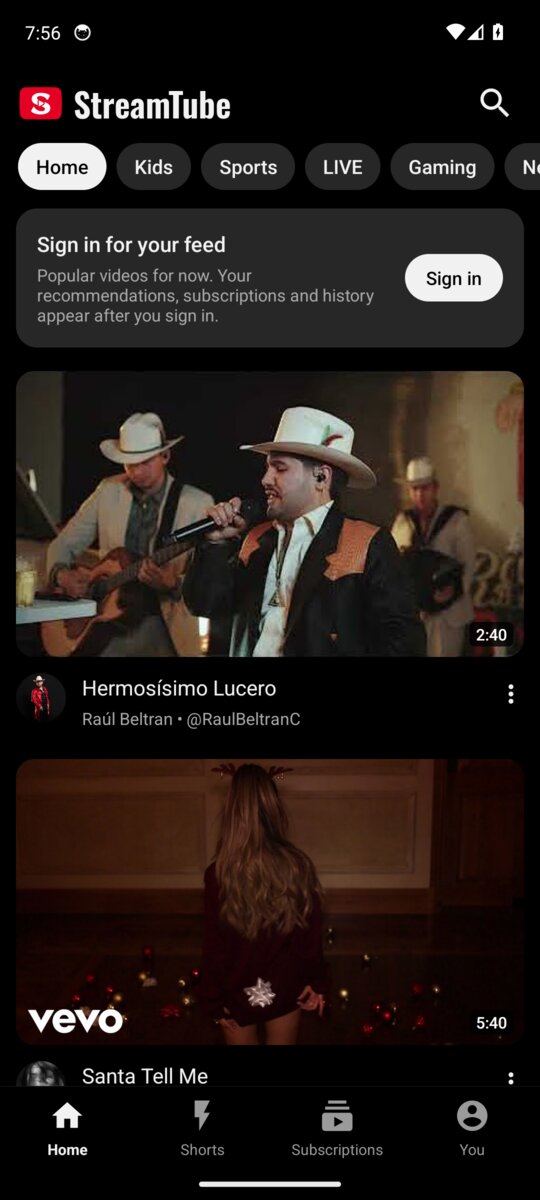
Feels like YouTube
- Bottom tabs: Home, Shorts, Subscriptions and You
- Topic chips on Home (Kids, Sports, LIVE, Gaming, News and more)
- Full-width video cards with channel pictures, and horizontal shelves
- Videos open with a smooth expand-from-thumbnail animation
Player
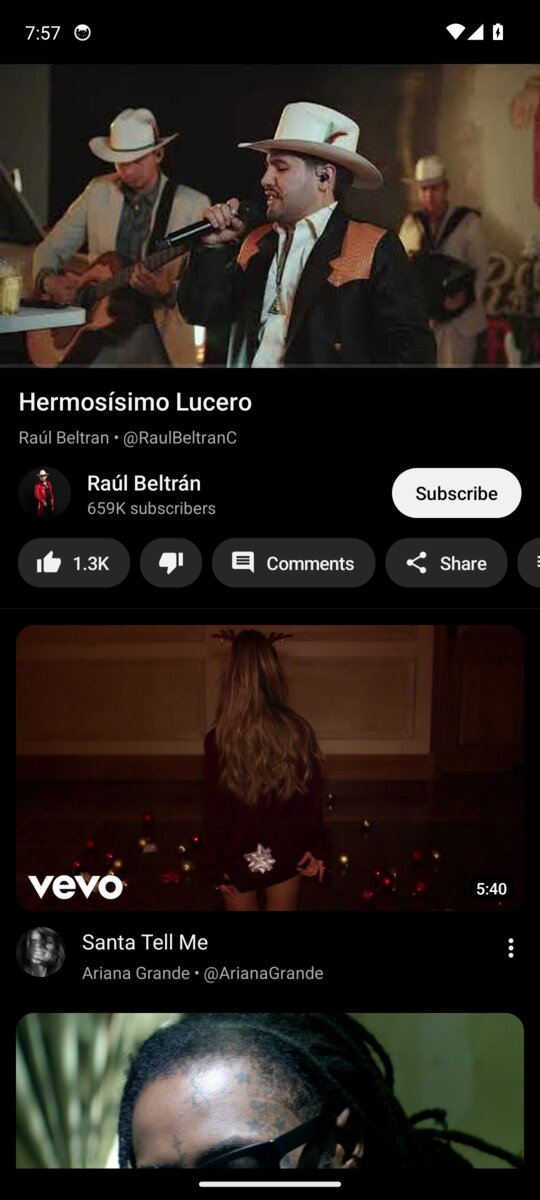
- Portrait player: the video on top, then the title, channel, buttons, comments and recommendations
- Like, dislike, subscribe, share, download, save to a playlist, captions, quality and playback speed
- Rotate the phone (or tap the full screen button) for full screen, with gestures for seeking, brightness, volume and zoom
- Videos start quickly: 1080p by default on phones, and nothing extra is loaded before the first frame
Mini player
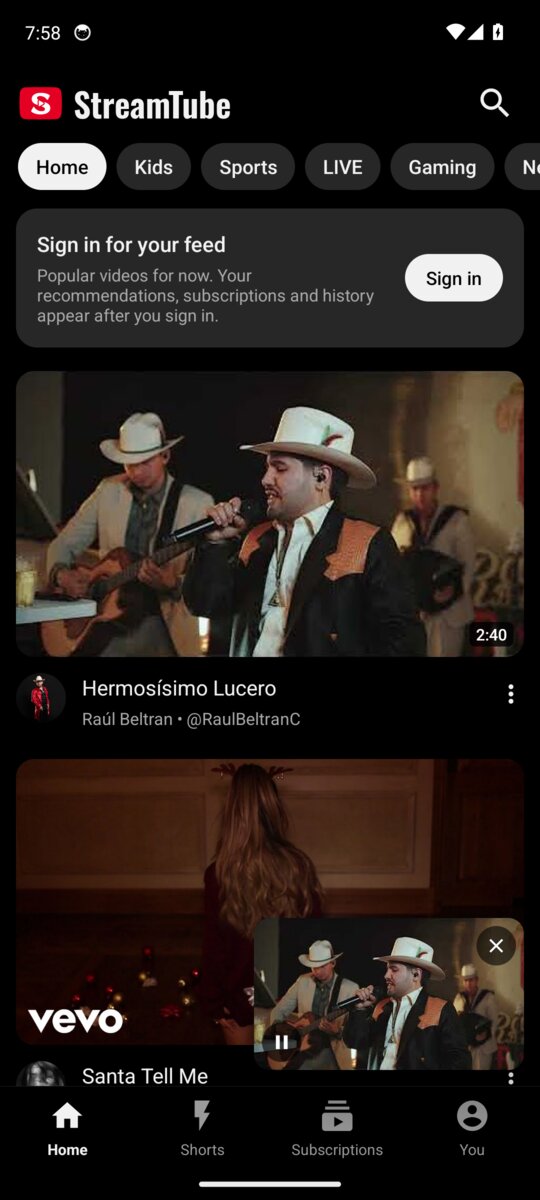
- Swipe the video down, or press Back: it shrinks into a small player at the bottom right of the screen and keeps playing while you browse Home, Search or a channel
- Drag it anywhere, tap it to go back to the full player, close it with X
- Background play with media controls in the notification and on the lock screen
Comments
- Total count, Top or Newest first, and reply threads
- Write comments and replies when signed in
- Long press your own comment or reply to delete it
Downloads
- Save a video from 1080p down to 360p (MP4), or audio only (M4A), to Download/StreamTube
Shorts
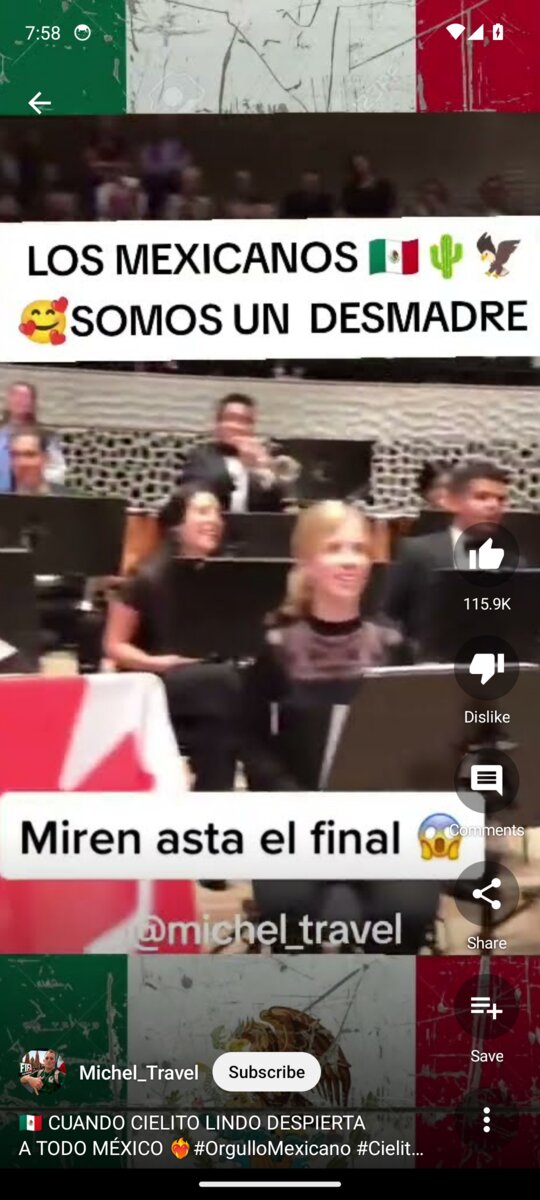
- Full screen vertical Shorts: swipe up for the next one, down for the previous one
- Like, dislike, comments, share and save on the right side, like the official app
No ads, and more
- No ads, and no tracking added by the app
- SponsorBlock skips sponsor segments, intros, outros and reminders to subscribe
- Up to 8K, 60 fps and HDR when your phone supports it
- Works without Google Play services
- Dark (pure black for AMOLED screens), Light, or Same as device
- Built-in updater: see what's new and install new builds from inside the app
- A small download (about 29 MB)
Requirements
- An Android phone with Android 8.0 or newer (the in-app mini player needs Android 11 or newer; older versions use a floating window instead)
- An ARM processor, 64-bit or 32-bit. Pick the APK for your phone:
| APK | For |
|---|---|
| StreamTube-arm64 | Almost every phone made since 2017, including all recent Samsung, Pixel, OnePlus, Xiaomi and Motorola phones. Start with this one. |
| StreamTube-arm32 | Older or budget phones with a 32-bit processor (armeabi-v7a), where the arm64 APK says "App not installed". |
| StreamTube-universal | Any device, including x86 emulators and Chromebooks. It's a bigger download. |
Not sure? Install the universal APK. The in-app updater then picks the right APK for your phone.
It installs as its own app, so it can sit next to the official YouTube app without conflicts.
Install
- On your phone, open this link: StreamTube-arm64 (or the arm32 or universal APK, see Requirements)
- When the download finishes, tap the notification (or open the file from your Downloads folder).
- The first time, Android asks for permission to install apps from your browser. Tap Settings, turn on Allow from this source, then go back.
- Tap Install. If Google Play Protect warns about an unknown app, tap More details and then Install anyway. This warning appears for apps that don't come from the Play Store.
- Open StreamTube from your app drawer. Home shows popular videos straight away; you can sign in whenever you like.
When Android asks to allow notifications, tap Allow. StreamTube uses notifications only for the background playback controls (also shown on the lock screen) and, if you want, to tell you about new builds.
Update to a new build
Each build is listed on the releases page. The download link above always points to the newest one.
From inside the app (recommended)
- Open the You tab, tap the Settings chip, then Check for updates. The Software update screen shows the build you have and checks right away.
- If a newer build exists, it shows Update available with the build number, the download size and a What's new list. Tap Download and install; a progress bar shows the download.
- The first time, Android asks you to allow StreamTube to install apps: tap Open settings, turn on Allow from this source and come back. The update carries on by itself.
- Android shows its usual confirmation. Tap Update. You stay signed in and your settings are kept.
With Notify me about new builds turned on (on the same screen), StreamTube checks every few hours and shows a small Update card on Home when a new build is out.
Manually
Download the latest APK from the link above and install it over the app you have. Android shows Update instead of Install.
On builds 39 to 51? Those builds can't update themselves. Install the latest APK manually once; it installs over your current app and keeps your settings.
Coming from build 38 or older? Those builds were signed with a temporary key, so Android refuses to install over them ("App not installed"). Uninstall the old app once (long press the icon, then Uninstall) and install the latest APK. Every update after that installs normally.
Connect your YouTube account
You don't need an account to watch. Signing in adds your own recommendations on Home, your subscriptions, history, playlists and Watch later, and lets you like, subscribe, save and comment.
StreamTube signs in the same way a smart TV does: the app shows a short code and you approve it on Google's own website. Your password is never typed into StreamTube and never passes through it.
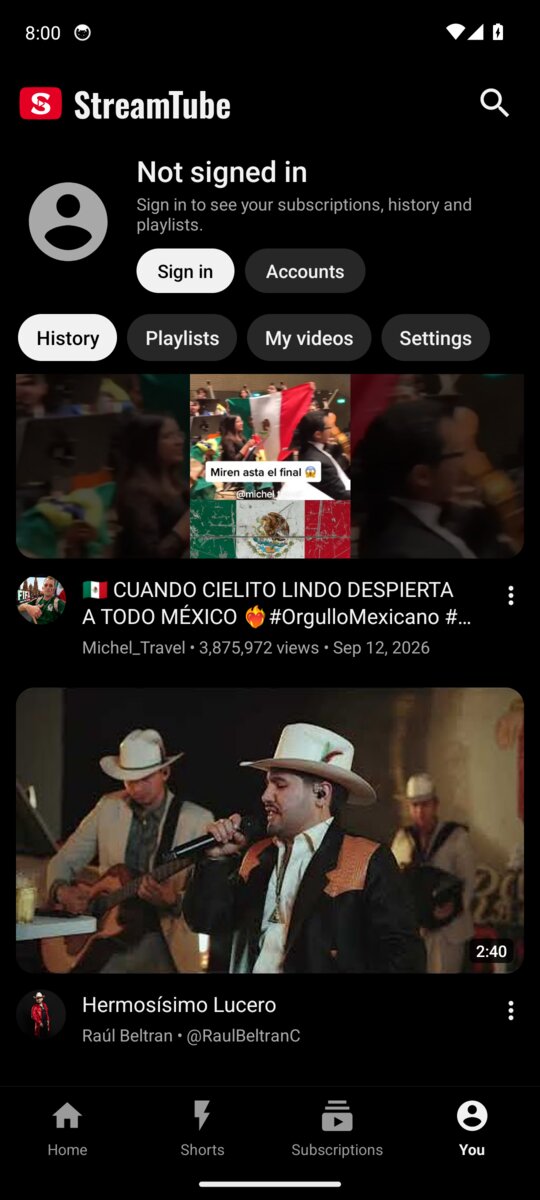
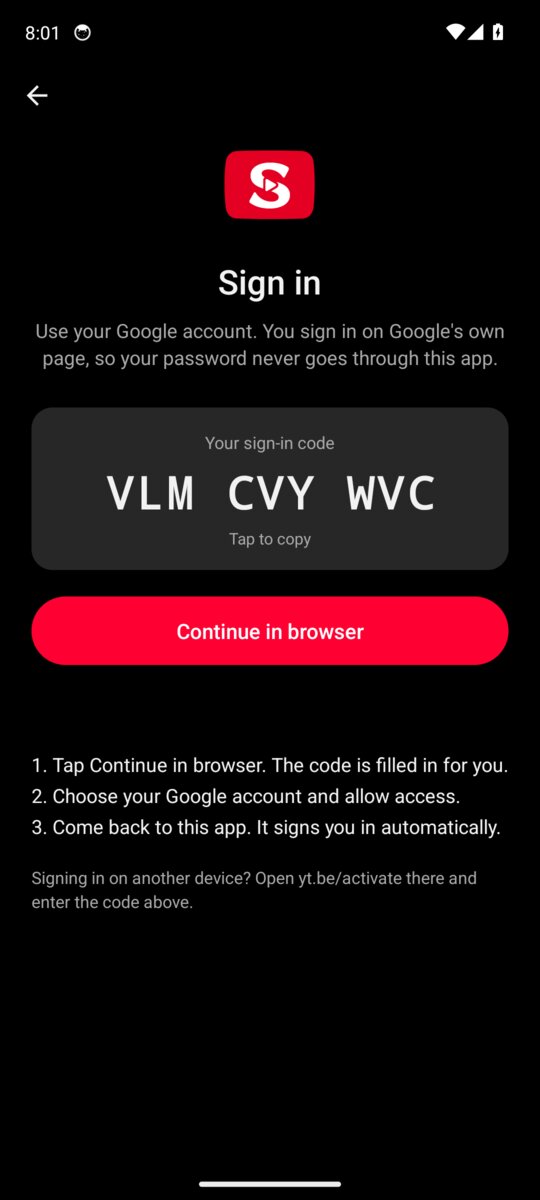
On the same phone
- Open the You tab (bottom right) and tap Sign in. You can also tap Sign in on the card at the top of Home.
- Wait a moment until StreamTube shows your sign-in code.
- Tap Continue in browser. Google's device activation page (yt.be/activate) opens with the code filled in. If it isn't, tap the code in StreamTube to copy it and paste it on the page.
- Choose your Google account and tap Allow.
- Switch back to StreamTube. It signs you in by itself within a few seconds.
Using another device
- In StreamTube, open the You tab and tap Sign in.
- On a computer or another phone, go to yt.be/activate and enter the code shown in StreamTube.
- Pick your account and tap Allow. StreamTube signs in on its own.
More than one account
- Add another account: You tab, Accounts, then add an account and repeat the steps above.
- Switch accounts: You tab, Switch account.
- Sign out or remove an account: You tab, Accounts.
To remove the app's access from your Google account, go to myaccount.google.com/permissions and remove the YouTube on TV entry.
How to use
Home
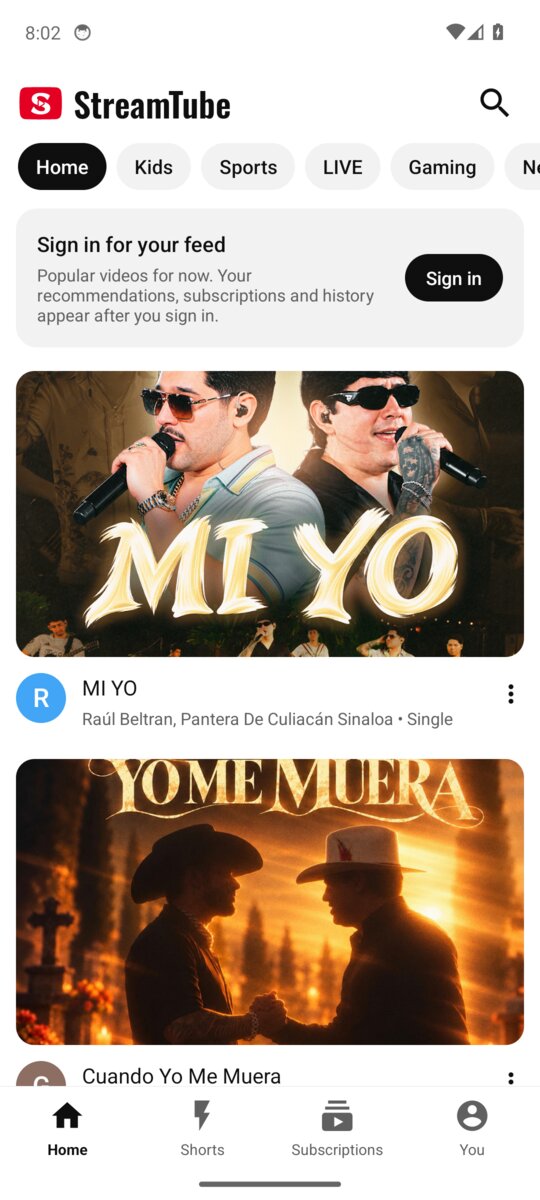
- Scroll the feed and tap any video to play it.
- Tap a chip at the top (Kids, Sports, LIVE, Gaming, News) to switch topics.
- Tap a channel picture to open that channel, or the three dots next to a video for more options.
- Top right: search.
Watching a video
- Tap the video to show or hide the controls: play and pause, previous and next, playback speed, captions (CC), settings (quality and more) and full screen.
- Seek by dragging the red progress bar, or double tap the left or right side to jump back or forward.
- Below the video: the title, the channel with its Subscribe button, then Like, Dislike, Comments, Share, Download and Save. Scroll the row sideways for more.
- Download: pick a quality from 1080p to 360p (MP4) or Audio only (M4A). It downloads in the background with a progress notification and is saved to Download/StreamTube. Live streams can't be downloaded.
- Recommendations are listed under the buttons. Tap one to play it.
- Leave the player: swipe the video down or press Back. It becomes the mini player and keeps playing.
Comments
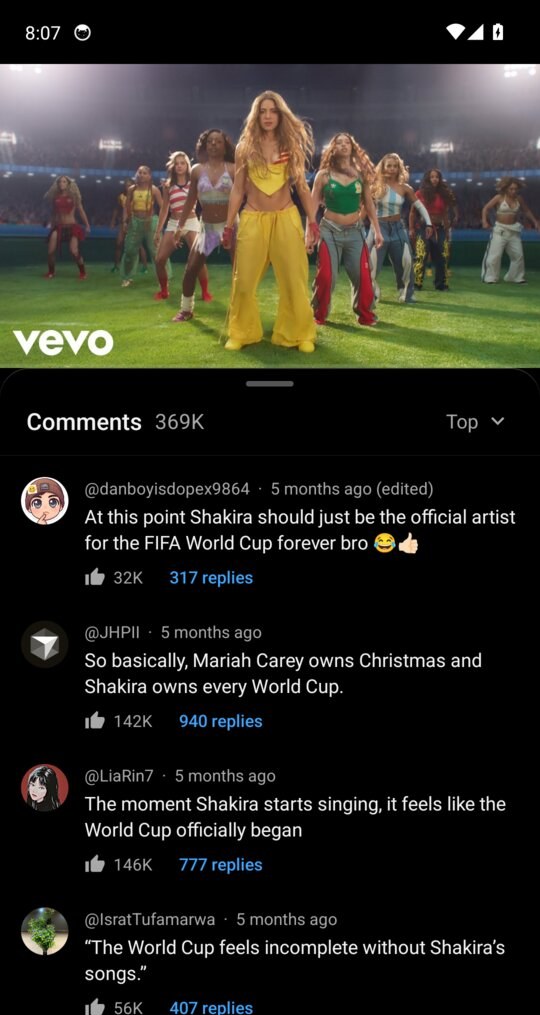
- Tap Comments under the video. The sheet shows the total count and a Top / Newest switch. Tap a comment's replies to read the thread.
- Write: when signed in, type in the bar at the bottom and tap send. Your comment (or reply, inside a thread) appears on top right away.
- Delete: long press one of your own comments or replies, then Delete.
Mini player and background play
- Swipe the video down (or press Back): it shrinks into a small player at the bottom right of the screen you came from, and the video keeps playing while you browse Home, Search or a channel.
- Drag the mini player anywhere; it settles against the nearest side. It always starts at the bottom right.
- Tap it to open the full player again. X closes it; the small button pauses or plays.
- Open another video while it plays: the new video opens in the full player.
- Background play: press the home button or lock the screen while a video plays and the sound keeps going. The notification and the lock screen show play and pause controls. Shorts don't play in the background.
Full screen gestures
Rotate the phone sideways, or tap the full screen button. In full screen:
| Gesture | What it does |
|---|---|
| Tap | Show or hide the controls |
| Double tap on the left or right | Jump back or forward |
| Swipe up or down on the left half | Brightness |
| Swipe up or down on the right half | Volume |
| Pinch out | Zoom the video to fill the screen |
| Pinch in | Back to the original size |
Rotate back to portrait, or press Back, to leave full screen.
Shorts
- Tap the Shorts tab: the first Short starts playing right away, full screen.
- Swipe up for the next Short, swipe down for the previous one. Tap to pause or resume.
- On the right: Like, Dislike, Comments, Share and Save. At the bottom: the channel (tap it to open the channel), Subscribe and the title.
Channels
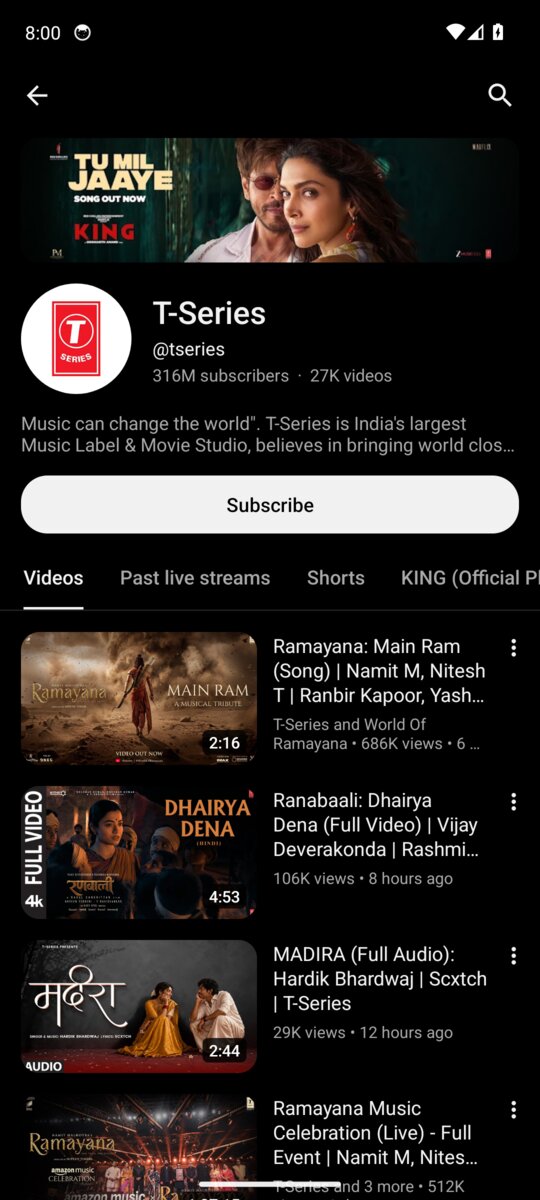
- Tap a channel picture or name anywhere to open the channel: banner, picture, name, handle, subscriber and video counts, description and Subscribe.
- Tabs switch between Videos, Shorts, Live, Playlists and the channel's other sections.
Search
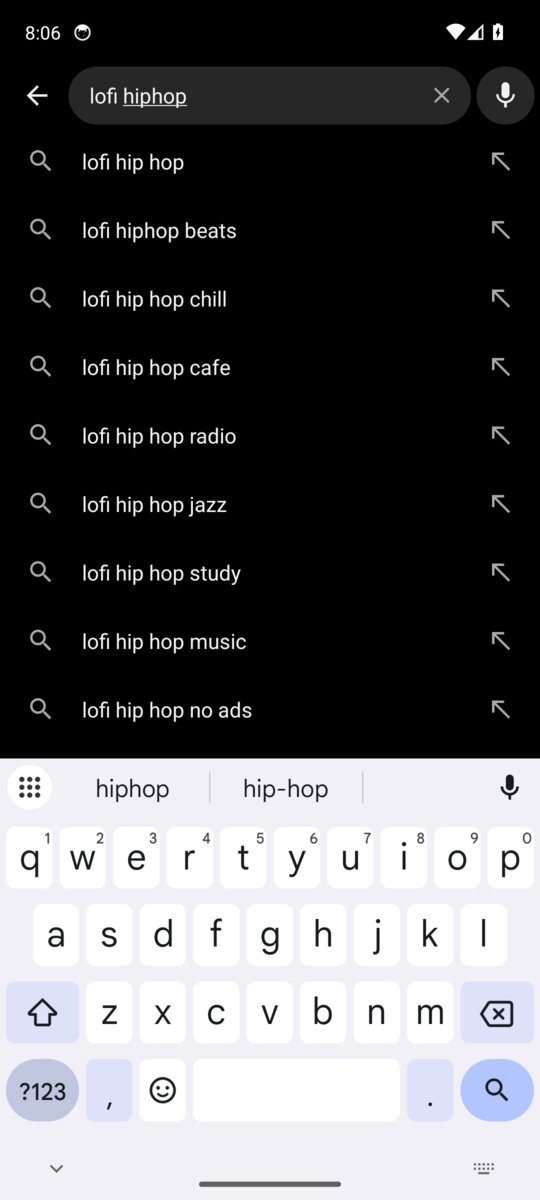
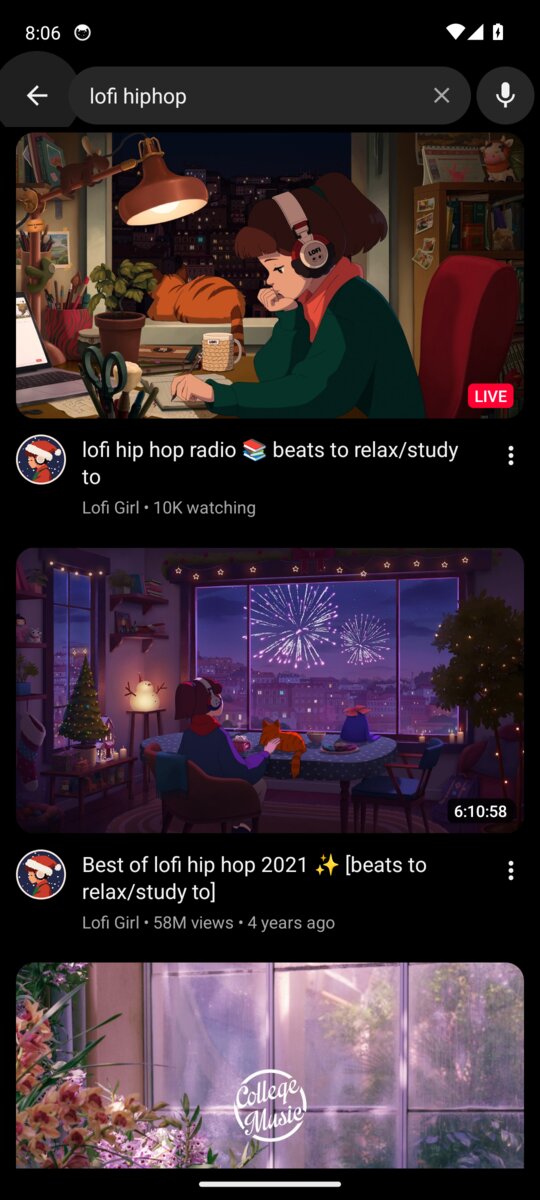
- Tap the magnifying glass at the top of Home, type to see live suggestions, or tap the microphone to search by voice.
- Results include videos, channels and playlists.
Subscriptions and the You tab
- Subscriptions shows the latest videos from the channels you follow (sign in first). On top, a row of your channels with a blue dot on the ones with new videos; tap a channel to see only its videos, tap it again to see all. The chips All, Today, Videos, Shorts and Live filter the feed.
- You shows your account (Sign in, Switch account, Accounts), then the chips History, Playlists (including Watch later and liked videos), My videos and Settings.
Settings and appearance
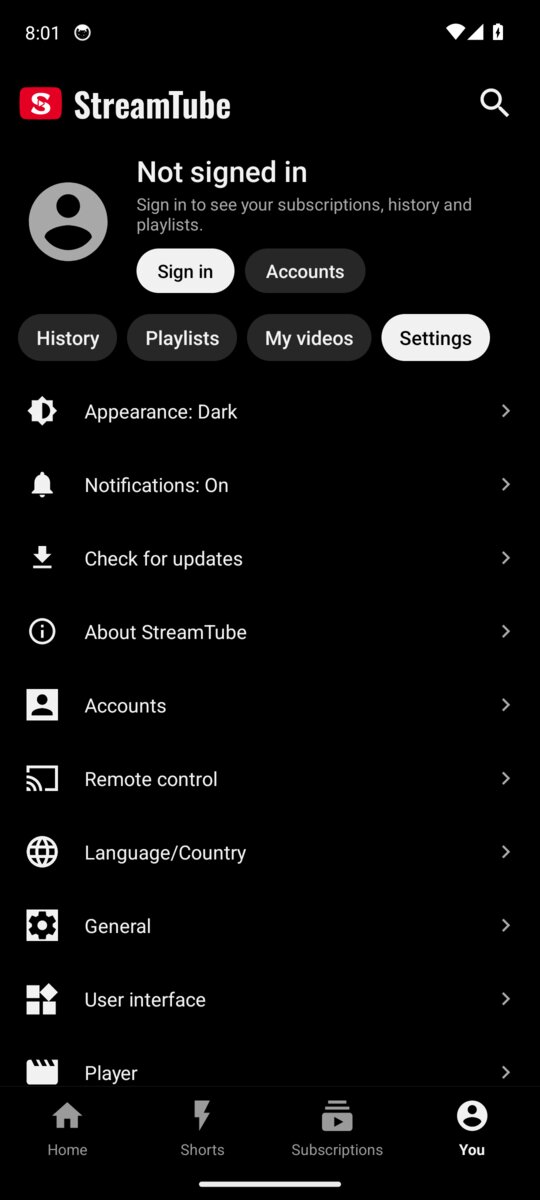
Open the You tab and tap the Settings chip.
- Appearance: tap it to cycle between Dark, Light and Same as device. The app switches immediately.
- Notifications: shows whether notifications are on; tap it to allow them.
- Check for updates: opens the Software update screen (see Update to a new build).
- About: version, links and credits.
- Below them, the full player and app settings: default quality, playback speed, captions style, autoplay, SponsorBlock segments, background playback, history, accounts and more.
Troubleshooting
"App not installed" when installing a new build You probably have one of the early builds signed with a temporary key. Uninstall it once, then install the latest APK. See Update to a new build.
Google Play Protect says "Harmful app blocked" Play Protect checks apps installed from outside the Play Store and sometimes flags open-source apps by mistake. StreamTube's source code is public in this repository, and every build is made and signed by GitHub Actions from that code. Tap Install anyway (on some phones under More details).
The sign-in code doesn't appear Check the connection, and turn off Private DNS, ad-blocking DNS or VPN apps that block YouTube or Google, then tap Try again.
"Sign in to confirm you're not a bot" YouTube sometimes asks this on shared or busy networks and with VPNs. Signing in usually fixes it; switching between Wi-Fi and mobile data can help too.
Videos buffer a lot Open the player settings and pick a lower quality (1080p is the default on phones), or turn off high frame rate.
No sound in the background, or no controls on the lock screen Turn on notifications (You, Settings, Notifications) and check your phone's battery settings. On OnePlus, Xiaomi, Samsung and similar phones, set StreamTube's battery usage to Unrestricted.
The app crashed When it opens again it offers a crash report. Please open an issue with the report and the steps that led to it.
Privacy
- No ads, and no tracking added by the app.
- Sign in happens on Google's website; the app never sees your password. It keeps only the access token Google gives it, on your phone.
- The app talks to YouTube, to GitHub when it checks for updates, and to SponsorBlock if it is turned on. See PRIVACY.md.
Building from source
StreamTube is the Gradle flavor stphone. The phone code lives in smarttubetv/src/stphone/.
Every push to main is built and released by GitHub Actions (.github/workflows/phone.yml), which also applies the phone changes to the MediaServiceCore submodule from .github/patches/. Pull requests are built and tried on an emulator first (.github/workflows/pr-check.yml). To build locally with JDK 17 and the Android SDK:
git clone --recursive https://github.com/shreyas-bangera/smarttube-phone.git
cd smarttube-phone && git -C MediaServiceCore apply --ignore-whitespace ../.github/patches/mediaservicecore.patch
./gradlew assembleStphoneRelease
Credits
StreamTube is a port of SmartTube by Yuriy Liskov and its contributors. Their engine (the YouTube client, sign in, playback, SponsorBlock and settings) runs underneath, with a phone interface on top. If you enjoy StreamTube, please star SmartTube too. Thanks also to SponsorBlock and ExoPlayer.
StreamTube is an independent project, not affiliated with YouTube or Google. Please report problems here.
License
MIT. See LICENSE.