HYDRV
HYDRV is a personalized store made just for you.







Latest release · Website · Backend guide · Sample catalogue · Release checklist · Changelog · Docs
Features
Release browsingOpen apps, check their releases, and move through versions without extra clutter. |
Signed downloadsThe public catalogue stays simple while the Worker takes care of the real download path. |
Flexible setupTheme, language, lists, backend sources, and launcher icons are all built in. |
Support toolsExport reports, backend health, update info, and project links stay easy to reach. |
Screenshots
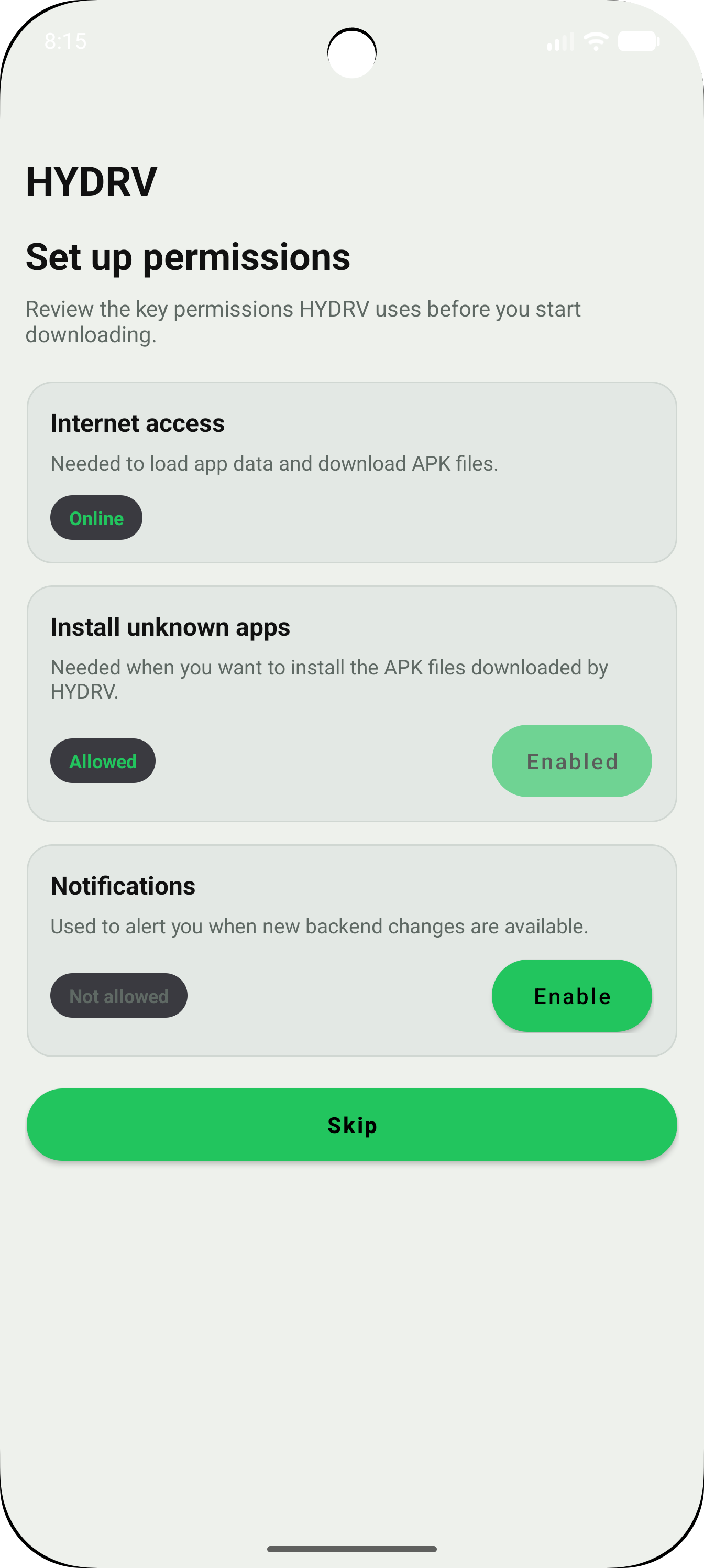
Permissions |
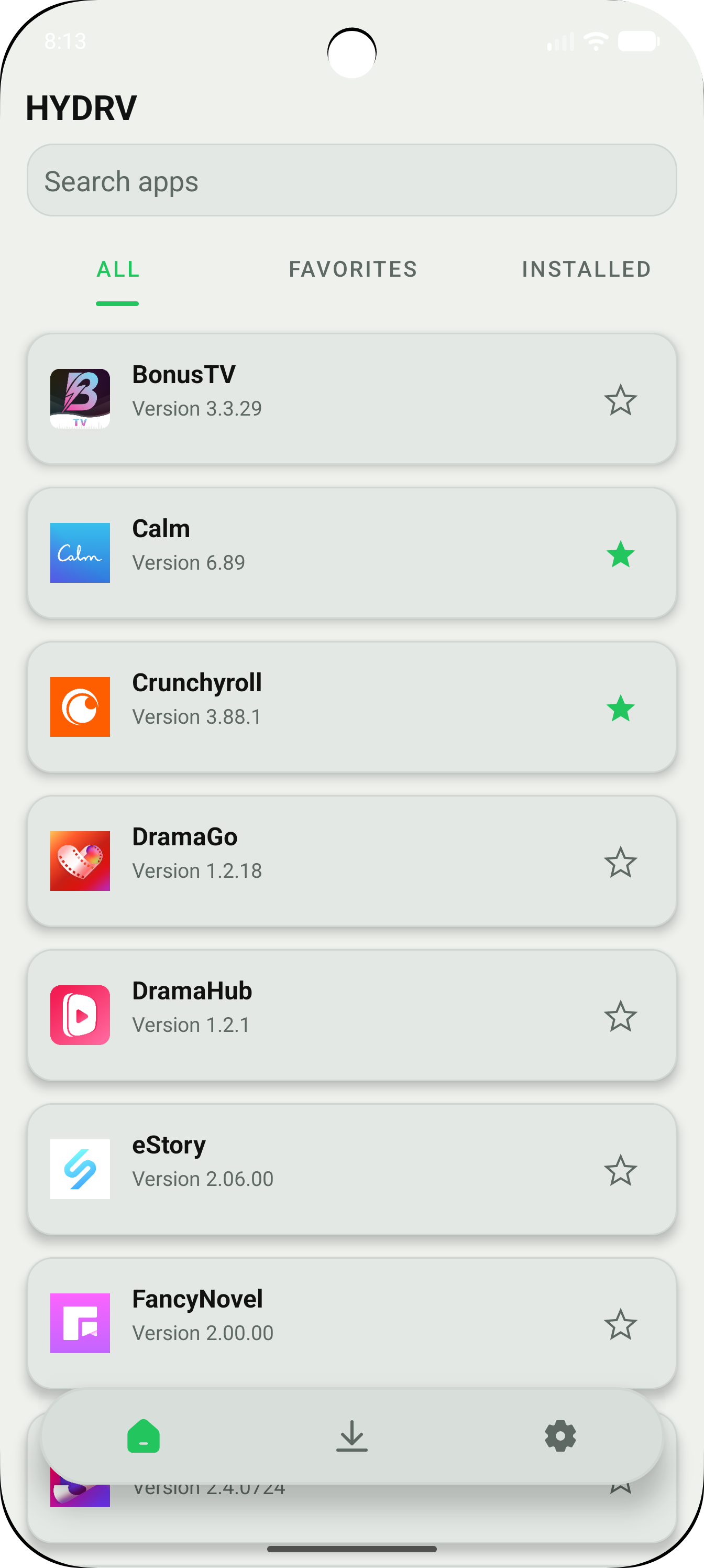
Home |
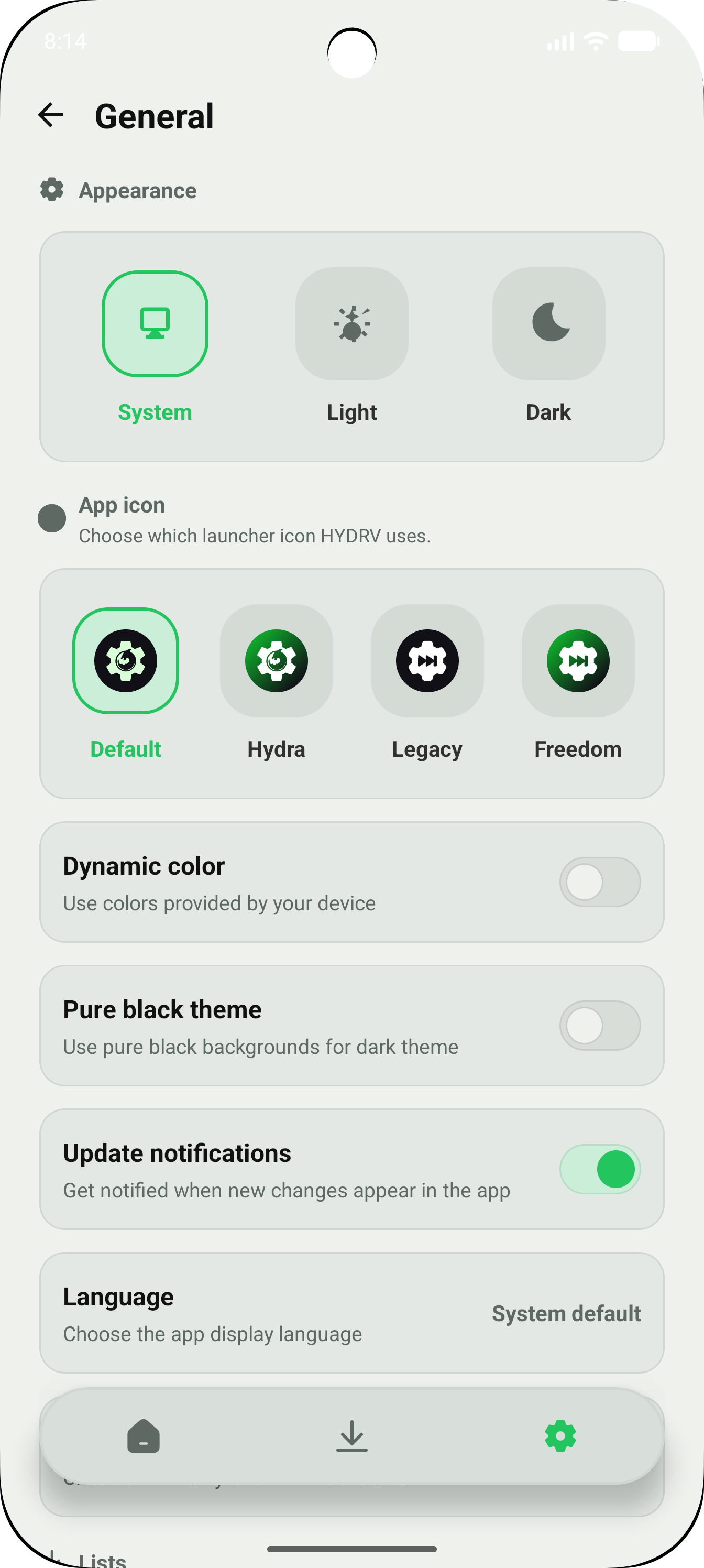
General |
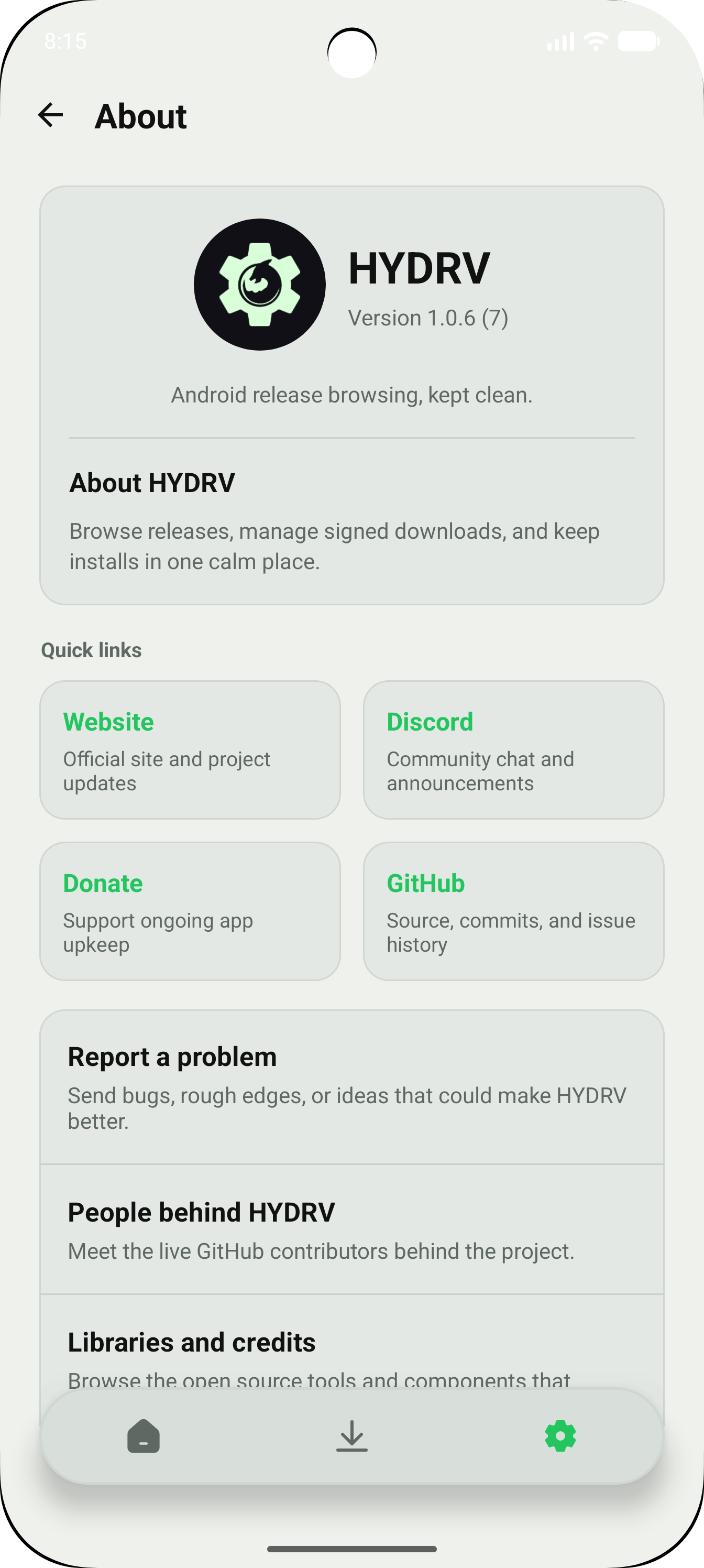
About |
How To Use
- Open the app and allow permissions. HYDRV needs internet access and install permissions before it can fetch or install APKs.
- Start on Home. This is where you browse apps, open a release, pick a version, and download the one you want.
- Save apps to Favorites. Tap the star on anything you want to come back to later without searching again.
- Check Installed. Use this tab to compare what is already on your device with what is available in HYDRV.
- Open Downloads when a file is ready. From there you can install APKs, retry failed downloads, or clear older items you no longer need.
- Adjust General. This is where you change theme, language, sorting, backend sources, and the launcher icon.
- Visit About. Use About for app info, report export, support links, and quick project details.
What Each Tab Is For
HomeHome is where you browse the catalogue, open app pages, compare versions, and start downloads. |
FavoritesFavorites keeps the apps you care about close by, so you do not have to search every time. |
InstalledInstalled shows what is already on your device and makes it easy to spot when a newer version is available. |
DownloadsDownloads is your queue. You can watch progress, install finished APKs, retry failures, or clear old entries. |
GeneralGeneral is where you tune HYDRV itself with theme, language, sorting, backend, and launcher icon settings. |
AboutAbout gives you the app version, support links, export tools, and the quick project details people usually need first. |
Backend Tutorial
HYDRV also supports custom backends if you want to point the catalogue somewhere else.
What it does
|
Why it helps
|
- Open Settings and go to General > Backend.
- Add or select a custom backend URL.
- Make sure the backend returns valid HYDRV catalogue data.
- Switch back to Default whenever you want the built-in source again.
Good to know: if a backend is broken or unreachable, HYDRV may not be able to load apps from it. For most people, the default backend is still the easiest choice.
How It Fits Together
flowchart LR
    A["Android app"] --> B["Public catalogue.json"]
    B --> C["Token endpoint"]
    C --> D["Cloudflare Worker"]
    D --> E["Private catalogue.private.json"]
    D --> F["Signed download URL"]
    F --> G["R2 file download"]
    A --> H["GitHub latest release"]
    H --> I["Release notes and changelog"]
HYDRV keeps the public release flow simple: the app reads the visible catalogue, the Worker signs the real download path, and GitHub stays the source of truth for release notes.
Visual Identity
Quick Start
- Open
HYDRV/in Android Studio. - Sync Gradle.
- Run the app on a device or emulator.
Build
Use these commands from HYDRV/ if you want to build from the terminal:
.\gradlew.bat assembleDebugto build a debug APK.\gradlew.bat assembleReleaseto build a release APK
Project Structure
HYDRV/- Android app sourceHYDRV/docs/- backend, release, and docs hubassets/- README branding, banner, and screenshot assets.github/- CI, release, and contribution automationCHANGELOG.md- release note templateRELEASES.md- tag and publish checklist
For Contributors
Before you send a PR
|
Keep an eye on
|
Translations
HYDRV keeps its Android strings in HYDRV/app/src/main/res/values/strings.xml.
Translations live on Crowdin at translate.hydrv.app, and the matching values-xx folders in this repo stay in sync with the app.
- Add or edit the source strings in the default
values/strings.xmlfile. - Sync the project with Crowdin.
- Let Crowdin export translated
strings.xmlfiles back into the matching locale folders.
The repo keeps Android locale folders like pt-rBR and zh-rCN aligned with the app, so translated files land where HYDRV expects them.
