cleanyourtv
Your TV, minus the ads. Website: cleanyour.tv. This repo was called tv-vibehack until 19 October 2026; old links still work.
Strip the bloatware from any Android TV or Google TV over Wi-Fi, and replace the ad-filled home screen with a clean launcher that looks like an Apple TV.
No root, no cable, nothing uninstalled, and a one-line restore if you change your mind.
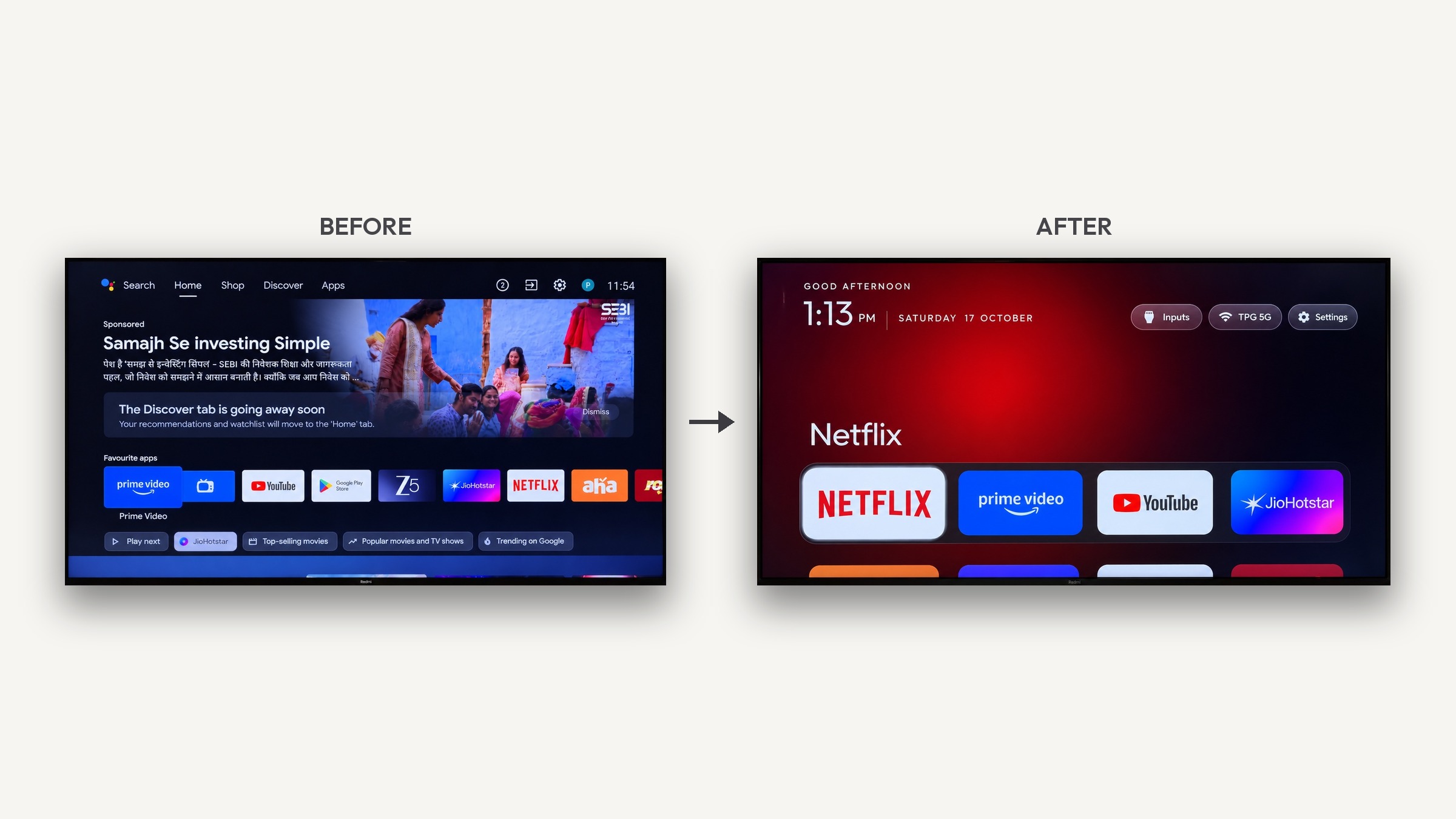
It started as an afternoon fixing my parents' Mi TV, which showed them an advert before they could reach Netflix. The whole thing was done with Claude Code talking to the real TV, and the prompt that did it is in this repo so you can do the same with yours. The replies to the tweet below are where most of the TV lists in this repo came from.

Table of contents
- How it works
- Quick start
- What you get
- Supported TVs
- Doing it by hand
- The launcher
- Restoring your TV
- Troubleshooting
- Questions people ask
- Contributing
- Made with cleanyourtv
- Licence
How it works
Android TVs have the same debug bridge as Android phones. Once you switch on USB debugging in the TV's developer options, the TV listens on your Wi-Fi and asks you once to allow your computer. After that, everything is standard Android tooling:
- Back up the list of installed packages and settings.
- Disable the manufacturer's telemetry, ad services, content rows and preloaded junk with
pm disable-user. Nothing is uninstalled, so a restore script can undo every step. - Install a small native launcher and make it the default home screen.
The bloat differs by brand, which is why the prompt asks your coding assistant to discover it on your TV and ask you before touching anything you might use.
Quick start
You need a computer on the same Wi-Fi as the TV and a coding assistant with shell access (Claude Code, or anything similar).
1. On the TV Settings → Device Preferences → About → press OK on Build seven times → go back → Developer options → turn on USB debugging. Some TVs also show a Network or ADB debugging toggle; turn it on too. Keep the TV switched on.
2. On your computer
Open your assistant, paste the prompt from PROMPT.md, and fill in your TV model.
3. Follow along Accept the "Allow USB debugging?" prompt when it appears on the TV, then answer the checklist questions: which streaming apps you use, which four go in the dock, whether to keep the voice assistant, Chromecast and firmware updates.
That's it. The assistant backs up, debloats, builds and installs the launcher, and checks every step with screenshots pulled from the TV. On a 1 GB Mi TV the whole thing took one afternoon the first time; with this repo as context, people report about fifteen minutes.
What you get
A home screen that is yours again:
- Pitch-black background and a dock of your four favourite apps at the bottom, in a lighter rounded band, exactly where Apple TV puts it.
- A top shelf showing the focused app's name in large type, with an ambient glow in a colour taken from the app's own artwork.
- The rest of your apps in a grid that slides up when you press Down.
- One floating glass highlight that springs from tile to tile instead of each tile drawing its own border. The focused tile lifts slightly and shows its name.
- Three frosted buttons: Inputs (a dropdown of HDMI ports, AV and Live TV), Wi-Fi (showing the network you're on, or Ethernet with its own icon when wired) and Settings.
- A greeting, a large thin clock and the date, set in Outfit.
- A matching Clock screensaver, optional, that drifts around the screen so nothing burns in.
- The remote's Input button can keep working. On Google TV the stock launcher handled it; an
optional accessibility service maps it (
KEYCODE_TV) to the system input switcher in any app. Install withINPUT_KEY_SERVICE=1to turn it on.
And a TV that stops working against you: no sponsored rows, no "Discover" nags, no analytics phoning home, no apps you never asked for.
Supported TVs
Anything running Android TV or Google TV: Xiaomi and Redmi, TCL, Hisense, Sony, OnePlus, Realme, Nvidia Shield and most others.
Not supported: Samsung (Tizen) and LG (webOS), which run different systems. Amazon Fire TV (Fire OS) takes the debloat half only: Fire OS won't let a third-party launcher take over Home, so the Fire TV lists below are about removing Amazon's ads and telemetry, not the home screen.
Some China-market TCL firmware is stricter still: Android TV 9 sets (ak30a5 at least) refuse to
install any APK that declares android.intent.category.HOME unless it is signed with TCL's own
key, so there the debloat half works and the launcher half is impossible. Its
example list says so in the header.
Lists that people have tested and contributed live in examples/:
| TV | OS |
|---|---|
| BenQ E55-735 (Changhong AI PONT, DVB96BQ) | Google TV 14 |
| CHiQ AI PONT (DVB93CQ) | Android TV 11 |
| Chromecast with Google TV 4K (sabrina) | Google TV 14 |
| Hisense SmartTV 4K FFM (huangshan, MediaTek) | Android TV 10 |
| Insignia 55" F30 4K Fire TV (NS-55F301NA25, AFTDCT31, duckie) | Fire OS 7 / Android 9 |
| NVIDIA SHIELD TV Pro 2019 (P2897, mdarcy) | Android TV 11 |
| OnePlus TV (D00, Dubai) | Google TV 14 |
| Philips Smart 4K TV (Skyworth, eleonas, MediaTek), India | Google TV 14 |
| RCA AI PONT SA (Changhong, redwood, ISDB92RC; also sold as realme 40-inch) | Android 14 |
| SANYO ATV R2 (SCBC, Realtek RTD285O) | Android TV 9 |
| Sony BRAVIA 4K UR2 (BRAVIA_UR2_4K, MediaTek) | Android TV 10 |
| Sony BRAVIA XBR-65X900E (2017, BRAVIA_ATV2) | Android TV 9 |
| Stellamore T950S projector (Droidlogic be30a3, Amlogic txhd2) | Android 13 |
| TCL 55" 4K Google TV, 2023 (G10, G10_4K_US_NF) | Google TV 12 |
| TCL 65C725 (Smart TV Pro, BeyondTV4) | Android TV 11 |
| TCL 55Q10G Pro (China, tcl_mt5879_cn, MediaTek MT9952) | Android TV 11 |
| TCL ak30a5 (China, Amlogic) | Android TV 9 |
| TCL BeyondTV (India) | Android TV 9 |
| TCL QM6K Pro, 2025 (G08, MediaTek tcl9618) | Google TV 14 |
| TCL Smart TV Pro (G05, G05_4K_US, MediaTek MT5889) | Google TV 11 |
| Toshiba Fire TV (AFTHA004, hazel) | Fire OS 7 / Android 9 |
| XGIMI Horizon S Pro projector (XK03H, xgimigalileo, MediaTek) | Android TV 11 |
| Xiaomi Mi Box S (MIBOX4, oneday), streaming box | Android TV 9 |
| Xiaomi Mi TV (MiTV-MOOQ0, croods) | Android TV 10 |
| Xiaomi Mi TV 4A (MiTV-MOOQ1) | Android TV 10 |
| Xiaomi MiTV-AESP0 stick (aquaman, 1 GB) | Android TV 9 |
| Xiaomi MiTV-AXSO0 (dangal; Mi TV 4C Pro 2019 / 4A Pro) | Android TV 9 |
| Xiaomi MiTV-MOOR2 (venom, MediaTek) | Google TV 11 |
| Xiaomi MiTV-MSSP3 (machuca, MediaTek) | Android TV 11 |
| Xiaomi TV A Pro 75" 2026 (MiTV-MZTU0, river, MediaTek) | Google TV 14 |
Your TV not here? The prompt works regardless, it discovers the bloat itself. If you add your list afterwards, the next person with your model skips that step. See Contributing.
Doing it by hand
Everything the assistant does, you can run yourself. The tools need Python 3 and nothing else.
python3 -m venv tools/venv && tools/venv/bin/pip install -r tools/requirements.txt
export TV_HOST=192.168.1.50                                   # your TV's IP address

tools/venv/bin/python -I tools/tv.py --probe                 # model, Android version, firmware
tools/venv/bin/python -I tools/tv.py 'pm list packages'      # run one shell command on the TV
printf 'cmd1\ncmd2\n' | tools/venv/bin/python -I tools/tv.py --batch   # several, one connection

tools/disable.sh examples/xiaomi-mi-tv-4a/debloat.txt        # apply a debloat list
tools/restore.sh examples/xiaomi-mi-tv-4a/debloat.txt        # undo it and restore the stock launcher
| Tool | What it does |
|---|---|
tools/tv.py |
A pure-Python ADB client: shell, batch, push, pull. Works where the stock adb binary is blocked. |
tools/b64push.py |
Uploads larger files such as APKs as base64 chunks and verifies the checksum. |
tools/disable.sh / tools/restore.sh |
Apply or undo a debloat list. PowerShell versions sit next to them. |
tools/theme.sh |
Push a theme folder from themes/ to the launcher and restart Home; --reset removes it. PowerShell version next to it. |
Windows
The PowerShell scripts work without WSL or Git Bash. With Android Studio installed nothing else is needed: the install script uses Android Studio's bundled JDK and the default SDK location.
python -m venv tools\venv; tools\venv\Scripts\python.exe -m pip install -r tools\requirements.txt
powershell -ExecutionPolicy Bypass -File launcher\build-and-install.ps1 -TvHost 192.168.1.50
powershell -ExecutionPolicy Bypass -File tools\disable.ps1 -TvHost 192.168.1.50 examples\xiaomi-mi-tv-4a\debloat.txt
powershell -ExecutionPolicy Bypass -File tools\restore.ps1 -TvHost 192.168.1.50 examples\xiaomi-mi-tv-4a\debloat.txt
Both install scripts ask the TV which launcher owns Home and only disable one they recognise
(Google's tvlauncher or launcherx); pass STOCK_LAUNCHER=<package> (or -StockLauncher) to
override, or none to leave it alone. After the switch they check where Home actually resolves and
put the stock launcher back if it is not the new one. Git Bash also works; the .sh scripts detect a
Windows venv and disable MSYS path rewriting themselves.
The launcher
A small native Android TV app (com.gathin.tvhome, about 250 KB installed), written in plain Java with
AndroidX RecyclerView and nothing heavier. It is built for sets with 1 GB of RAM: no blur, no
video, no network, no background services.
Configure it in launcher/app/src/main/res/values/config.xml:
the dock order, apps to hide, your TV's Live TV package, the number of columns (tiles shrink to fit
from 5 columns up), and how many grid rows stay visible under the dock (rows_below_dock). The Inputs button hides itself on sticks and
boxes that have no HDMI or tuner.
Themes change the same settings, plus a background colour and a wallpaper, without a rebuild:
a folder with a config.json (and optionally a wallpaper.jpg) pushed to the TV with
tools/theme.sh themes/<name>, which the launcher reads as an overlay over config.xml. Three ship
in themes/, and the keys are documented there. tools/theme.sh --reset goes back.
Language follows the TV: English, German, Spanish, Catalan, French, Russian, Simplified Chinese and Thai so far. If your
TV doesn't offer yours system-wide, Android 13 and later can set it for the launcher alone, e.g. Catalan:
tools/tv.py 'cmd locale set-app-locales com.gathin.tvhome --locales ca'.
Build and install with one command:
TV_HOST=192.168.1.50 launcher/build-and-install.sh
It needs JDK 17 and the Android SDK (platform 34, build-tools 34.0.0). On macOS:
brew install openjdk@17 android-commandlinetools
sdkmanager "platforms;android-34" "build-tools;34.0.0"
# newer command-line tools (sdkmanager forwards to the "android" CLI) take this form instead:
# android sdk install platforms/android-34 build-tools/34.0.0
Without Homebrew, the script also finds a JDK 17 known to /usr/libexec/java_home and an SDK in
~/Library/Android/sdk, Android Studio's default. The script installs a shrunk release build
(about 250 KB instead of 1.6 MB, signed with the debug key so it installs over an older build)
and asks the TV to precompile it, so the first launch doesn't wait for the JIT.
Navigation is deliberate: Up and Down move exactly one row, Up from the dock goes to the top buttons, the ends of the button row don't fall through to tiles, and the last focused app is remembered when you come back, even after the app list changes. Installing, updating, removing, enabling or disabling a TV app refreshes its tiles while Home is open. Focus follows the same app, or the nearest remaining tile if it was removed; when no apps remain, the network button receives focus. Package changes leave top-button focus alone, and changes made while another app is open are picked up when returning Home.
Optional: the Clock screensaver
A large thin clock and the date over an ambient glow, in the launcher's style. Every minute the clock drifts to a new spot and the glow shifts colour. The system runs it only while the TV is idle. Turn it on over ADB, or pick "Clock" in the TV's screensaver settings:
tools/venv/bin/python -I tools/tv.py 'settings put secure screensaver_components com.gathin.tvhome/.ClockDream; settings put secure screensaver_enabled 1'
It starts after the TV's "screen off" idle time (settings get system screen_off_timeout).
Modules
Any Android TV app can declare a module card for this launcher: its tile with a label of its choice, an optional caption and a glow colour, placed ahead of the alphabetical grid. Nothing changes until you say so. When a module is installed the launcher asks once, naming the app, its package and its signing key, with Keep hidden selected by default; Back keeps it hidden too. Keeping it hidden leaves the app's ordinary tile exactly as before. The answer is remembered for that app's signing key and that card name, so an update signed with a different key, or one that renames its card, asks again.
To change your mind, hold OK on the Settings pill: the Module cards list shows every installed
card with its package and key, and OK toggles Shown and Hidden. At most eight cards are drawn, in
label order; any further card you set to Shown is listed as over the limit and keeps its ordinary
tile. Set module_cards to false in config.xml or a theme's config.json to turn the whole thing off.
A card is only a different look for a tile. The launcher never installs or downloads anything, never loads code from a module, and launches a card exactly as it launches any app.
To make one: docs/modules.md. The contract: docs/specs/card.md.
Changing the default home from the TV
Optional: set show_home_settings_shortcut to true in config.xml and a Default home tile
appears at the end of the grid, opening Android's own home-screen picker so you can switch
launchers from the sofa. Most Android TV firmware has no such page, and then the tile stays
hidden. The stock launcher has to be enabled before it can be picked, see the restore instructions.
Restoring your TV
Keep the list you applied: the restore script re-enables exactly those packages, then re-enables and re-selects the stock launcher, and resets the three animation scales.
TV_HOST=192.168.1.50 tools/restore.sh examples/<your tv>/debloat.txt                 # Android TV
TV_HOST=192.168.1.50 tools/restore.sh examples/<your tv>/debloat.txt com.google.android.apps.tv.launcherx   # Google TV
The second argument is the stock launcher package; it defaults to Google's tvlauncher, so pass
launcherx on Google TV (on Windows: -Stock). What restore does not do: it leaves the new launcher
installed (uninstall it from the TV's settings if you want it gone), it does not know about packages
you disabled outside the list, and it does not undo the optional accessibility services or a changed
screensaver. Those are one settings command each, see Troubleshooting. If the TV is unreachable,
the TV's own Settings → Apps page can re-enable apps too.
Troubleshooting
Things that bit us or contributors, so they don't bite you.
Connecting
- macOS:
adb connectsays "No route to host" although the port is open. Recent macOS treats the Google-signedadbas its own app under Local Network privacy and silently blocks it.tools/tv.pyavoids the binary entirely. - No "wireless debugging" toggle on some TVs, Xiaomi among them. USB debugging alone opens network ADB on port 5555.
- USB debugging never opens port 5555 on some Google TV sets (a Skyworth-built Philips among
them). Pair once through Wireless debugging with the stock
adb(adb pair <ip>:<port> <code>, thenadb connect), runadb tcpip 5555, andtools/tv.pyworks from then on. - USB devices go dead while USB debugging is on, seen on the Xiaomi Mi Box S: its firmware switches the USB port to ADB device mode, which cuts the power to a USB speaker or drive. Switch USB debugging off when you're done; the launcher doesn't need it.
- Windows PowerShell 5.1 adds a byte-order mark to text piped into a program, which turned the
first batch command into gibberish.
tv.pynow strips it, and the.ps1scripts pipe clean UTF-8. - "Allow USB debugging?" comes back although
adb devicesalready works:tv.pyused its own key next to the one platform-tools had registered. It now reuses~/.android/adbkeywhen that exists. Every attempt with an unaccepted key queues one more prompt on the TV, so dismiss them all (Back) before testing with key presses. - Git Bash rewrites paths like
/data/local/tmpinto Windows paths. The scripts setMSYS_NO_PATHCONV=1for you. SetJAVA_HOMEandANDROID_HOMEbefore building there.
Working on the TV
- Chained
pmcommands (pm disable a; pm disable b) may silently stop after the first. Run one per shell call;--batchdoes exactly that. - Large pushes hang through the Python client. Use
tools/b64push.pyfor APKs. adb exec-out screencap -pgives a broken PNG on some MediaTek Xiaomi sets: the binary printsInit wrapper sys mutex successfulon stdout first. Save on the TV and pull the file instead:screencap -p /data/local/tmp/s.png.- Play Protect blocked the launcher ("unsafe app blocked, built for an older version of Android")
and
pm installhung, then failed withINSTALL_FAILED_VERIFICATION_FAILURE, while it targeted SDK 29. It targets 34 now; if you built an old checkout, rebuild. - Screenshots come out empty while Live TV, an HDMI input or Netflix is on screen, seen on TCL
and a Sony KDL-49W800G. Press Home before
screencap. An empty capture means nothing about the ADB connection or playback; check those separately. - Disable the stock launcher only after the new one is installed, or the Home button lands on
a factory test app. Launch the replacement by hand first.
set-home-activitycan reportSuccesswhile HOME still resolves to the stock launcher (priority 2) until that one is disabled. And check which packages actually handle HOME before disabling anything by name: on the Sony above,com.google.android.leanbacklauncherhas a boot receiver but no HOME activity. - The new launcher still doesn't own Home after the stock one is disabled, seen on Google TV
(Xiaomi MiTV-MOOR2). Another system app answers HOME:
com.google.android.tungsten.setupwraith, with.MainActivityat intent-filter priority 4 and.RecoveryActivityat priority 1. You cannot outrank it, and the obvious workarounds don't help: Android ignoresandroid:priorityon HOME filters for apps that aren't on the system image,cmd package set-home-activityprintsSuccesswithout changing anything (not even after a reboot), andpm disable-useron one of setupwraith's components is refused with a SecurityException. Disabling the wholecom.google.android.tungsten.setupwraithpackage is what frees the slot. It is the first-run setup wizard, so everyday use is unaffected, but re-enable it before a factory reset - list it in yourdebloat.txtandtools/restore.shdoes that for you. - The TV drops off Wi-Fi every minute right after the install, seen on Google TV 14 (Xiaomi
MiTV-MZTU0): the same setupwraith
.RecoveryActivitytook Home and system_server crash-looped on it. The install script now starts the new launcher before disabling the stock one, sets the home preference last (Android drops it whenever the set of HOME apps changes), then checks where Home resolves and re-enables the stock launcher if it is not the new one. Disable setupwraith as above. To confirm it is this bug:logcat -b crashshowsFATAL EXCEPTION IN SYSTEM PROCESS: android.display, and the main log showssetupwraith/.RecoveryActivitybeing started every 200 ms or so. If you're already in the loop:tools/tv.py 'pm enable --user 0 com.google.android.apps.tv.launcherx'. - No on-screen keyboard after switching launchers, seen on Xiaomi: the default input method
pointed at a Baidu keyboard that isn't installed. Fix:
tools/tv.py 'ime set com.google.android.inputmethod.latin/com.android.inputmethod.latin.LatinIME' - Third-party launchers often charge for basics like a custom wallpaper. That's why this repo has its own.
- Wrong time zone, clock off by 30 or 60 minutes, seen on Xiaomi in Iran: the TV picked a
neighbouring zone, and older firmware ships time zone data from before Iran dropped daylight
saving in 2022 (on Android 10 and newer, check with
tools/tv.py 'cat /apex/com.android.tzdata/etc/tz/tz_version'). Set the zone yourself:tools/tv.py 'settings put global auto_time_zone 0; cmd alarm set-timezone Asia/Tehran'. If the clock then jumps an hour ahead in spring, a fixed offset keeps it right:tools/tv.py 'cmd alarm set-timezone GMT+03:30'. The same applies to any country whose rules changed after the firmware was built.
Questions people ask
Is this safe? Can it brick the TV?
Nothing is flashed, rooted or deleted, so the firmware itself is never at risk: packages are
disabled for the user profile, which lives in the data partition. What can go wrong is disabling
something the TV leans on. One Hisense booted to Android Recovery until "Try again" was pressed,
and on Google TV disabling the stock launcher without the setup wizard sent Home into a crash
loop (both are in Troubleshooting, with the way out). So: apply a list in small batches, keep
the backup folder the assistant makes, and have tools/restore.sh ready. Even without the tools,
the TV's own Settings → Apps page can re-enable packages, and a factory reset is the last resort,
not the first.
What about firmware updates? Most lists disable the manufacturer's update service, so updates only arrive when you re-enable it on purpose. If an update does land, the worst case is that a package comes back enabled and you re-run the script.
Won't the apps break as their APIs change? The streaming apps still update through the Play Store, which is left alone. The launcher doesn't talk to them; it lists what's installed and launches it, using Android launcher intents that have been stable for over a decade.
How did it get access? Isn't that a security hole? Through the Android Debug Bridge, with one explicit "allow this computer" tap on the TV, the same as developing an Android app. The TV only trusts the key you approved. You can switch USB debugging off again afterwards and the launcher keeps working.
Can the TV receive AirPlay? Not with anything in this repo. Chromecast built-in covers Android phones and most TVs keep it. For iPhones, jqssun/android-airplay-server (GPL-3, built on UxPlay) is an ad-free receiver that runs as a background service; nguyenduchoai's install script for it is in PR #84 if you want to try it. DRM apps such as Netflix and Apple TV+ won't mirror.
Can I just download the launcher APK? Build it yourself with the one-line script above; it takes about a minute and you control what goes on your TV. We don't publish prebuilt binaries.
Contributing
The most useful contribution is your TV's debloat list, so the next person with that model doesn't have to rediscover it. Launcher improvements and sharper prompt wording are welcome too. See CONTRIBUTING.md for the format and the testing we ask for.
Built your own launcher or a port with the prompt? Add it to SHOWCASE.md, the list of things people made on top of this repo: a Stremio shelf, a webOS port, a Fire TV fork, an Aurora screensaver and more.
Licence
MIT, see LICENSE. The Outfit typeface is under the SIL Open Font License, see
launcher/FONT-LICENSE-OFL.txt.