hermes-console

Your self-hosted Hermes Agent, native on Android.
English · Español
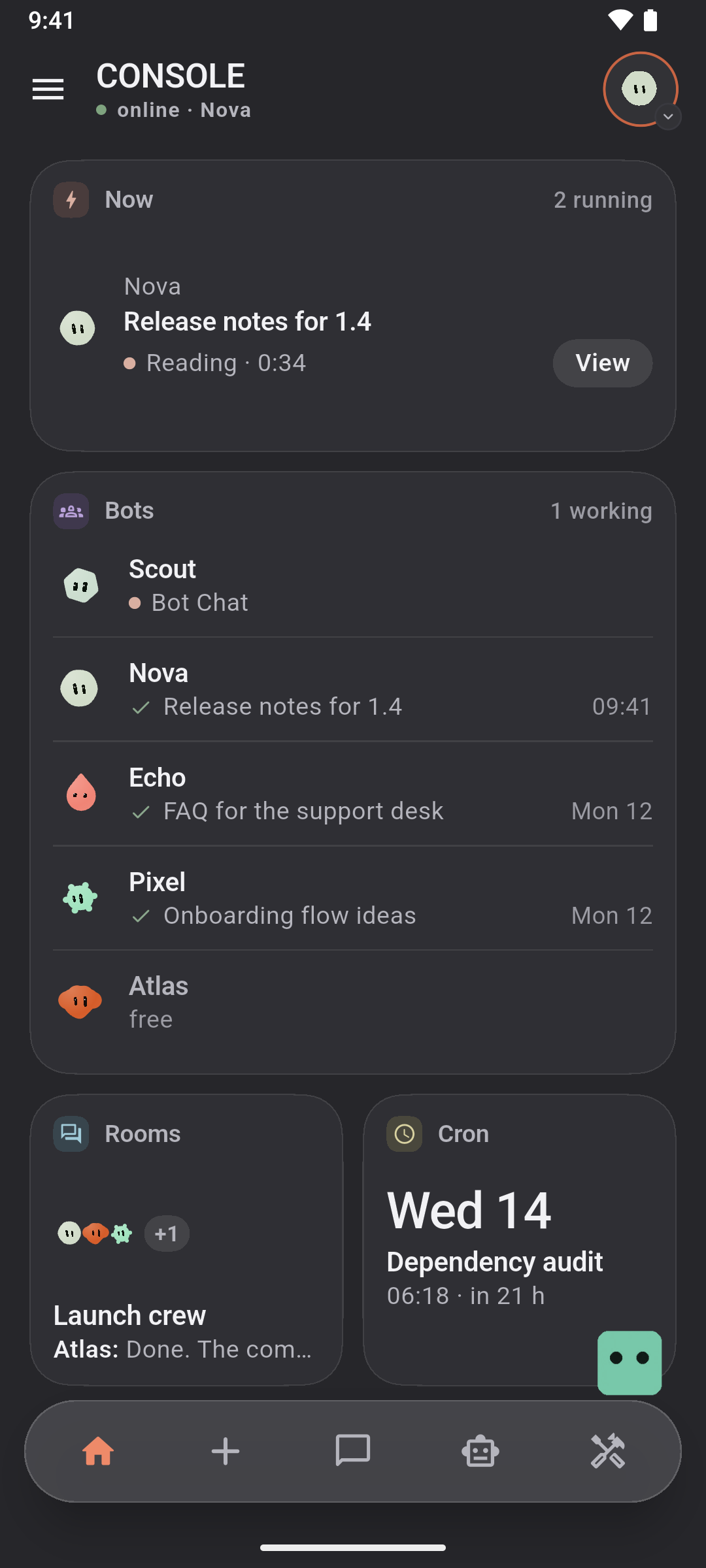
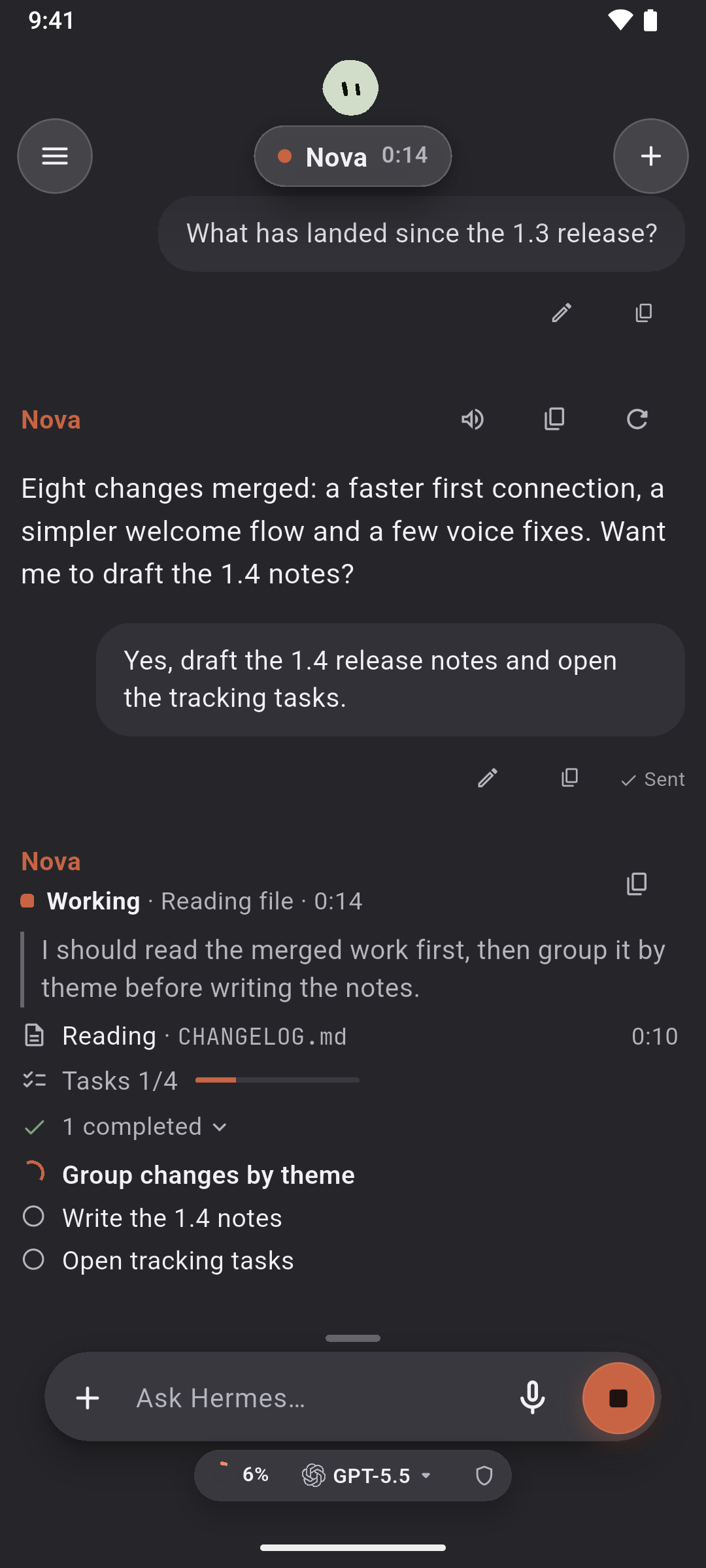
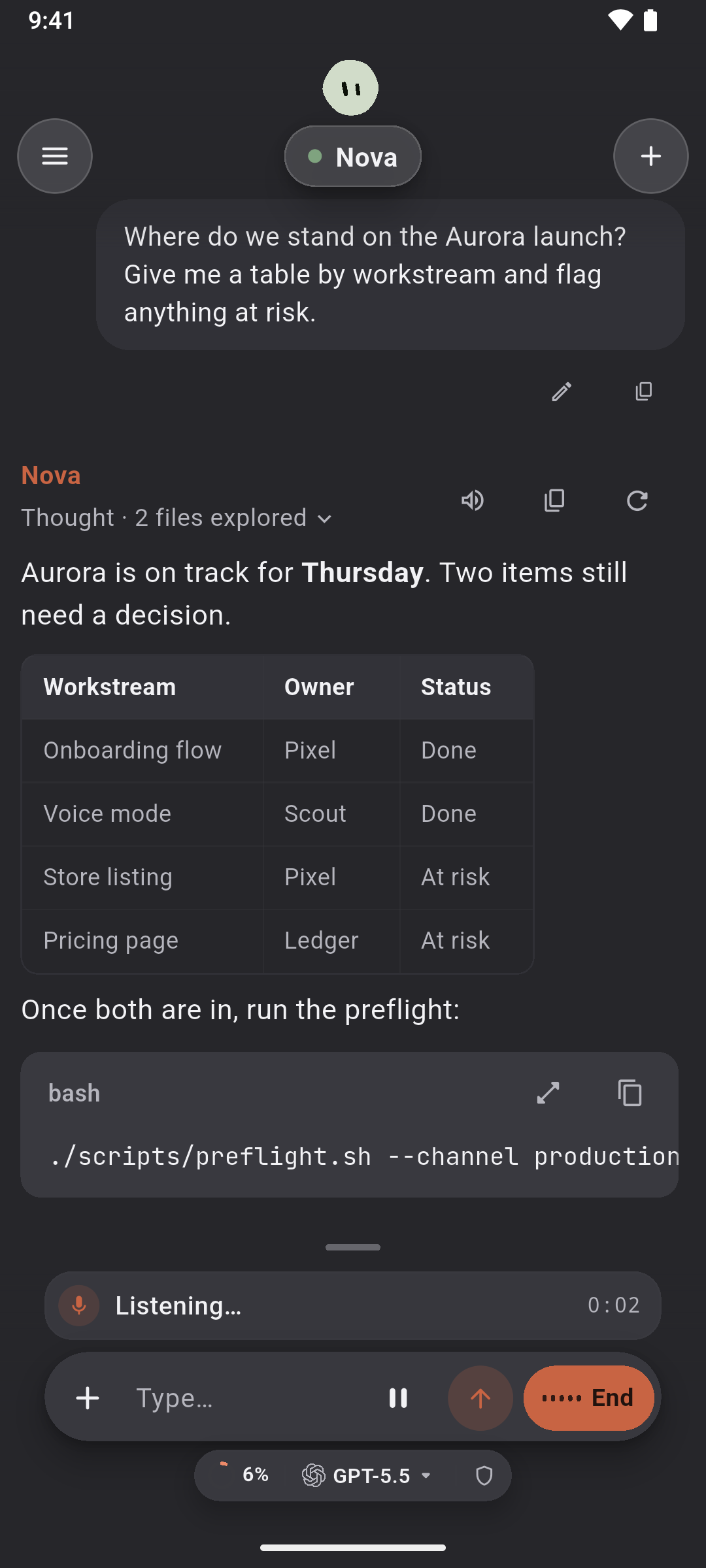
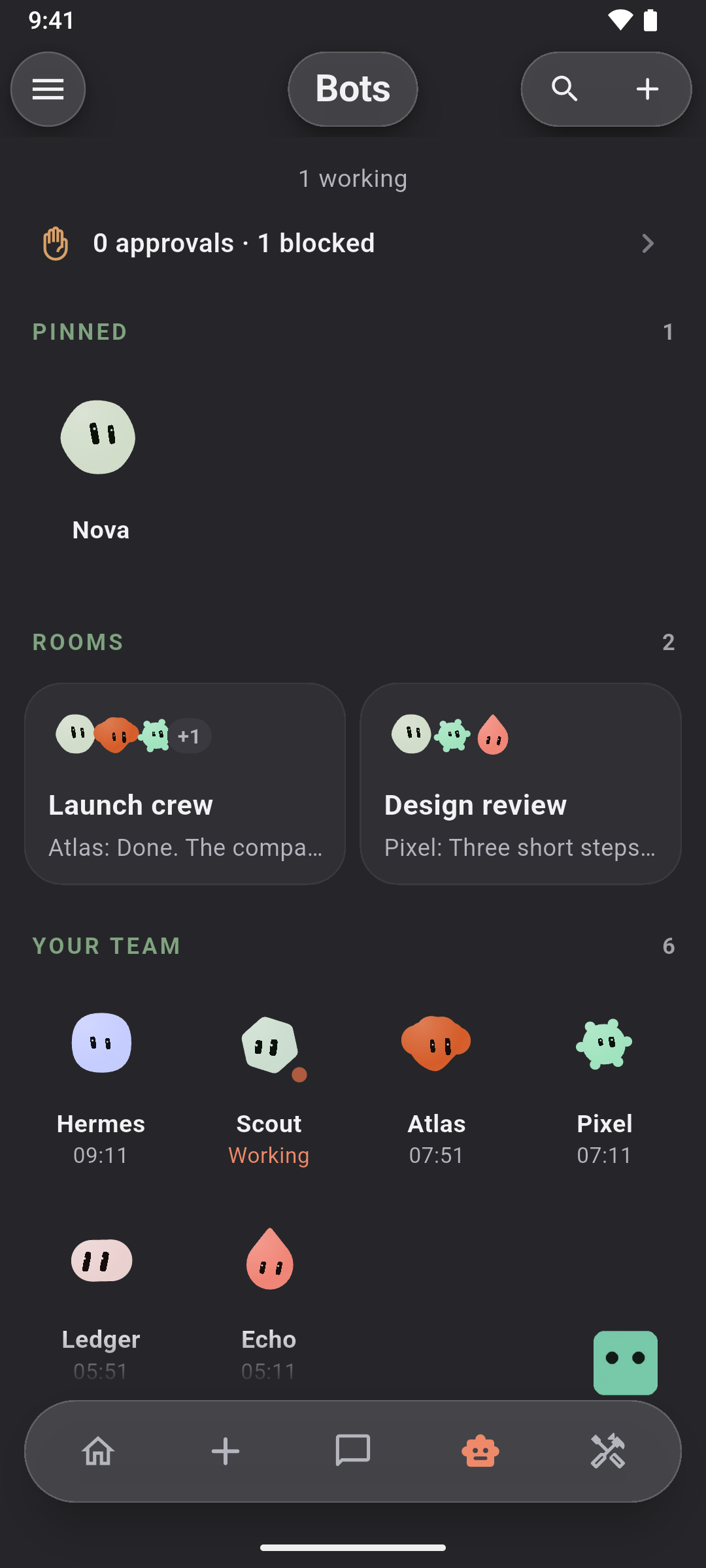
Console is an independent Android app for Hermes Agent, the agent you run on your own computer or server. It talks straight to the Dashboard that comes with Hermes, with no Console account and no server of ours in between.
Connect
Console talks to the Dashboard that comes with Hermes. You do not need a pairing code, the Gateway or an API key: one command on the computer, then scan a code.
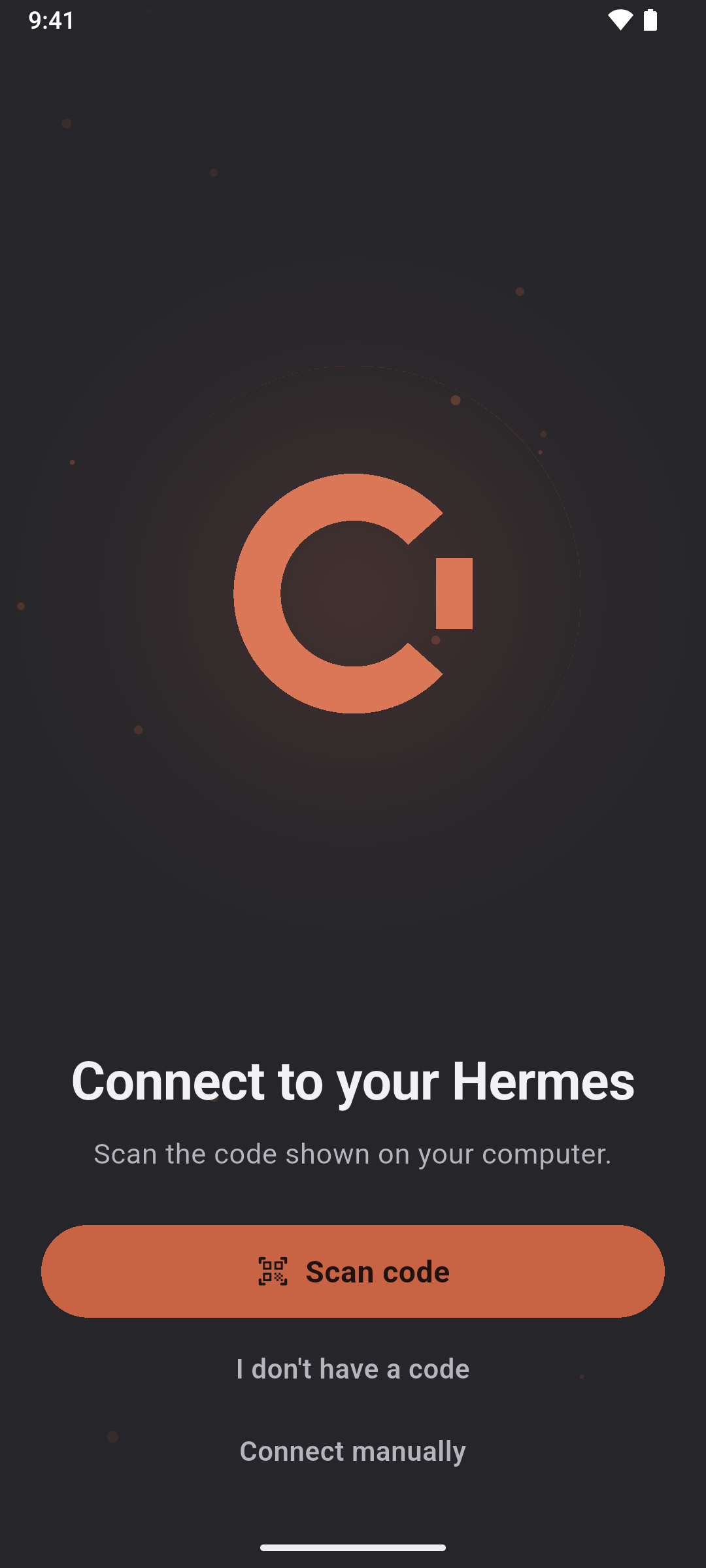
1. Open Console. The welcome screen has two options: I already have Hermes opens the camera, with the command below it to get the code, and I don't have Hermes yet opens the Install Hermes help. Connect manually (address, username, password) is there too. Console does not search your Wi-Fi.
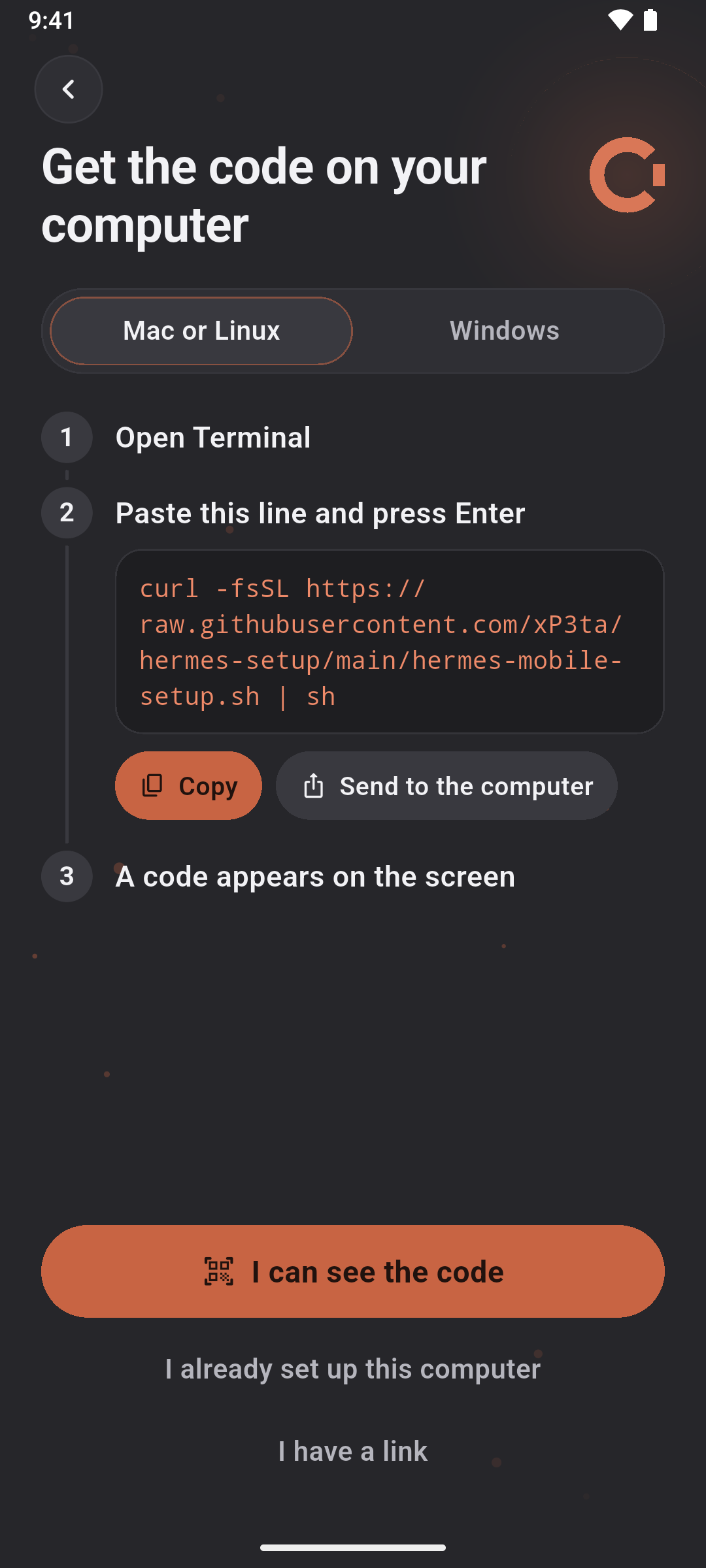
2. On the computer where Hermes lives, paste one command in Terminal (Linux, macOS) or PowerShell (Windows), or in the SSH window if Hermes is on a server:
curl -fsSL https://raw.githubusercontent.com/xP3ta/hermes-setup/main/hermes-dashboard-setup.sh | sh
& ([scriptblock]::Create((irm https://raw.githubusercontent.com/xP3ta/hermes-setup/main/hermes-dashboard-setup.ps1)))
It installs the official Hermes only if it is missing (if Hermes is already there, it does not touch it, nor Telegram or the Gateway), leaves the Dashboard on behind a password at a private address (your home network or Tailscale) and starts it with the computer. When it finishes it shows the address, the username, the password and a QR code.
3. Scan the code in Console and you are connected. Without a camera, choose Connect manually and type the three details.
Hermes on a server on the internet? Install Tailscale on the server and on the phone, then paste the same command. Never expose port 9119 to the public internet without TLS, authentication and a network policy.
Forgot the password? Run the command below; it makes a new one and ends the old sessions. Console shows it under Get access back.
curl -fsSL https://raw.githubusercontent.com/xP3ta/hermes-setup/main/hermes-dashboard-setup.sh | sh -s -- --new-access
& ([scriptblock]::Create((irm https://raw.githubusercontent.com/xP3ta/hermes-setup/main/hermes-dashboard-setup.ps1))) -NewAccess
Check it in a browser first. On the phone, open http://<computer-address>:9119. If the Dashboard sign-in page appears, the network is fine and Console can connect too.
Updating from a version that only used the Gateway? Console 1.3.0 talks only to the Dashboard, so Console tells you and takes you to the same guided page. Paste the command on the computer and scan the code: your existing connection is updated (no second one is created) and your chats and settings on the phone are kept. The Gateway is not touched: Open WebUI, cron jobs and Telegram that use it are not affected.
Advanced: keep the Dashboard always on
The setup command above already starts the Dashboard with the computer and restarts it by itself (systemd --user on Linux, launchd on macOS). If you started the Dashboard by hand with hermes dashboard, it only works while that command runs and does not come back after a restart.
Coming from an older install?
Console no longer uses the Mobile Bridge or the Gateway. If you set up with an older setup helper, your computer may still run things Console does not need. Nothing breaks if you leave them, but you can remove them.
Mobile Bridge. Once every phone is on Console 1.2.15 or newer, one line removes the bridge from the computer and nothing else:
curl -fsSL https://raw.githubusercontent.com/xP3ta/hermes-setup/main/hermes-mobile-setup.sh | sh -s -- --retire-bridge
& ([scriptblock]::Create((irm https://raw.githubusercontent.com/xP3ta/hermes-setup/main/hermes-mobile-setup.ps1))) -RetireBridge
Gateway on the network. The older helper saved an API_SERVER_KEY in Hermes' .env file (~/.hermes/.env) and set the Gateway's listening address in the settings of the service it created, which opens port 8642 to your network. (The old manual guide asked for API_SERVER_ENABLED, API_SERVER_HOST and API_SERVER_KEY in .env.) If you do not use Hermes' API server for anything else, you can close it: delete the API_SERVER_KEY line (and the other two if you added them by hand) and restart the Gateway, for example with hermes gateway restart. Without a usable key Hermes does not start its API server. The Gateway itself can keep running for anything else you use it for. The setup helper has an option that undoes only this exposure (it keeps your API_SERVER_KEY unless you add --also-remove-api-key), so run it only when every phone uses Console 1.3:
curl -fsSL https://raw.githubusercontent.com/xP3ta/hermes-setup/main/hermes-dashboard-setup.sh | sh -s -- --retire-gateway-exposure
& ([scriptblock]::Create((irm https://raw.githubusercontent.com/xP3ta/hermes-setup/main/hermes-dashboard-setup.ps1))) -RetireGatewayExposure
What you can do
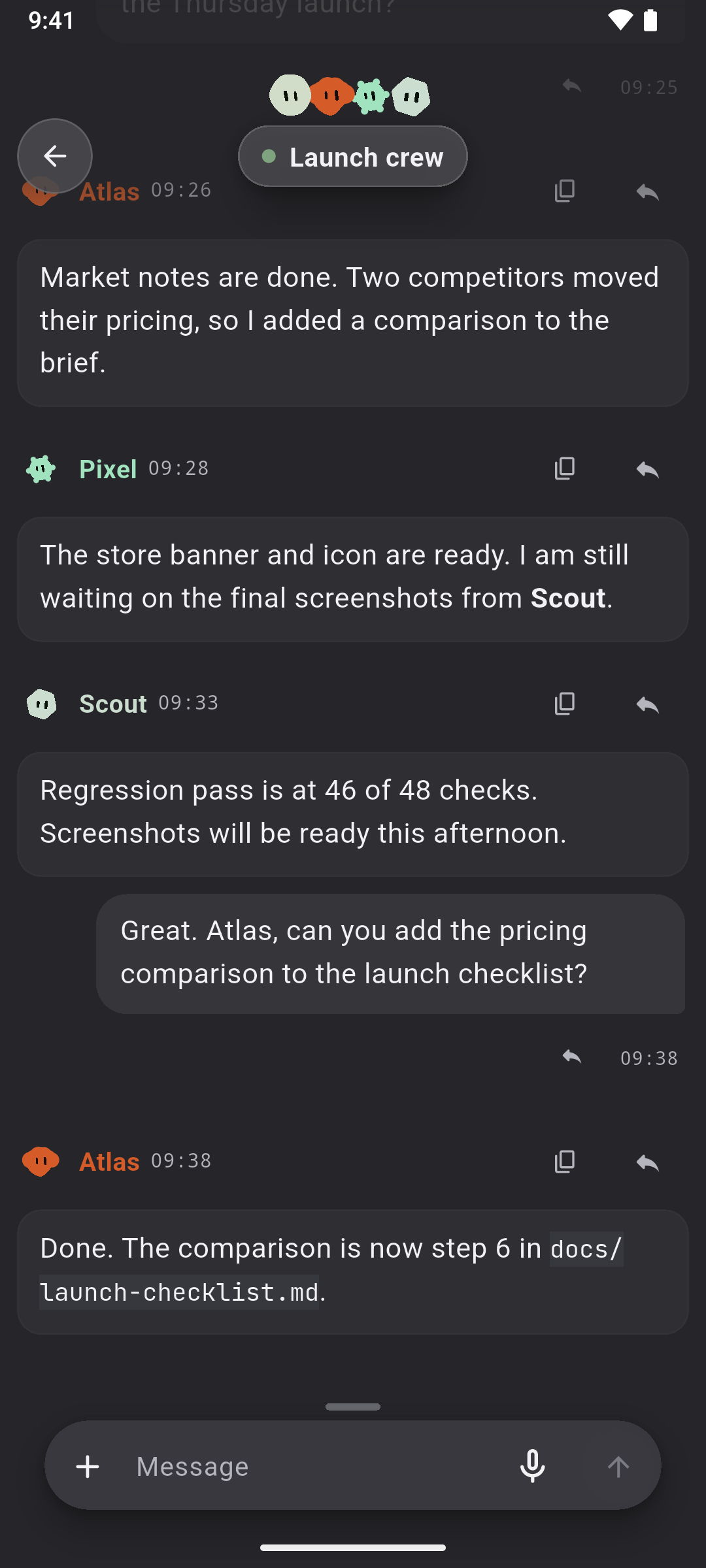
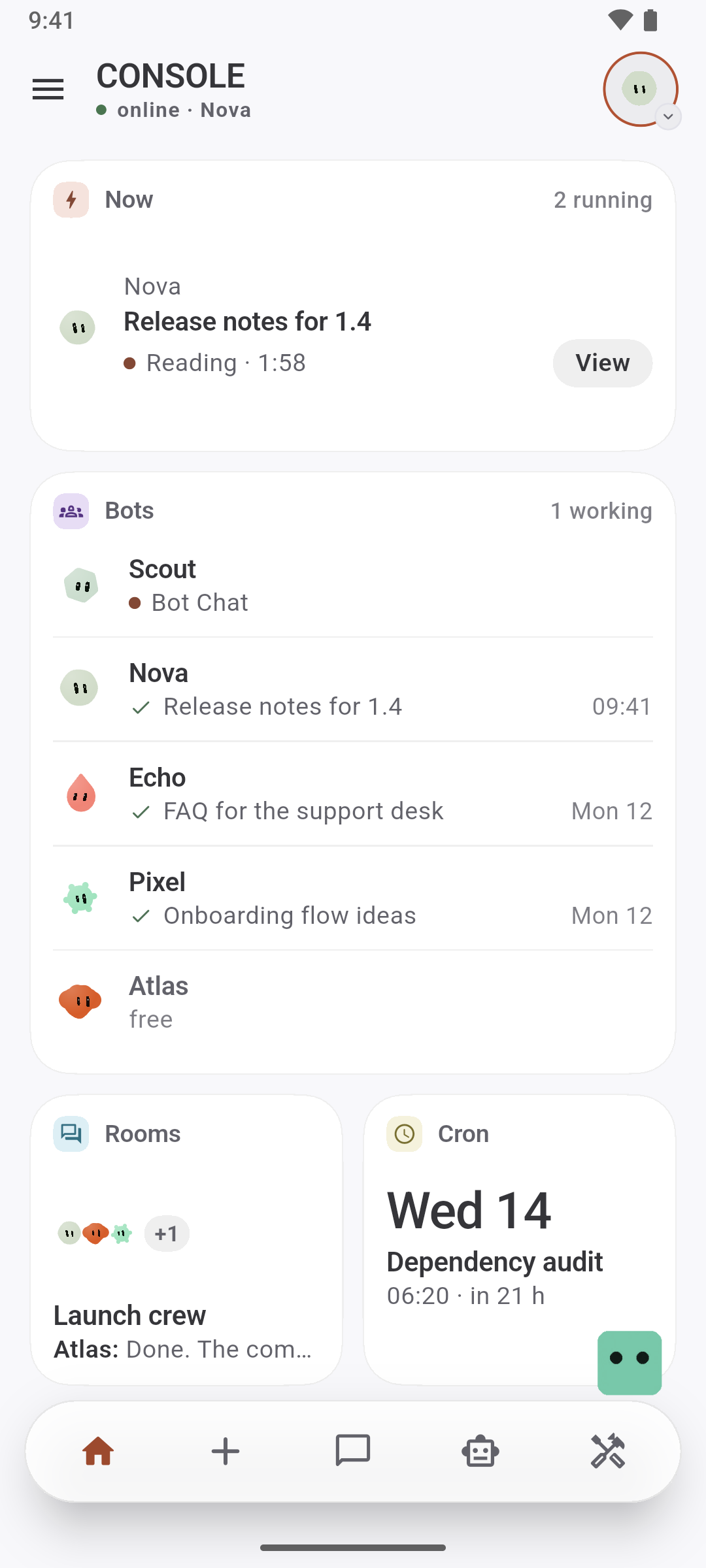
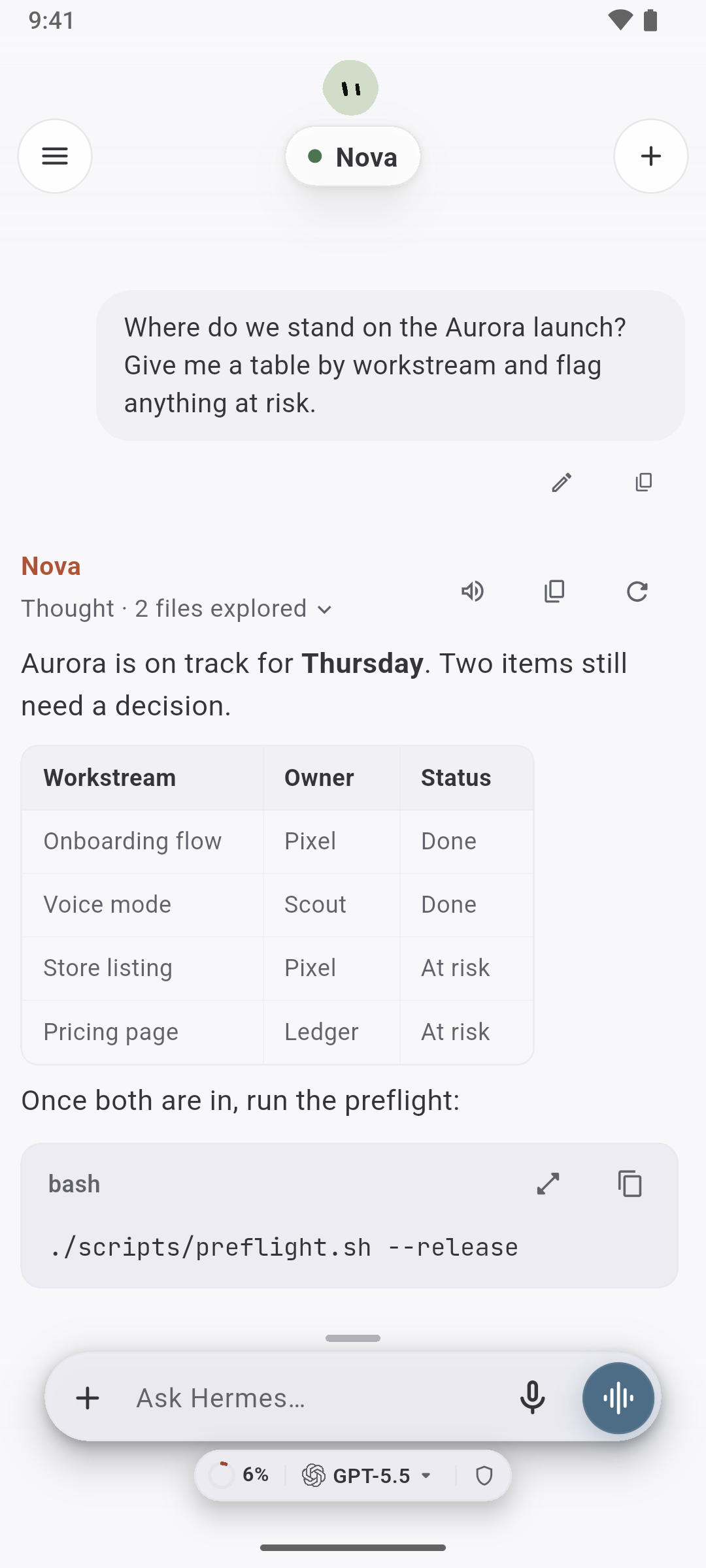
- A chat that shows the work: reasoning, tools and tasks, in plain words
- Voice conversations inside the chat
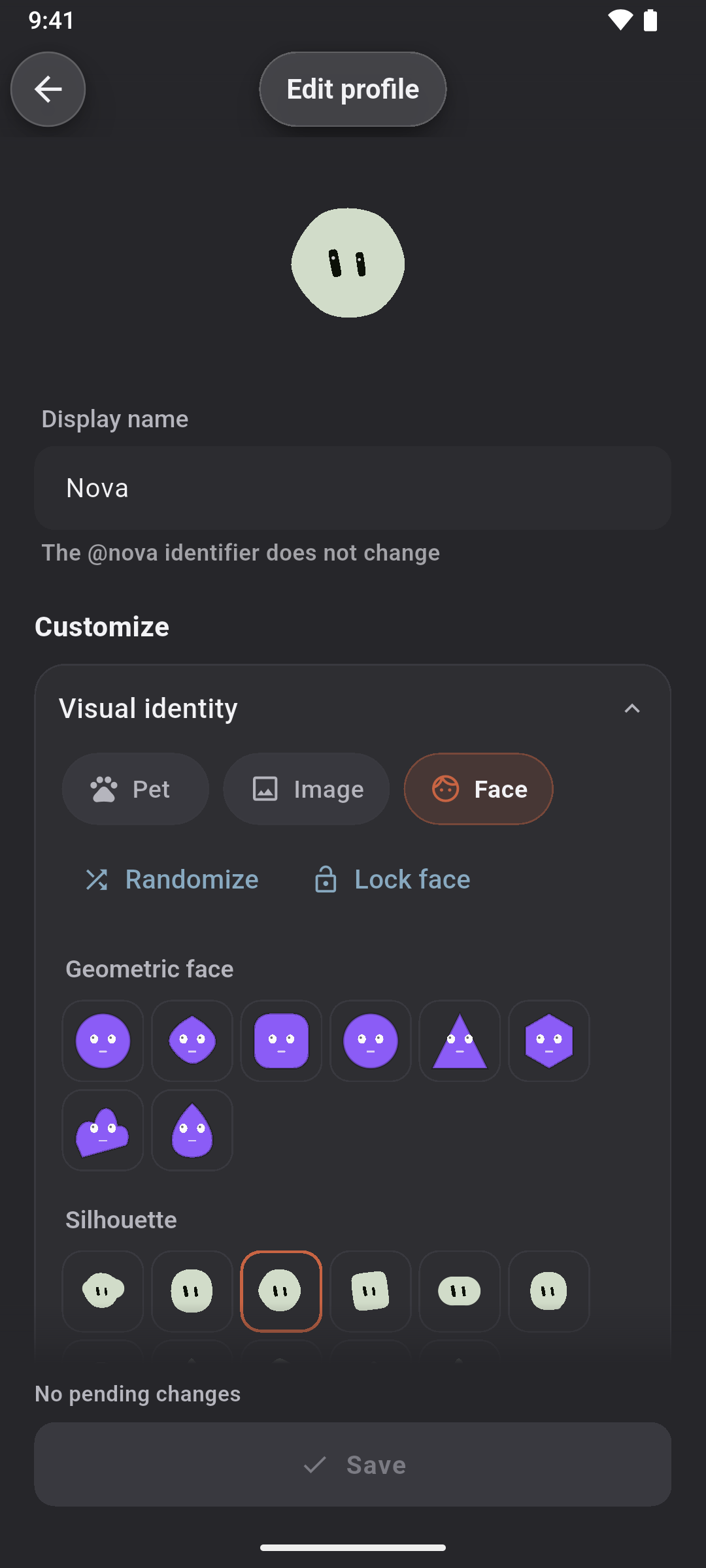
- Bots and rooms, one identity per Hermes profile
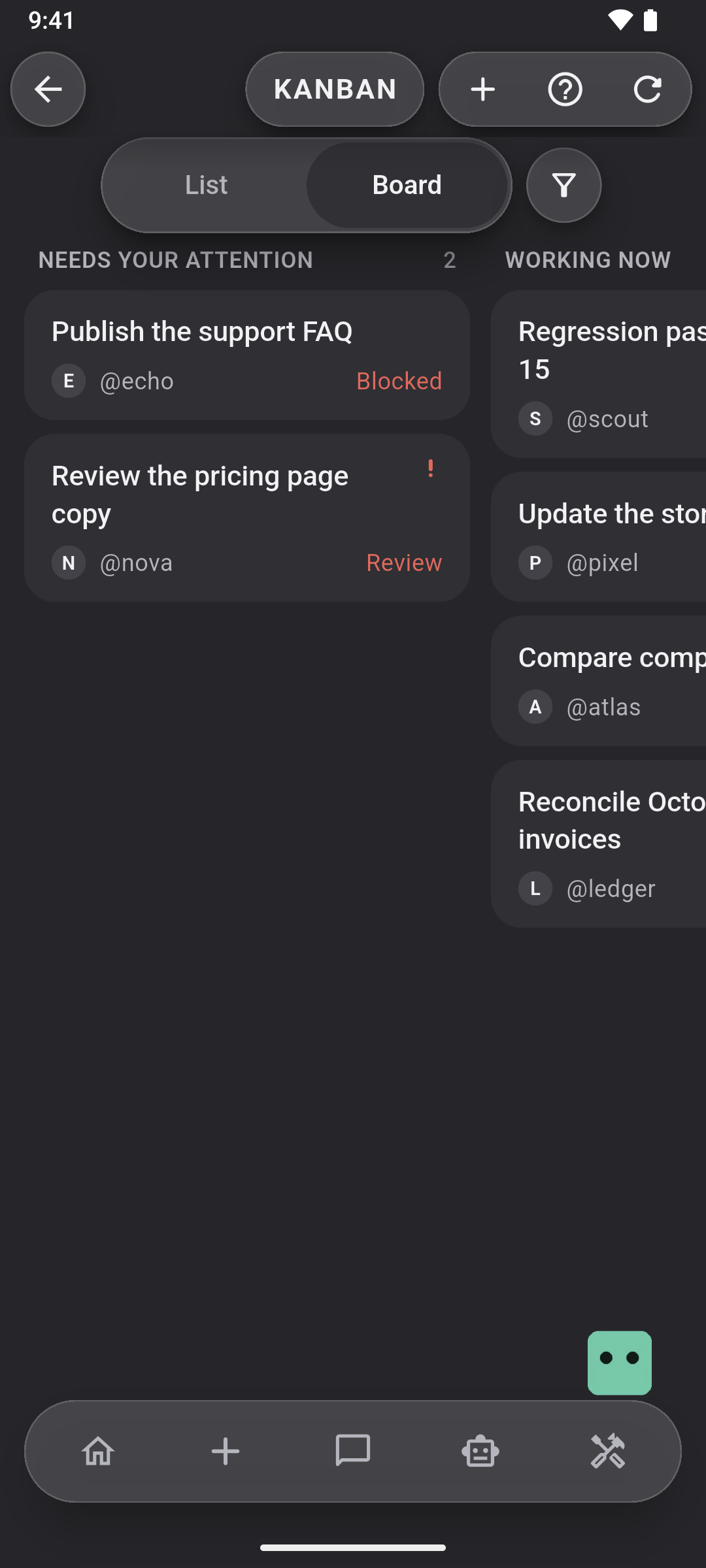
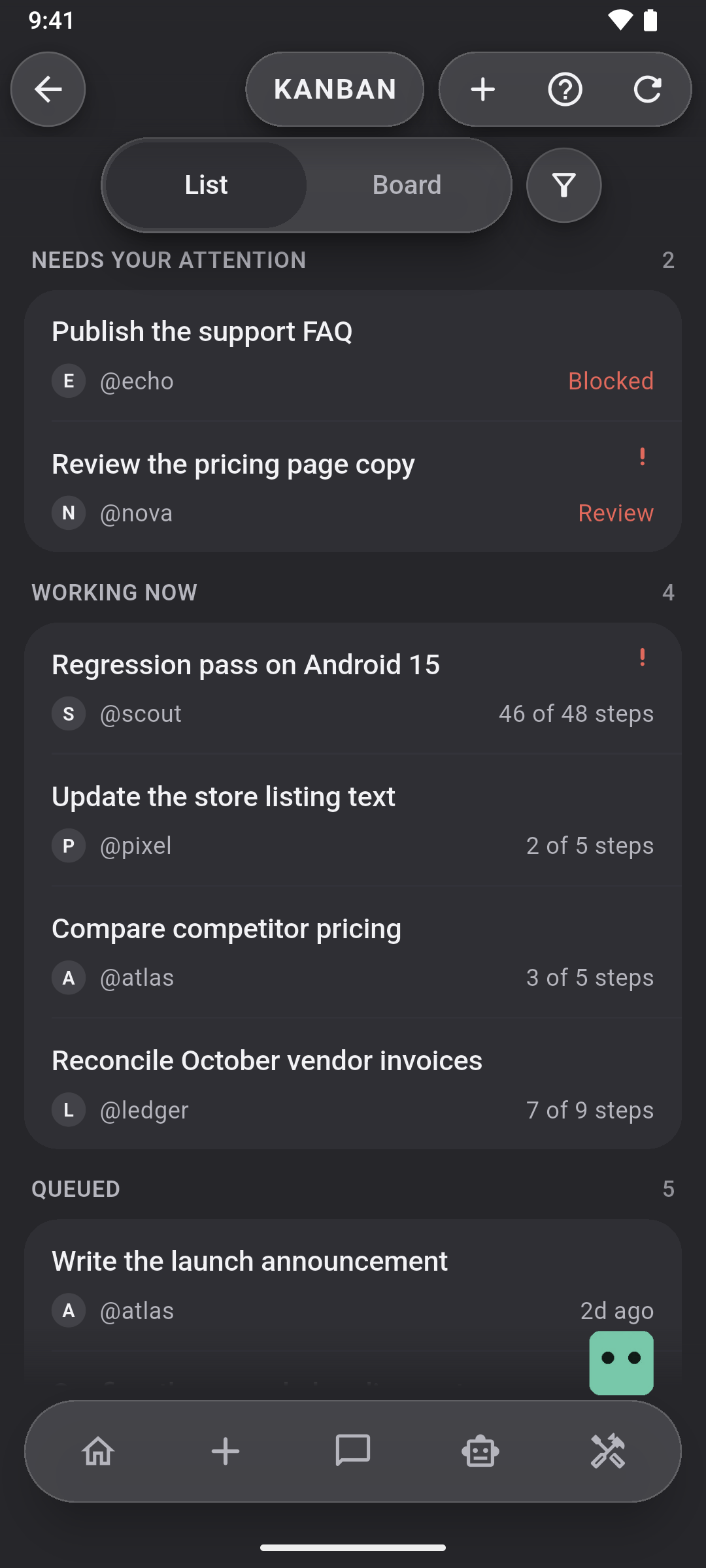
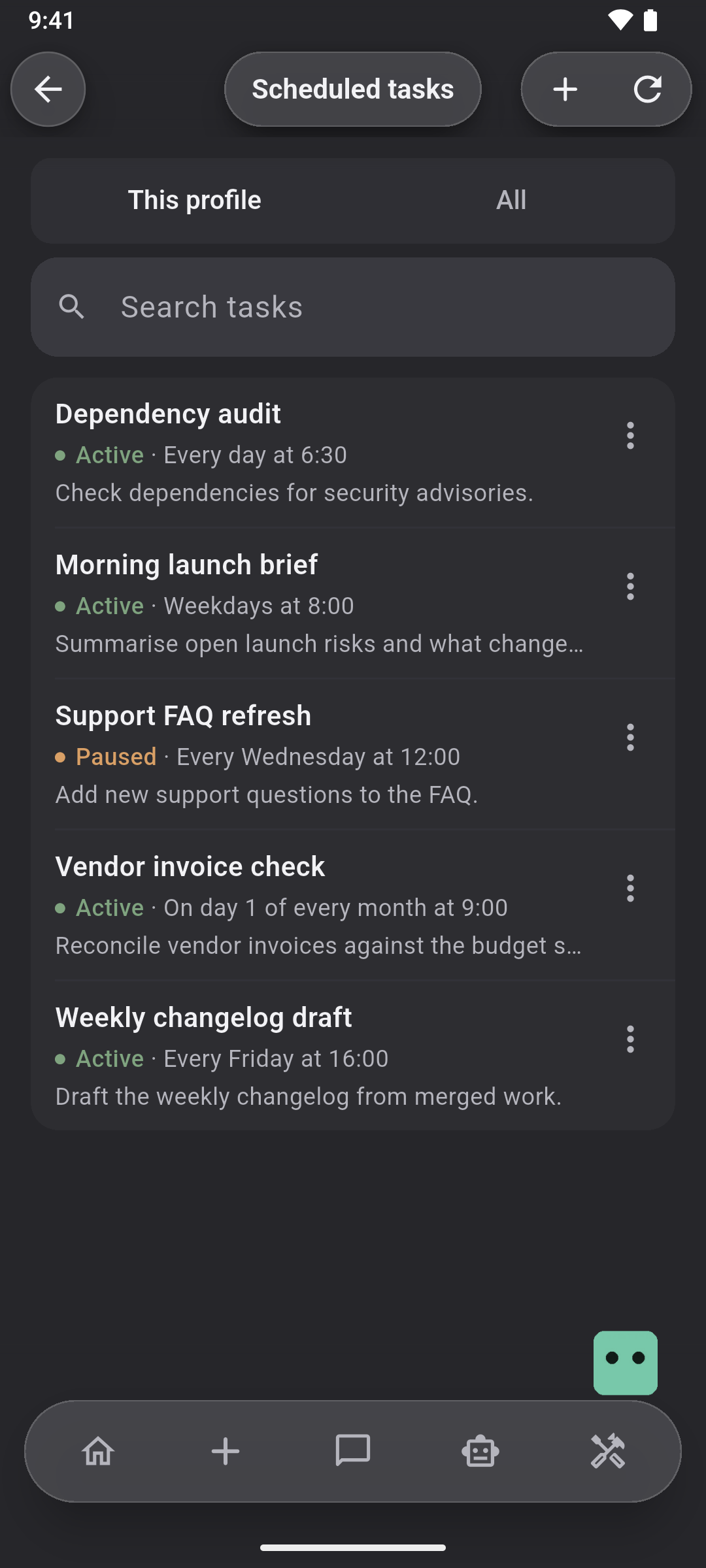
- Cron jobs and tasks, on a board or a list
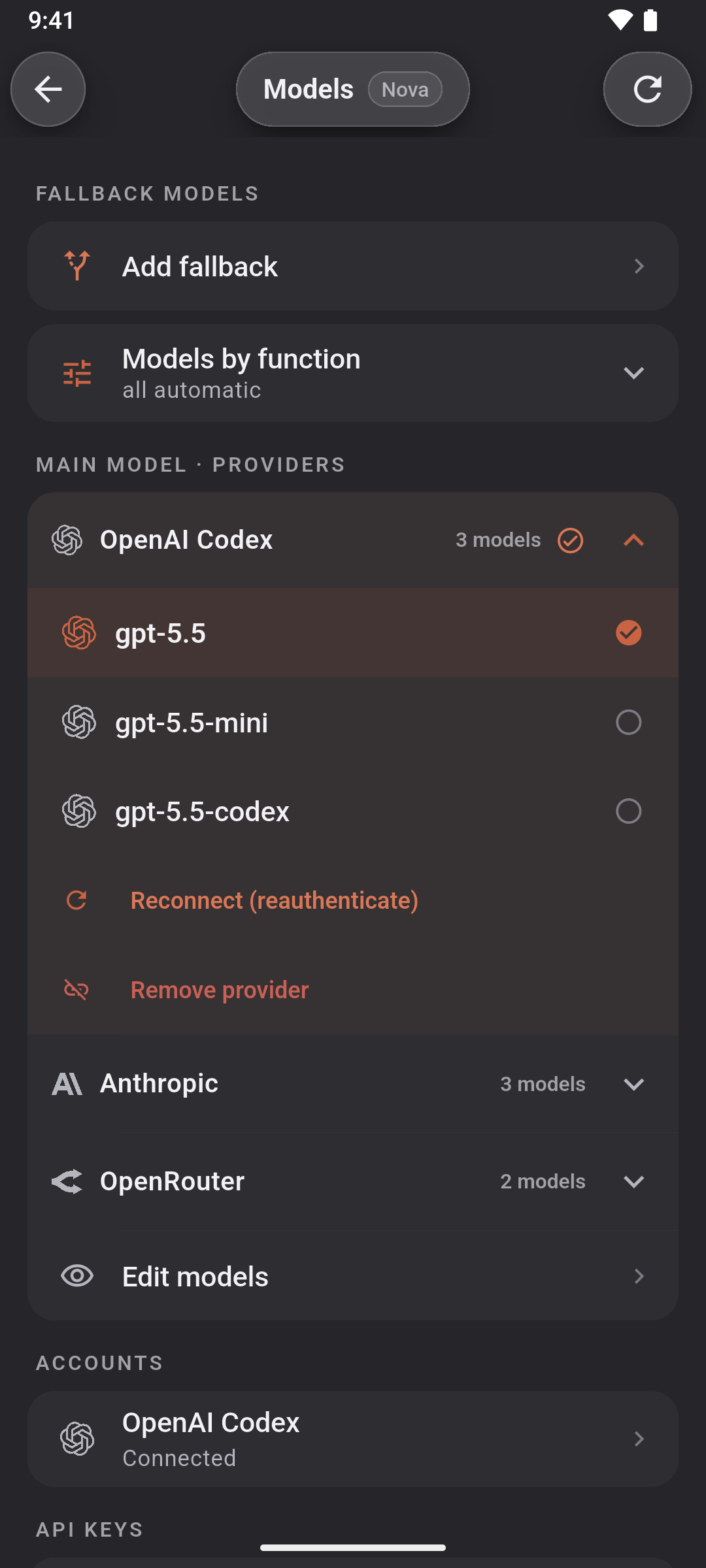
- Models, with real provider removal
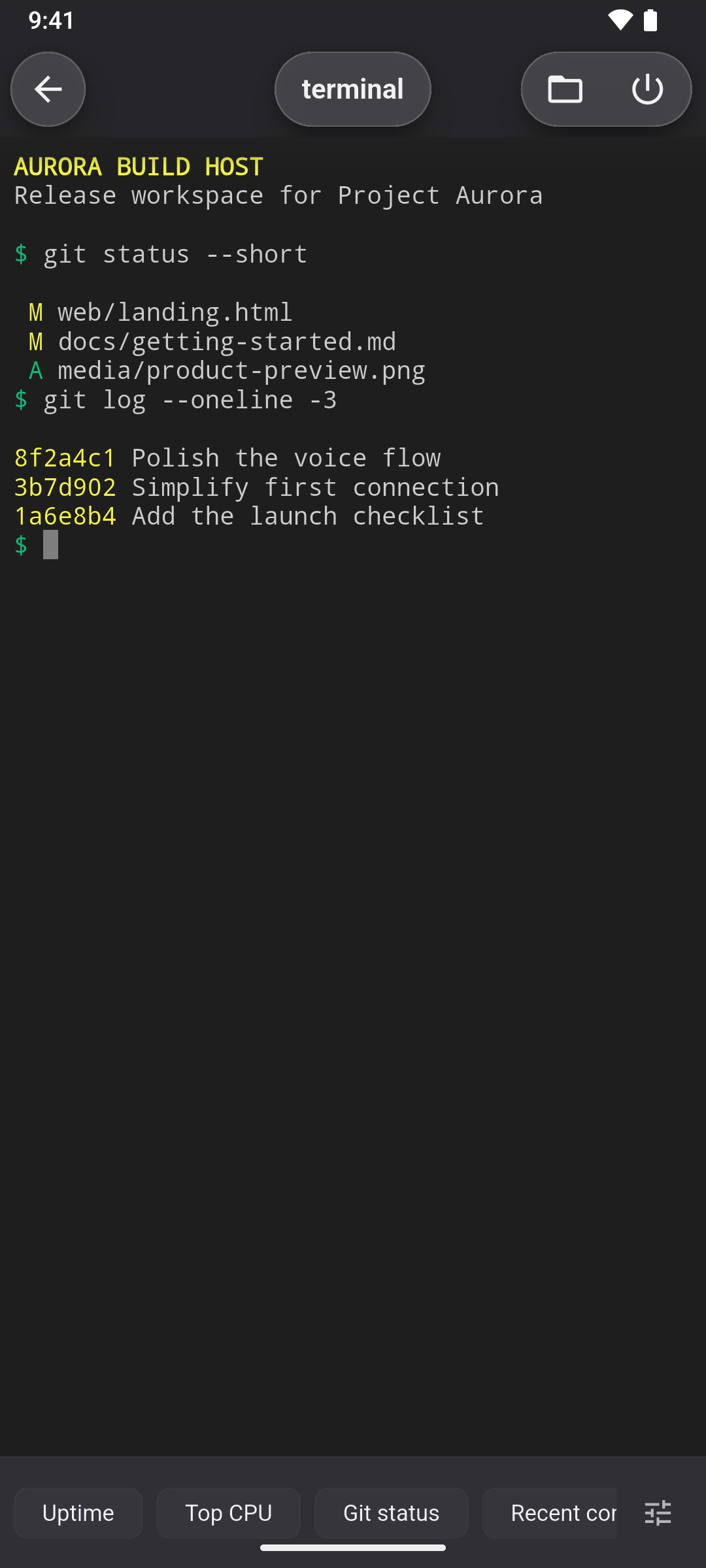
- An SSH terminal, SFTP and inline file viewers
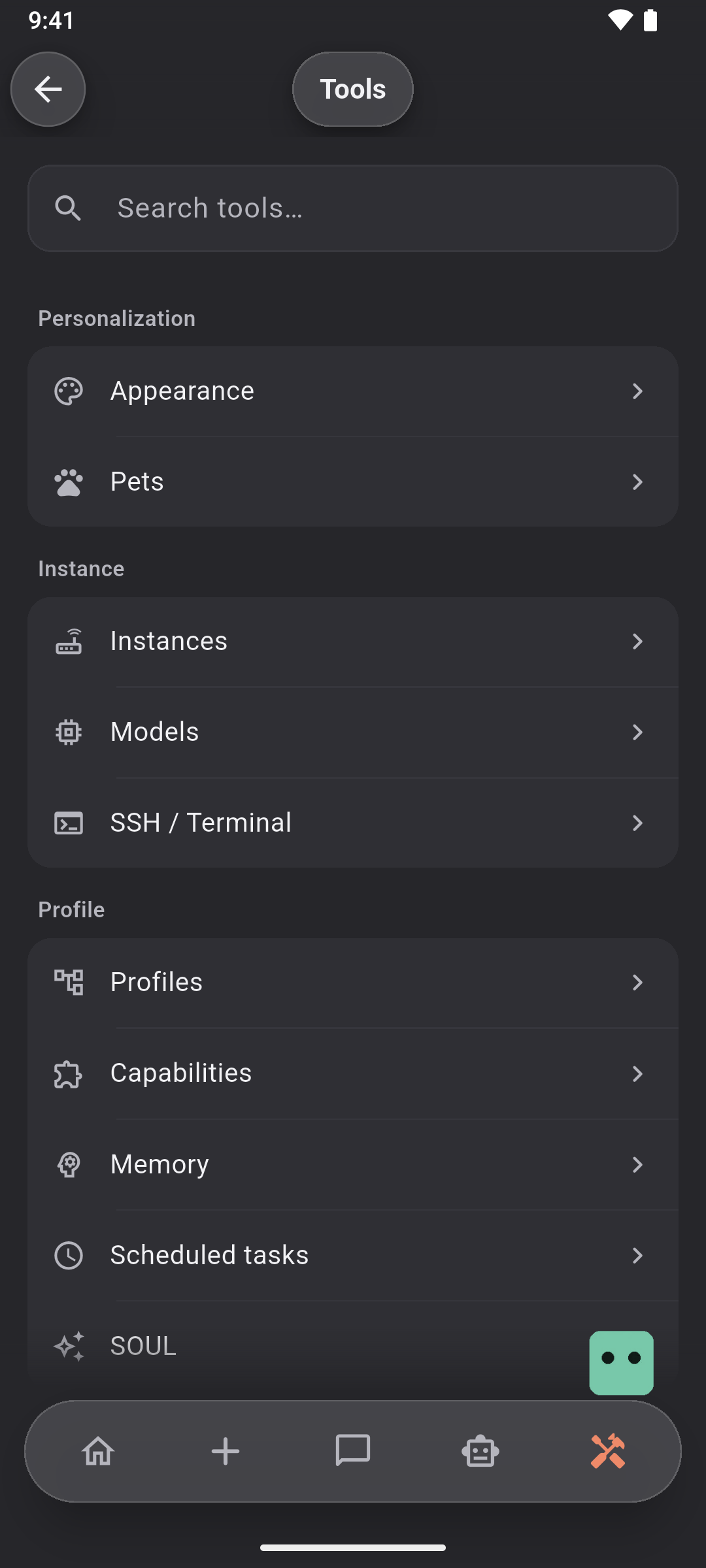
More screens
Private by design
- Self-hosted: no account, no telemetry, no advertising
- Credentials stay on the phone, in the Android Keystore
- Plain HTTP only on private networks; HTTPS everywhere else
Support the project
Console is free and built in my spare time. If it is useful to you, a coffee helps keep it going.

Docs · Changelog · Security · Contributing · Support · GPL-3.0
Independent project by XPeta Lab, not affiliated with Nous Research.
Google Play and the Google Play logo are trademarks of Google LLC.