BossConsole
A tiny operating system for always-on agents.
Create your own always-on agent with a real browser, terminal, editor, and an extensible toolbox. Choose its tools, keep it running in BOSS, and follow its work from anywhere.
Chat with your Fluck agents at fluck.ai. Open shared terminals and BOSS windows at cli.risaboss.com.
▶ Watch the 64-second film · Download BOSS · Explore the wiki · Open live sessions



Build your business on BOSS
Create an always-on agent around the work your business does. BOSS brings the browser, terminal, editor, and plugins together so you can build an agent for your team and customers.
Ask Optimist is an always-on healthcare agent for doctors and patients, built on BOSS.
Want early access to an always-on agent for your business? Connect with us at enterprise@risalabs.ai and tell us what you want to build.
One workspace for the whole task
Keep the page you are researching beside the agent working on it. Run commands, inspect files, review changes, and arrange everything into split panes and saved Spaces.
BOSS runs on the JVM with Kotlin and Compose Multiplatform. Its browser, terminal, editor, and other tools come from dynamic plugins, so the workspace can grow with the work.
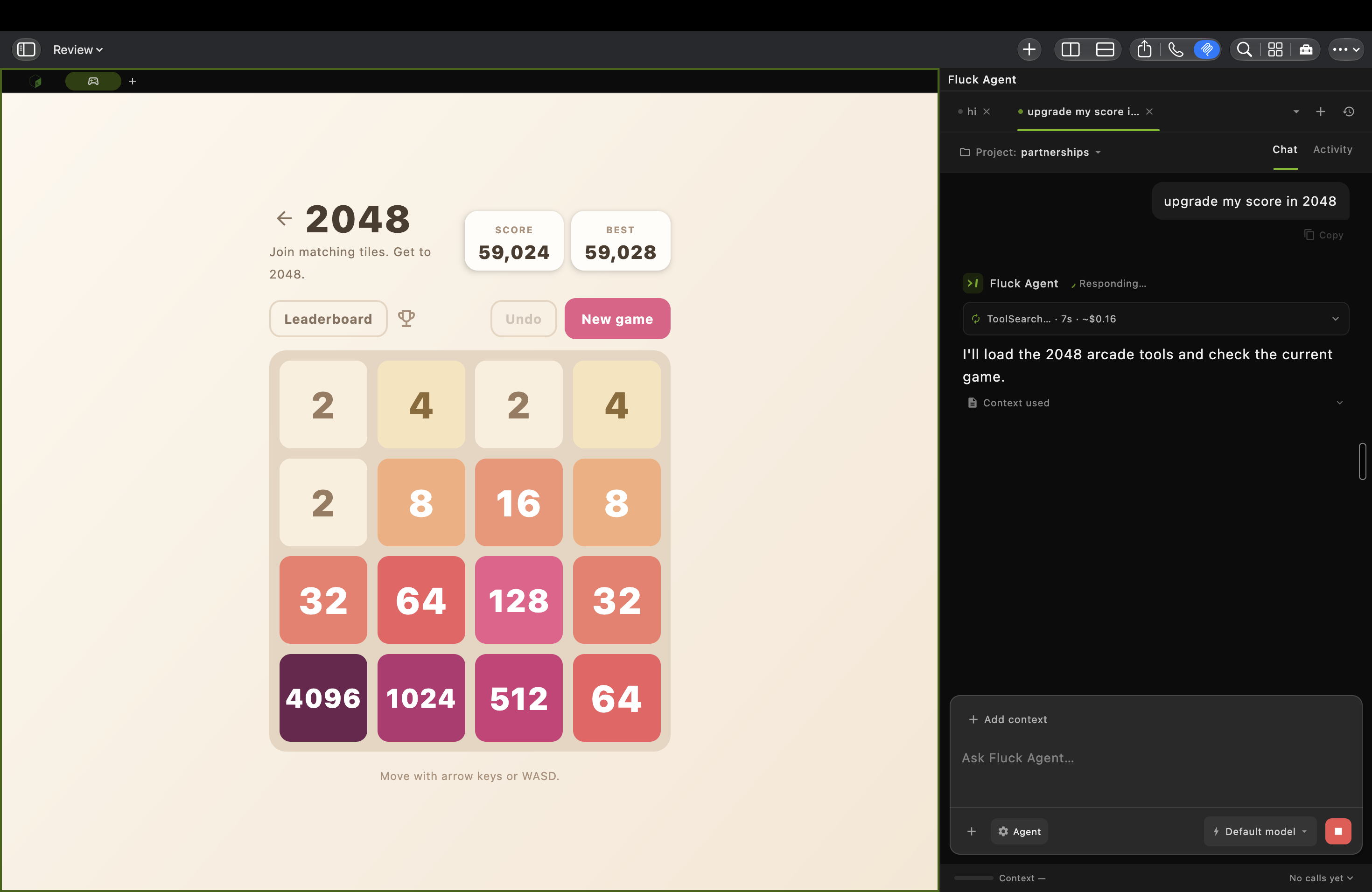
A real macOS workspace: a 2048 board beside Fluck Agent looking up tools. This capture shows work in progress.
| Browse | Build | Organize |
|---|---|---|
| Fluck Browser brings real webpages into the workspace, with agent tools for navigation and page interaction. | BossTerm + BossEditor put commands and code beside the task. Add Git, run configurations, and logs from Toolbox. | Spaces + split panes keep projects and activities together. Save layouts and move between tasks. |
Explore Spaces and everyday use →
Run any AI coding agent
Create your own always-on agent
Use Fluck Agent in BOSS to create an agent for your projects and everyday work. Give it access to the browser, terminal, editor, and plugins it needs, then keep BOSS and the agent running on a machine that stays online.
Return to your Fluck agents from another device at fluck.ai. To inspect or control shared terminal sessions and BOSS windows, sign in at cli.risaboss.com with the same BOSS account. Available access depends on your sharing settings.
Bring the agent you already use
Claude Code · Codex · Gemini CLI · OpenCode
Bring the CLI you already use. Open a BOSS terminal, connect it through Toolbox → MCP or the BossTerm AI menu, and choose which BOSS tools it can call. The local boss MCP server discovers tools from active plugins, including browser, terminal, editor, Git, and automation tools.
An agent can inspect the running workspace and act in it: read a terminal's output, open a file, navigate a browser tab, or run a command. The available tools depend on your installed plugins and access settings.
From page context to visible results
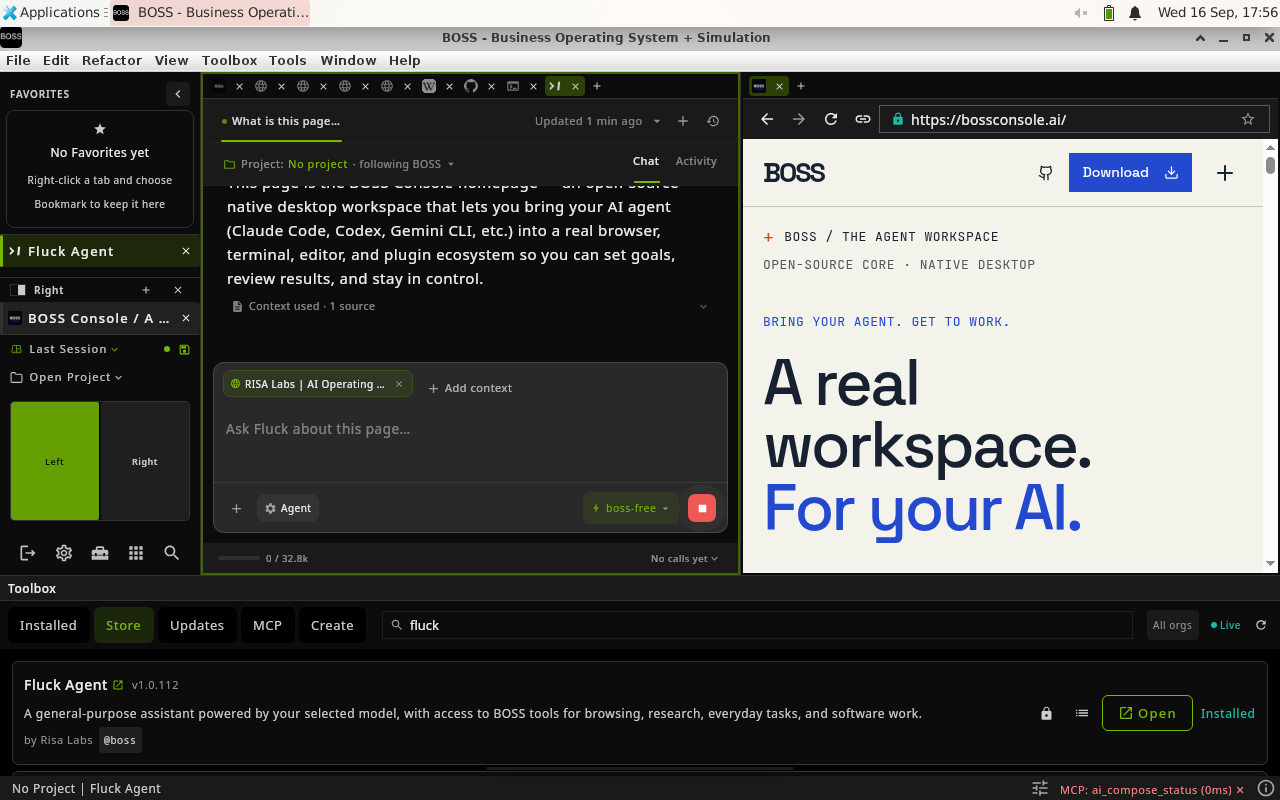
1. Give the agent context. In this Fluck Agent example, the current BOSS webpage is attached to the conversation while staying visible in the neighboring pane.
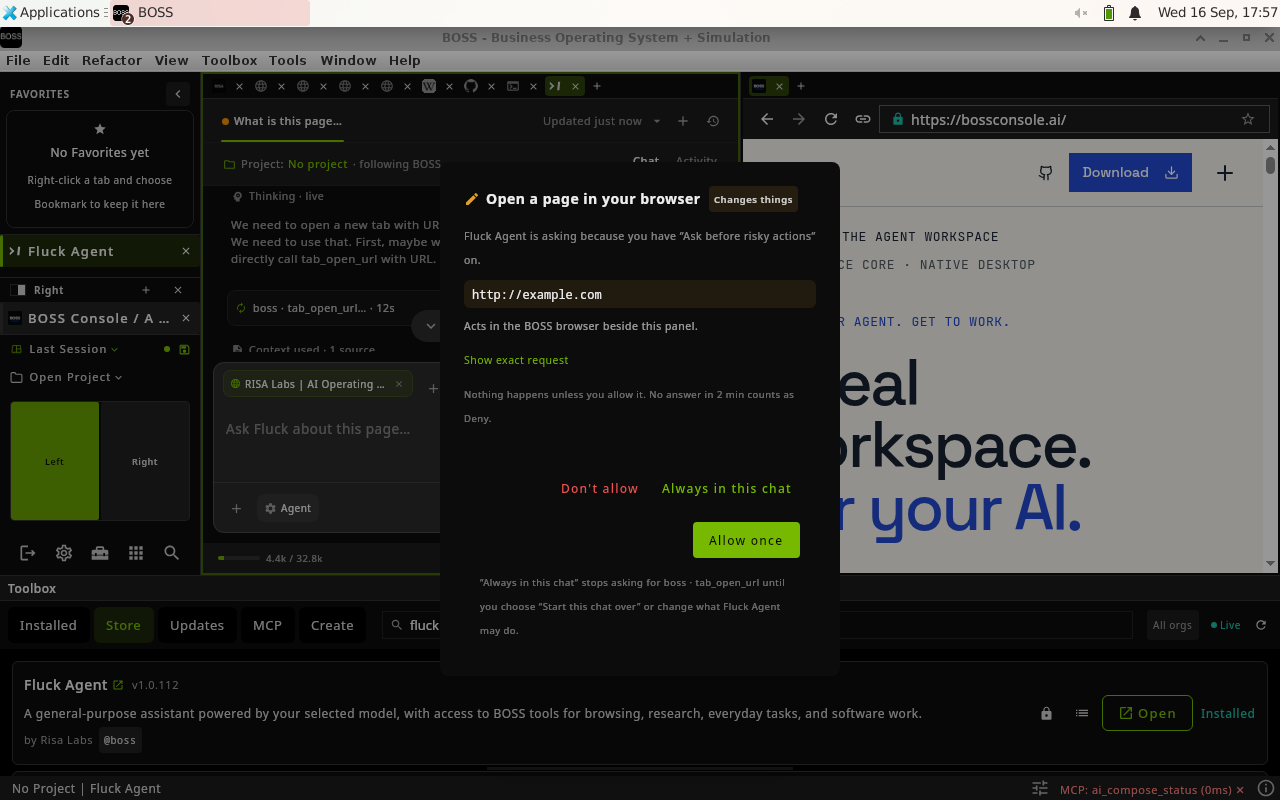
2. Review the requested action. |
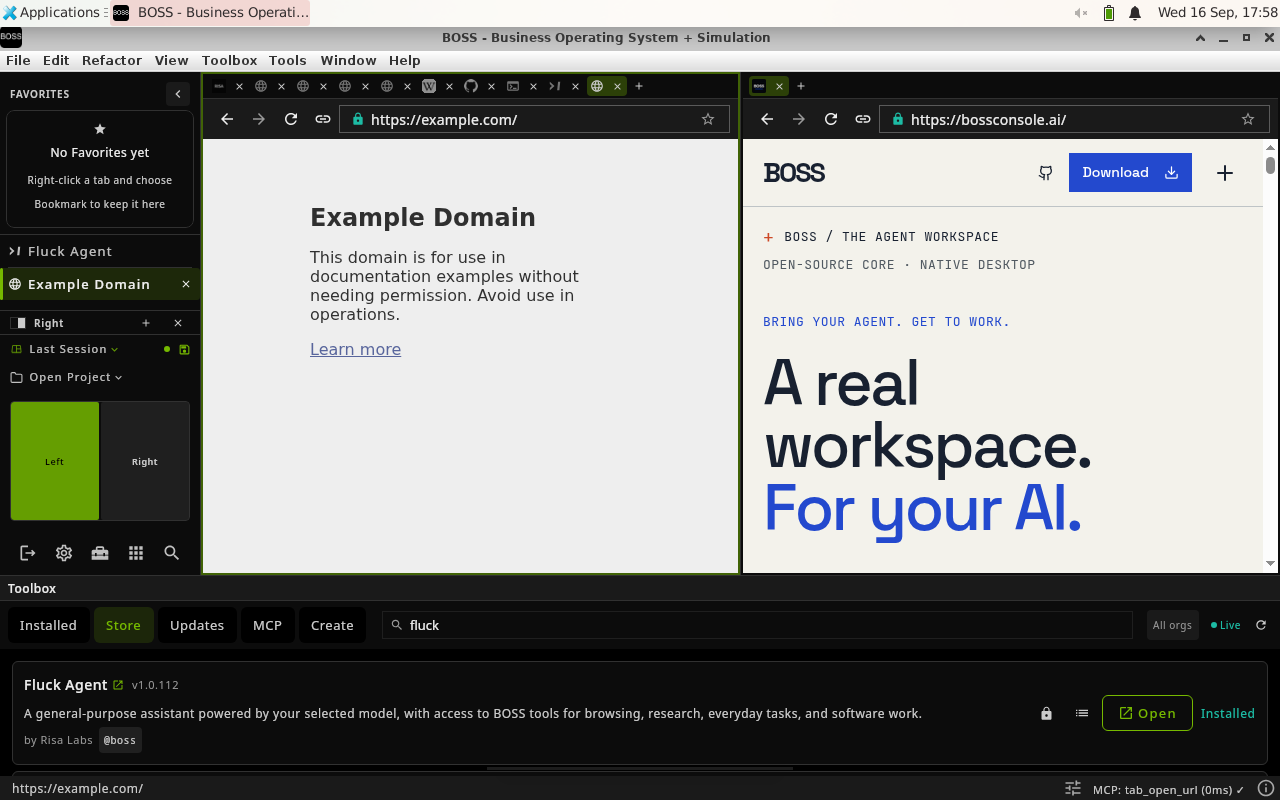
3. Inspect the result. |
These three product captures show BOSS 9.5.19 on Linux. The current release may look different.
Connect your agent → · See the complete walkthrough →
Build your own toolbox
Install the tools you need from the built-in Toolbox. Browse plugins, manage updates, enable or disable tools, and customize the workspace around your project.
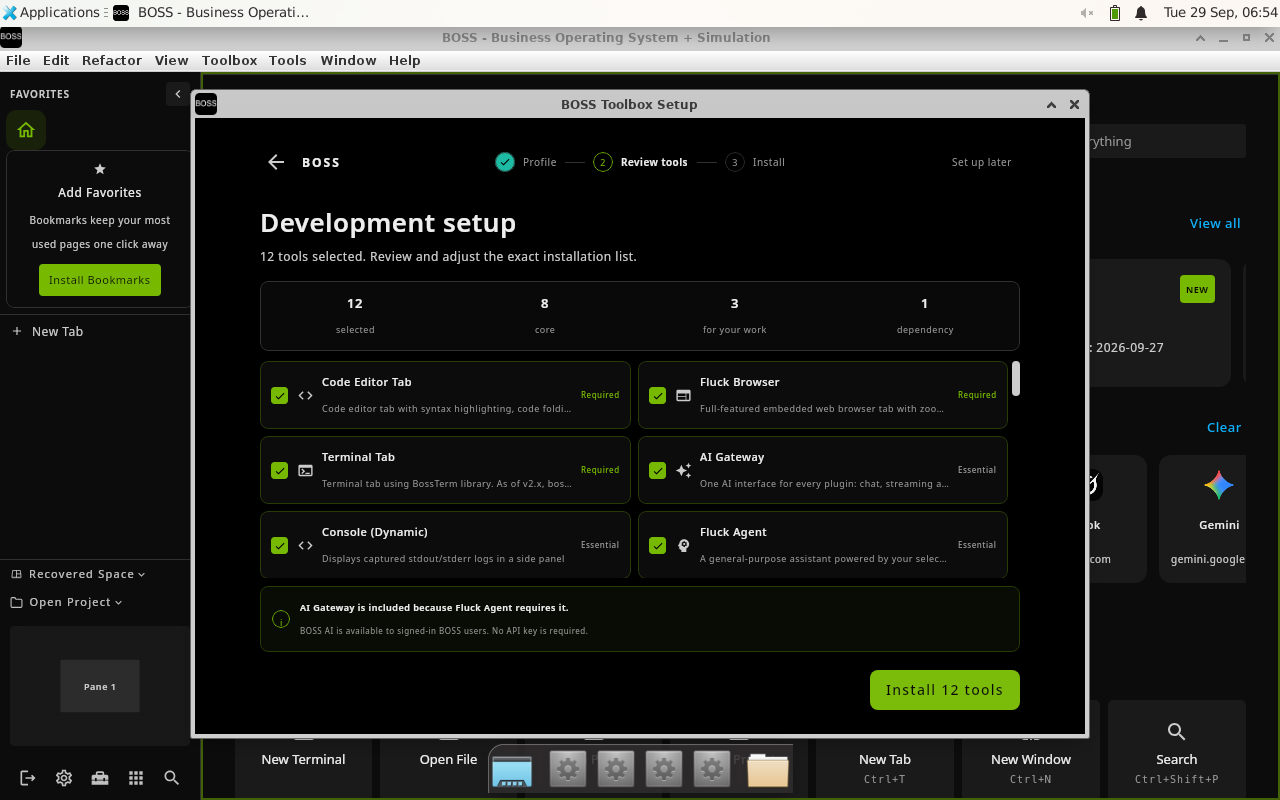
Development setup in BOSS 9.5.32 on Linux: review the selected tools before installing them.
Start with a browser, terminal, and editor. Add Docker or Kubernetes for infrastructure, notebooks for research, automation for repeatable browser work, or your own plugin.
Tool Creator scaffolds a plugin project. Tool Evolver helps inspect and improve an existing tool. Many plugins hot-reload while the host stays open; infrastructure updates can require a restart.
Discover and manage plugins → · Create and publish a plugin → · Developer CLI → · Browse the ecosystem →
Your workspace, on another device
Sign in with the same BOSS account to find your shared sessions. The portal separates terminals from application windows, so you can open the kind of session you need.
| BossTerm live sessions | BossConsole live sessions |
|---|---|
| Open shared terminals from standalone BossTerm or BossConsole. View output or control the terminal according to the share's access settings. | View and control a shared BOSS window from a browser or another BossConsole. One controller holds the input lease at a time. |
| BossTerm also offers View and Control links with QR codes for sharing to a phone or another device. | Full-window hosting is currently a macOS 14+ preview and needs Screen Recording permission. Desktop BOSS itself also supports Windows and Linux. |
Full-window sharing publishes one encrypted video stream per window through Cloudflare Realtime SFU for multiple viewers, with encrypted remote-control messages. Same-account access and automatic control are enabled by default for fresh preferences; saved opt-outs are preserved. The account backend remains trusted for admission and key delivery.
Sharing setup, access settings, and protocol diagram →
You decide what your agents can touch
Choose the tool access that fits the task through Toolbox → MCP.
- Per-tool switches remove disabled tools from the agent's available BOSS toolset and block calls to them.
- Roles and permissions govern tools that declare permission requirements. Admin users bypass role checks, but still obey the per-tool switches.
- Secret Manager supports credential references and browser autofill so supported calls can use a credential without placing its value in the agent transcript. Explicit secret-read tools have different behavior.
- Signed store plugins bind the plugin identity, version, and JAR content. A valid signature establishes provenance, not that a plugin is safe.
These controls apply to calls through BOSS. They do not sandbox an external agent, and plugins run in the host process. Disabling a tool does not cancel work already authorized. An authorized page or tool receiving a secret can still expose it.
Security and privacy → · Secret-reference guarantees → · Infrastructure plugin audit →
Downloads
Install BOSS, sign in, then use Toolbox to choose your initial tools.
| Platform | Architecture | Installer |
|---|---|---|
| macOS | Apple Silicon + Intel | Homebrew · DMG |
| Windows | x64 | MSI |
| Windows | ARM64 | MSI |
| Linux | AMD64 | DEB · RPM · JAR |
| Linux | ARM64 | DEB · RPM · JAR |
On macOS:
brew install --cask boss
For installation scripts, platform notes, and your first workspace, follow the Getting started guide. Download links resolve to the latest stable release; use all releases to choose a specific version.
Documentation
The BossConsole wiki is the product guide. Start with a workflow, then follow its links into the technical references.
| What you want to do | Read |
|---|---|
| Install BOSS and set up your first tools | Getting started |
| See the app in action | Product walkthrough |
| Arrange tabs, splits, and projects | Spaces and everyday use |
| Connect an agent and manage tools | Agents and MCP |
| Install or build a plugin | Plugins |
| Open your terminal or window remotely | Live sessions and window sharing |
| Use BOSS from a shell or script | CLI guide |
| Understand access and credentials | Security and privacy |
| Diagnose a problem | Troubleshooting |
| Contribute to the host or plugin platform | Development and contributing |
Technical references, architecture, and benchmarks
- CLI reference and Plugin Launchpad
- Core subsystems and host plugin platform
- Design system and visual styleguide
- Editor architecture, application features, and keyboard shortcuts
- RBAC guide, secret references, and dated infrastructure guardrails audit
- Browser benchmark report and reproducible harness and evidence
Development
Use JDK 17 and the included Gradle wrapper. Begin with CONTRIBUTING.md for setup, validation, and the contribution workflow. Pull requests target dev.
git clone https://github.com/risa-labs-inc/BossConsole.git
cd BossConsole
git switch dev
./gradlew showVersion
Browser and backend features need local configuration. Follow the development guide for local.properties, build commands, and isolated testing. Repository-specific instructions live in AGENTS.md.
Install the BOSS CLI through Toolbox → Tools → Install BOSS CLI to inspect and operate the running workspace:
boss status --json
boss doctor
boss mcp list --filter browser
boss file README.md
Complete CLI reference → · Plugin authoring and MCP →
Open source & ecosystem
BOSS is licensed under Apache-2.0. The host and tools live in separate repositories; plugins release independently.
| Project | Role |
|---|---|
| BossConsole | Desktop host, workspace UI, authentication, and sharing |
| boss-plugins | Plugin catalog and submodule workspace |
| boss-plugin-api | Plugin contracts provided by the host |
| BossTerm | Terminal library, bundled by the terminal plugin |
| BossEditor | Editor library, bundled by the editor plugin |
| boss-microkernel-runtime | Out-of-process plugin runtime |
| BossConsole-Releases | Installers and release history |
Core plugins: Fluck Browser · Terminal · Editor
Support
Report an issue · Troubleshoot · Enterprise inquiries
Your agent. Real tools. You in control.
Download BOSS · Watch the film · Read the wiki · Open your sessions
bossconsole.ai · risaboss.com · Risa Labs
Video from bossconsole.ai. Original product captures from risaboss.com, preserved in the wiki with source attribution. Licensed under Apache-2.0.