cascade-editor
A Compose Multiplatform editor that starts as a rich text input and scales into a block-based document editor.
Use Cascade Editor for a simple formatted comment field today. Keep the same editor when that field grows into product-specific rich text, Markdown/HTML/JSON persistence, read-only previews, custom toolbars, slash commands, draggable blocks, or full Notion/Craft-style document editing without moving your editor core to WebView, contentEditable, or JavaScript.
Rich text input | Markdown/HTML/JSON round-trip | Read-only rendering | Custom toolbars | Block editor | Android + iOS + Desktop + Web/Wasm





Try the live web demo: linreal.github.io/cascade-editor
Start here: Rich text input · Import/export · Full block editor · Custom blocks
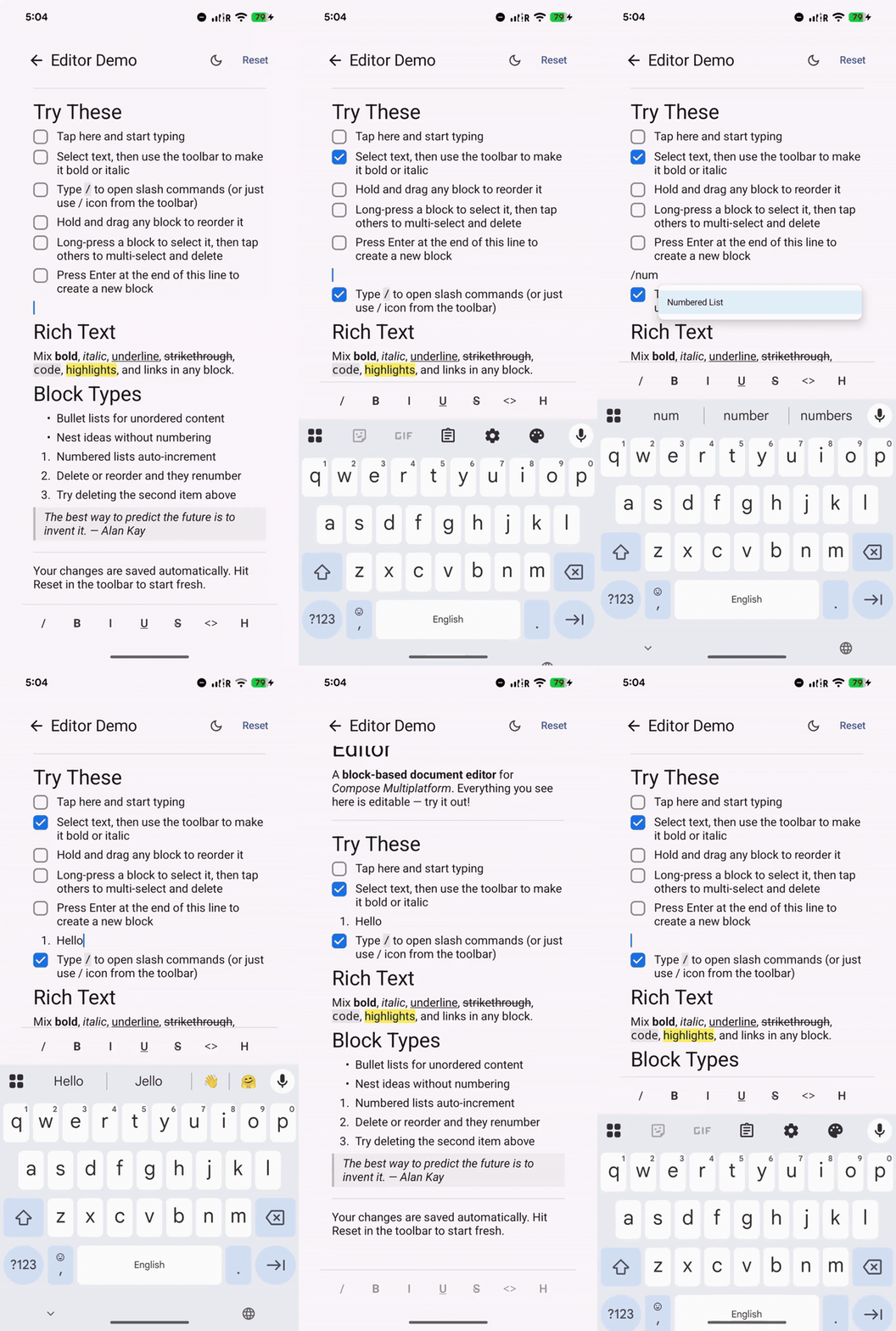
One editor core, four targets
Compose clients use the same editor artifact on Android, iOS, JVM desktop, and Kotlin/Wasm. Swift apps can use the native iOS SDK, which wraps the shared core in a UIKit controller and ships through Swift Package Manager.
| Target | Working sample |
|---|---|
| Android | sample-android runs the shared Compose sample as an Android app |
| iOS | iosNativeSample shows the native SDK in SwiftUI and UIKit |
| Desktop | sample runs as a JVM desktop app with ./gradlew :sample:run |
| Web/Wasm | The live web demo runs the shared sample as a Kotlin/Wasm browser app |
Pick your starting point
Cascade Editor is designed for apps where rich text usually starts small and then grows.
I need a rich text input
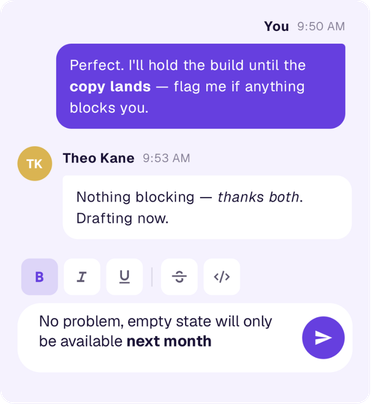
Use Cascade Editor as a constrained rich text field with bold, italic, links, inline code, toolbar controls, and predictable persistence.
Good for comments, notes, custom fields, descriptions, and short rich text inputs.
I need product-specific import/export
Round-trip content through versioned JSON, customizable HTML, or the experimental Markdown codec. Markdown imports carry structured warnings and a fidelity recommendation, so an app can keep raw-source editing for files that would not survive a native round trip.
Try the Markdown round-trip screen from the live Web/Wasm demo, or follow the Markdown persistence recipe.
Good for apps that already store rich text on the backend and cannot simply adopt another editor's internal format.
I need a full block editor
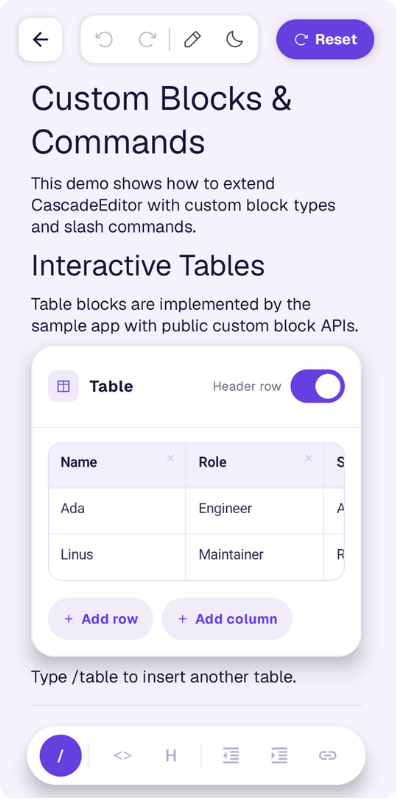
Use structured blocks: paragraphs, headings, todos, quotes, lists, code blocks, dividers, indentation, drag-and-drop, slash commands, undo/redo, read-only mode, and custom block types.
When built-in behavior is not enough, extend the editor with custom block types, renderers, slash commands, toolbar actions, serialization codecs, and HTML import/export rules.
Good for document editors, task descriptions, knowledge bases, note apps, and internal tools.
When Cascade Editor is a good fit
| Need | Fit |
|---|---|
| Simple formatted input that may grow later | Strong fit |
| HTML/JSON persistence or backend rich-text dialect | Strong fit |
| Product-specific toolbar or formatting rules | Strong fit |
| Custom block renderers | Strong fit |
| Notion/Craft-style block editing | Strong fit |
| One-off formatted text field with no growth path | A simpler editor may be enough |
Features
- Rich text input — bold, italic, underline, strikethrough, inline code, highlight, links, and custom styles inside text-capable blocks
- Configurable formatting UI — use the built-in toolbar, limit available actions, hide it, or render your own external toolbar
- JSON and HTML round-trip — save/load documents through
toJson()/loadFromJson()ortoHtml()/loadFromHtml() - Markdown import/export (experimental) — use a CommonMark/GFM-oriented, profile-driven codec with fidelity analysis, structured warnings, source preservation, and report-bearing editor APIs
- HTML-like dialect support — customize tag decoders, span encoders, block group encoders, parser policies, and backend-specific import/export rules
- Read-only rendering — show selectable, scrollable content while editor-owned mutations are disabled
- Structured document editing — paragraphs, headings, todos, bullet lists, numbered lists, quotes, code blocks, and dividers as independent blocks
- Block editor workflows — split, merge, convert, indent, reorder, drag-and-drop, slash commands, undo/redo, and list continuation
- Custom block system — add your own block types, renderers, slash commands, serialization, and product-specific behavior
- Shared multiplatform editor core — Android, iOS, desktop, and Web/Wasm from one Kotlin/Compose codebase, without WebView, contentEditable, or an embedded JavaScript editor
- Reliability-oriented core — crash containment, bounded no-throw JSON/HTML/Markdown decode, structured warnings, deterministic reducers, and 2,185 declared Kotlin/Swift test functions
Why this is not just a styled text field
Cascade Editor is built around a structured document model, not a single styled text buffer. Text formatting, block structure, undo/redo, indentation, drag-and-drop, serialization, read-only rendering, and custom block renderers all have to stay consistent across the same editor state.
Some of the harder problems handled by the editor core:
- each text-capable block owns a long-lived
TextFieldState, while the document model remains serializable and reducer-driven; - rich-text spans are preserved through typing, split, merge, replace, undo, and redo;
- structural edits such as list continuation, indentation, slash-command replacement, block conversion, and drag reorder are replayed as document transactions;
- JSON and HTML import/export are designed for backend round-trips, including custom block codecs and HTML-like dialects;
- most editor behavior lives in shared Kotlin
commonMain, with platform-specific code kept to thin Compose adapters.
Cascade Editor vs single-buffer rich text editors
A single-buffer editor makes one text field richer. Cascade Editor makes the document itself editable. Both can handle familiar formatting; the difference appears when paragraphs, todos, callouts, or sections need their own identity and behavior.
| Where it matters | Cascade Editor | Typical single-buffer editor |
|---|---|---|
| Document model | Ordered blocks with stable IDs, types, content, and attributes | One continuous text value, with paragraphs and spans addressed by character offsets |
| Editing surface | Each text-capable block owns a long-lived TextFieldState and can be focused or rendered independently |
One text input with one document-wide cursor and selection |
| Structural editing | Split, merge, convert, indent, outdent, multi-select, and subtree-aware drag/reorder are built-in document operations | Paragraph and list editing fits naturally; stable nodes and subtree operations need a separate structural layer |
| Custom content | Custom block types can bring their own Compose renderer, slash command, serializer, and lightweight preview | Inline styles and tokens fit naturally; interactive non-text content usually lives outside the text model |
| Document scale | Blocks render in a LazyColumn, and a separate static preview path avoids mounting editor state in lists and grids |
One input surface owns document-wide text layout; there is no block-level composition boundary |
| Undo and redo | Text edits and structural changes replay as editor transactions, including focus, caret, selection, indentation, and block order | Text and formatting history is simpler; app-owned document structure needs its own coordinated history |
| Persistence | Versioned block JSON, unknown-block preservation, customizable HTML profiles, and experimental report-bearing Markdown | HTML or Markdown maps naturally to one buffer; stable IDs, custom blocks, and backend-specific structure need additional schema |
| Backend dialects | Tag decoders, span encoders, block-group encoders, and parser policies can adapt import/export without changing the editor model | Product-specific structure is commonly handled by conversion code around the editor |
| Read paths | Full read-only mode plus experimental bounded previews that mount no text fields, focus, history, or editor scroll state | A read-only rich-text surface is straightforward; structured previews remain an application concern |
| Growth path | Start with one paragraph, then add blocks, previews, custom renderers, drag, and slash commands without replacing the editor core | The smaller starting model stays attractive while the product remains one continuous formatted field |
| Tradeoff | More editor surface to integrate, and native text selection stays within one block | Simpler initial integration and continuous selection across the whole text value |
Cascade's advantage is not another bold button. A block remains the same addressable object while its text changes, its type changes, or it moves with its descendants. Rendering, history, persistence, read-only behavior, and drag-and-drop all work from that shared structure instead of relying on a second model wrapped around the text field.
For a one-off formatted input, the smaller model may be the right call. When the roadmap includes custom blocks, block-level actions, document previews, or backend-owned structure, Cascade starts where a single-buffer editor eventually has to be extended.
Quick Start
Start with the smallest useful setup: one paragraph block, a limited toolbar, and slash commands disabled.
implementation("io.github.linreal:cascade-editor:1.9.3")
@Composable
fun CommentInput() {
    val stateHolder = rememberEditorState(
        initialBlocks = listOf(
            Block.paragraph(text = "")
        )
    )

    CascadeEditor(
        modifier = Modifier.fillMaxWidth(),
        stateHolder = stateHolder,
        toolbar = ToolbarSlot.Default(
            config = RichTextToolbarConfig(
                buttons = listOf(
                    ToolbarButtonSpec(SpanStyle.Bold, "Bold"),
                    ToolbarButtonSpec(SpanStyle.Italic, "Italic"),
                ),
                showIndentation = false,
                showLink = true,
            )
        ),
        slashCommand = SlashCommandSlot.None,
    )
}
From here, you can keep the same editor state and add read-only previews, external toolbars, custom blocks, slash commands, drag-and-drop, and full document editing.
Native iOS
The native SDK is distributed as a Swift package backed by a dynamic
CascadeEditor.xcframework. In Xcode, choose File → Add Package
Dependencies…, enter the package URL, and add the CascadeEditor product to
your app target:
https://github.com/linreal/cascade-editor-ios
Create a document and UIKit controller from Swift:
import CascadeEditor

let json = CascadeEditorDocumentBuilder()
    .paragraph(text: "Hello from CascadeEditor")
    .buildJson()
let editor = CascadeEditorController(initialJson: json)
let editorViewController = editor.makeViewController()
The package supports iOS 16+, arm64 devices, and Apple Silicon simulators. It embeds its Compose resources and privacy manifest; consumer apps do not need a Gradle integration or resource-copy build phase. See the native iOS SDK guide for SwiftUI/UIKit hosting, configuration, persistence, custom blocks, and slash commands.
Common integration paths
| Path | Start with | Add later |
|---|---|---|
| Simple input | Paragraph + limited toolbar | Custom spans, links, HTML/Markdown export |
| Custom field | Read-only preview + edit screen | Backend HTML-like dialect |
| Task description | Blocks + JSON/HTML/Markdown persistence | Custom blocks, attachments, permissions |
| Knowledge base / notes | Full block editor | Slash commands, drag/drop, custom renderers |
Persistence and import/export
Cascade Editor is useful when rich text is not just UI state, but product data that must survive backend round-trips.
Save a document to JSON and restore it later:
// Save
val json = stateHolder.toJson(textStates, spanStates)

// Load
val result = stateHolder.loadFromJson(json, textStates, spanStates)
All block types, text content, rich text formatting, and supported indentation attributes are preserved through the round-trip. Unknown block types from newer editor versions are kept as-is, so re-saving does not silently drop data.
For custom block types, plug in BlockTypeCodec and BlockContentCodec to control how your types are serialized.
Documents can also round-trip through HTML for interchange with HTML-native systems:
// Save
val html = stateHolder.toHtml(textStates, spanStates, HtmlProfile.Default)

// Load
val result = stateHolder.loadFromHtml(html, textStates, spanStates, HtmlProfile.Default)
HtmlProfile.Default ships an HTML5-ish canonical mapping. For dialect-specific HTML, including Quill-flavored payloads, custom link attributes, flat ql-indent-N lists, and other backend rules, compose a custom profile from HtmlProfile.Default using withTagDecoder(), withSpanEncoder(), withBlockGroupEncoder(), and withParserPolicy(). See HtmlImportExport.md for the full extension recipe and the reference CustomHtmlProfile in sample/.
Markdown (experimental)
The Markdown codec is built for explicit round-trip decisions rather than silent best-effort conversion. MarkdownSchema.analyze() tells the host whether a source is safe to edit as native blocks or should stay in a raw-text editor. Import and export reports distinguish canonical rewrites from data loss and fatal failures.
For app-owned canonical Markdown, use loadFromMarkdown() and toMarkdownWithReport(). For arbitrary external files, keep the original source and persistence revision until a report-gated save succeeds. The Markdown persistence recipe covers that host contract; Markdown Serialization documents profiles, policies, supported syntax, diagnostics, limits, and the native iOS facade.
The shared Markdown round-trip sample exposes newline, unsupported-syntax, embedded-HTML, entity, and line-ending policies. It is available in the Android, iOS, desktop, and Web/Wasm sample app.
Read-only rendering
A common pattern is to render content read-only in lists, previews, or permission-limited screens, then open the same document in edit mode elsewhere.
Use CascadeEditorConfig(readOnly = true) when the current user can view a document but cannot edit it:
CascadeEditor(
    stateHolder = stateHolder,
    config = CascadeEditorConfig(readOnly = true),
)
Read-only mode keeps normal viewer affordances: scrolling, native text selection/copy, and opening existing links from unfocused text blocks. The default toolbar remains visible, but mutating controls are disabled or no-op. To hide the toolbar, use the existing toolbar slot:
CascadeEditor(
    stateHolder = stateHolder,
    toolbar = ToolbarSlot.None,
    config = CascadeEditorConfig(readOnly = true),
)
This is a UI boundary inside CascadeEditor, not an application authorization layer. App-owned calls such as stateHolder.dispatch(...), undo(), redo(), loadFromJson(...), loadFromHtml(...), autosave, remote sync, or direct BlockTextStates / BlockSpanStates writes remain the caller's responsibility. See Read-Only Mode for the full behavior contract and custom renderer guidance.
To keep editing enabled but suppress block-level affordances, use CascadeEditorConfig(blockSelectionEnabled = false) and/or CascadeEditorConfig(blockDraggingEnabled = false). readOnly = true still overrides both flags and disables all editor-owned mutations.
Preview documents in lists and grids (experimental)
Use CascadeDocumentPreview for bounded card content. It renders immutable
blocks with static Compose text and no EditorStateHolder, text field, editor
focus/IME, history, or internal scroll container. This is distinct from
CascadeEditor(readOnly = true), which retains the full reader/editor runtime.
Hoist one registry outside the lazy-item lambda:
@OptIn(ExperimentalCascadePreviewApi::class)
@Composable
fun NoteGrid(
    notes: List<NotePreviewModel>,
    onOpenLink: (String) -> Unit,
) {
    val previewRegistry = remember { createEditorRegistry() }
    val previewTheme = remember { CascadeEditorTheme.light() }
    val previewStrings = remember { CascadeEditorStrings.default() }
    val previewBlockStrings = remember { CascadeEditorBlockStrings.default() }

    LazyVerticalGrid(columns = GridCells.Adaptive(240.dp)) {
        items(notes, key = { it.id }) { note ->
            CascadeDocumentPreview(
                blocks = note.blocks,
                registry = previewRegistry,
                theme = previewTheme,
                strings = previewStrings,
                blockStrings = previewBlockStrings,
                config = CascadeDocumentPreviewConfig.GridCard.copy(
                    textScale = 0.8f,
                ),
                onOpenLink = onOpenLink,
            )
        }
    }
}
GridCard renders at most four blocks and three lines per text block.
Its default textScale is 1f; 0.8f is a useful starting point for
two-column cards. It does not scale dp spacing or explicit host bounds, but
text remeasures normally, so wrapping and intrinsic height can change.
Unbounded removes both limits but still composes eagerly and does not scroll.
Decode or project documents before item composition, and register a dedicated
BlockPreviewRenderer for custom blocks; editor renderers are never used as an
automatic preview fallback.
Built-in link spans keep Cascade's link styling and use Compose link
annotations when linksEnabled is true. Activating a valid stored link invokes
only the host-supplied onOpenLink callback; preview never uses an implicit
platform URI opener. Setting linksEnabled = false keeps the visual styling
without link click semantics. Omitting onOpenLink likewise keeps links
visual-only so the surrounding card can own the click.
Optional Compose text selection is disabled by default. See
Document Preview for configuration, custom renderers,
fallback, accessibility, and crash-containment boundaries.
Toolbar
For simple inputs, the toolbar is usually the main integration surface: choose which formatting actions are allowed, hide block-level controls, or replace the toolbar with your own app UI.
A built-in formatting toolbar ships with bold, italic, underline, strikethrough, inline code, highlight, and link editing. Keyboard shortcuts (Cmd/Ctrl+B/I/U) work even with the toolbar hidden.
Customize which buttons appear and in what order:
CascadeEditor(
    stateHolder = stateHolder,
    toolbar = ToolbarSlot.Default(
        config = RichTextToolbarConfig(
            buttons = listOf(
                ToolbarButtonSpec(SpanStyle.Bold, "Bold"),
                ToolbarButtonSpec(SpanStyle.Italic, "Italic"),
                ToolbarButtonSpec(SpanStyle.InlineCode, "Code"),
            )
        )
    ),
)
Or replace it entirely with your own composable. You get full access to FormattingState and FormattingActions:
CascadeEditor(
    stateHolder = stateHolder,
    toolbar = ToolbarSlot.Custom { formattingState, formattingActions ->
        // Render your own toolbar with formattingState.value and formattingActions.
    },
)
Need to sync formatting state with an external UI, such as an app bar? Use the onFormattingStateChanged callback:
CascadeEditor(
    stateHolder = stateHolder,
    toolbar = ToolbarSlot.None,
    onFormattingStateChanged = { formattingState ->
        // Mirror formattingState into your app bar state.
    },
)
For a fully external toolbar, create a controller with the same runtime holders you pass to the editor, hide the editor-owned toolbar, and render your toolbar wherever your app needs it:
@Composable
fun EditorWithExternalToolbar(
    stateHolder: EditorStateHolder,
    isReadOnly: Boolean,
    toolbarContent: @Composable (CascadeEditorToolbarController) -> Unit,
) {
    val textStates = remember { BlockTextStates() }
    val spanStates = remember { BlockSpanStates() }
    val editorConfig = CascadeEditorConfig(readOnly = isReadOnly)
    val toolbarController = rememberCascadeEditorToolbarController(
        stateHolder = stateHolder,
        textStates = textStates,
        spanStates = spanStates,
        config = editorConfig,
    )

    Column {
        toolbarContent(toolbarController)

        CascadeEditor(
            stateHolder = stateHolder,
            textStates = textStates,
            spanStates = spanStates,
            toolbar = ToolbarSlot.None,
            config = editorConfig,
        )
    }
}
Theming and localization
Built-in light and dark presets, or full control over every visual detail:
// Use a preset
CascadeEditor(
    stateHolder = stateHolder,
    theme = CascadeEditorTheme.dark(),
)

// Or customize individual slots
CascadeEditor(
    stateHolder = stateHolder,
    theme = CascadeEditorTheme.light().copy(
        colors = CascadeEditorColors.light().copy(
            primary = Color(0xFF6750A4),
            cursor = Color(0xFF6750A4),
            quoteBorder = Color(0xFF6750A4),
        ),
    ),
)
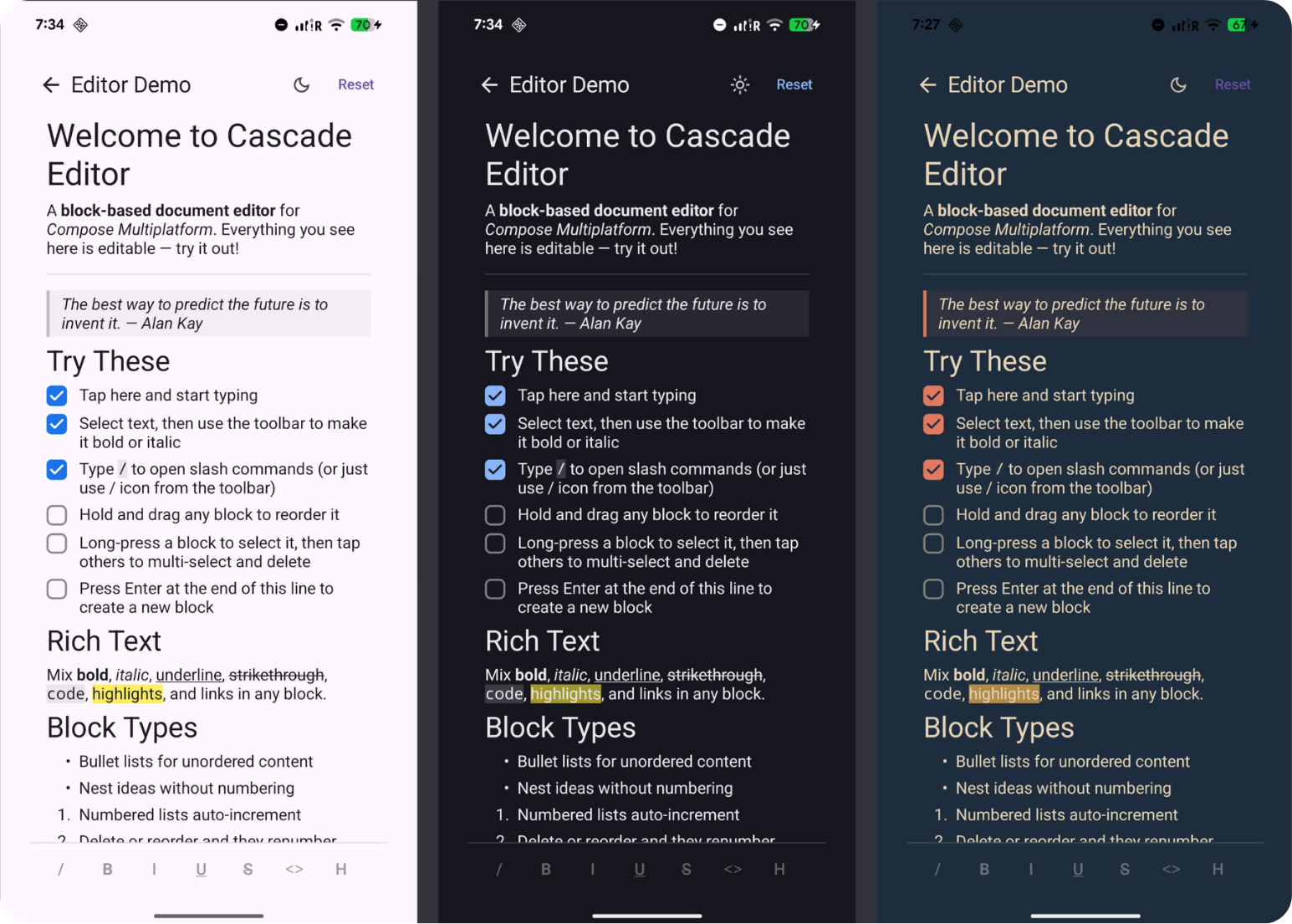
CascadeEditorColors exposes 20+ slots: cursor, selection, toolbar icons, slash popup, quote borders, inline code background, highlight, and more. CascadeEditorTypography controls font size, weight, and family for every text element from body to headings to code blocks.
All UI strings are localizable via CascadeEditorStrings and CascadeEditorBlockStrings:
CascadeEditor(
    stateHolder = stateHolder,
    strings = CascadeEditorStrings.default().copy(bold = "Fett"),
)
Full block editor
Block types
| Type | Supports Text | Supports Indentation | Notes |
|---|---|---|---|
Paragraph |
Yes | Yes | Default block type |
Heading(level) |
Yes | No | H1-H6 |
Todo(checked) |
Yes | Yes | Checkbox with toggle action |
BulletList |
Yes | Yes | Auto-detected from - prefix |
NumberedList(number) |
Yes | Yes | Auto-renumbering on insert/delete/move, including nested outlines |
Quote |
Yes | No | Left border stripe + background tint |
Code |
Yes | No | Multi-line monospace block, no rich-text spans |
Divider |
No | No | Horizontal rule |
Extend with custom types via the CustomBlockType interface. See Extending the editor.
Slash commands
Slash commands are optional. Enable them for document-style editing, or disable them for constrained inputs such as comments and custom fields.
CascadeEditor(
    stateHolder = stateHolder,
    slashCommand = SlashCommandSlot.None,
)
With slash commands enabled, typing / in a built-in editable text block other than Code opens a Notion-style command palette with fuzzy search, keyboard navigation, and submenus without stealing focus from the text field. Code blocks intentionally suppress the slash observer so / remains literal code.
Commands for every built-in block descriptor are generated automatically: paragraph, headings 1–6, todo, bullet and numbered lists, quote, code, and divider. Image is not a built-in block or slash command; add it as a custom block and command when your product needs one.
Add your own command:
val slashRegistry = remember { SlashCommandRegistry() }

slashRegistry.register(
    SlashCommandAction(
        id = SlashCommandId("custom.timestamp"),
        title = "Timestamp",
        description = "Insert current date/time",
        onExecute = {
            editor.replaceQueryText(Clock.System.now().toString())
            SlashCommandResult.Done
        }
    )
)

CascadeEditor(
    stateHolder = stateHolder,
    slashRegistry = slashRegistry,
)
Custom commands get the full SlashCommandContext: replace text, swap blocks, insert new ones, or control focus. You can also organize commands into nested submenus with SlashCommandMenu.
Undo & Redo
Undo/redo is built into EditorStateHolder. Continuous typing is coalesced into user-friendly history steps, while structural edits such as split, merge, drag reorder, slash commands, list conversion, and todo toggles replay as semantic document transactions instead of raw UI events.
History restores the focused block, visible-text selection/caret, and pending formatting styles on replay, so undo/redo returns the editor to the same editing context rather than only restoring block text.
Row {
    Button(
        onClick = { stateHolder.undo() },
        enabled = stateHolder.canUndo,
    ) {
        Text("Undo")
    }

    Button(
        onClick = { stateHolder.redo() },
        enabled = stateHolder.canRedo,
    ) {
        Text("Redo")
    }
}
Hardware keyboard shortcuts are built in: Cmd/Ctrl+Z for undo, Shift+Cmd/Ctrl+Z for redo.
See Undo/Redo Feature Context for the hybrid history model, replay behavior, and integration details.
Indentation
Cascade Editor supports flat-outline indentation for paragraphs, todos, bullet lists, and numbered lists. The document remains an ordered List<Block>: depth is stored in BlockAttributes.indentationLevel, rendered as an animated leading inset, and preserved through split/merge, undo/redo, drag-and-drop, and save/load.
The default toolbar includes indent/outdent buttons when RichTextToolbarConfig.showIndentation is enabled, which it is by default. Commands shift the focused supported block or selected supported root blocks together with their descendants. Indentation is bounded to levels 0..5; supported blocks can use any level in that range, and invalid outline moves no-op instead of producing hidden indentation on unsupported blocks.
CascadeEditor(
    stateHolder = stateHolder,
    toolbar = ToolbarSlot.Default(
        config = RichTextToolbarConfig.Default.copy(
            showIndentation = true,
        ),
    ),
)
Custom editor chrome can read the same state and actions from inside CascadeEditor:
val indentationState = LocalIndentationState.current?.value
val indentationActions = LocalIndentationActions.current

IconButton(
    enabled = indentationState?.canIndentForward == true,
    onClick = { indentationActions?.indentForward() },
) {
    Text("Indent")
}
Enter and Backspace understand nested list/todo behavior, and dragging can change block depth horizontally.
See Indentation for the flat-outline model, public API, serialization rules, and drag behavior.
Extending the editor
When built-in blocks are not enough, add product-specific blocks without forking the editor.
public data object CalloutBlock : CustomBlockType {
    override val typeId: String = "callout"
    override val displayName: String = "Callout"
    override val supportsText: Boolean = true
}

public class CalloutBlockRenderer : BlockRenderer<CalloutBlock> {
    @Composable
    override fun Render(
        block: Block,
        isSelected: Boolean,
        isFocused: Boolean,
        modifier: Modifier,
        callbacks: BlockCallbacks,
    ) {
        // Your composable UI
    }
}

val registry = createEditorRegistry()
registry.register(
    BlockDescriptor(
        typeId = CalloutBlock.typeId,
        displayName = CalloutBlock.displayName,
        description = "Highlighted note block",
        keywords = listOf("callout", "note"),
        factory = { id ->
            Block(
                id = id,
                type = CalloutBlock,
                content = BlockContent.Text("")
            )
        },
    ),
    CalloutBlockRenderer()
)
For custom blocks that need to inspect editor state or commit block mutations from their own UI, implement ScopedBlockRenderer:
public class CalloutScopedRenderer : ScopedBlockRenderer<CalloutBlock> {
    @Composable
    override fun Render(
        block: Block,
        isSelected: Boolean,
        isFocused: Boolean,
        modifier: Modifier,
        callbacks: BlockCallbacks,
        scope: BlockRenderScope,
    ) {
        val readOnly = scope.readOnly
        val canMutate = !readOnly && scope.canUpdateBlock
    }
}
See Interactive Custom Blocks for scoped mutation patterns, read-only capability checks, and custom JSON payload guidance.
Reliability
Crash handling
The editor can contain its own internal failures so a single misbehaving block does not take down the host app. By default CascadeEditorConfig uses CrashPolicy.ContainAndReport: per-block measure/draw failures are caught at a containment boundary, the failing block degrades to a safe fallback, and the failure is surfaced through an optional host hook.
CascadeEditor(
    stateHolder = stateHolder,
    config = CascadeEditorConfig(
        crashPolicy = CrashPolicy.ContainAndReport,
        onInternalError = { error ->
            println("${error.context}: ${error.cause}")
        },
    ),
)
Use CrashPolicy.Rethrow in tests and debug builds to surface bugs instead of hiding them. The onInternalError reporter receives a CascadeError(context, cause) for routing into your own telemetry; it is never invoked under Rethrow.
Serialization entry points are always contain-and-warn, regardless of crashPolicy: loadFromJson() and loadFromHtml() never throw on malformed input. They abort to an empty/partial result and report DocumentDecodeWarning.DocumentParseFailed or HtmlDecodeWarning.InputLimitExceeded in the returned warning list. HTML decode is additionally bounded by HtmlDecodeLimits to guard against OOM on pathological input.
Composition-phase throws from custom renderers cannot be contained in-tree because Compose forbids try/catch around @Composable calls, so custom renderers remain a host trust boundary.
Testing
The repository currently contains 2,185 declared test functions across 179 test source files: 2,184 Kotlin @Test declarations in 178 files plus one Swift XCTest method. They cover reducers, history/undo/redo, span algorithms, slash commands, serialization, crash containment, drag-and-drop, and integration workflows. See ARCHITECTURE.md for the inventory definition and representative coverage map.
./gradlew :editor:allTests
Architecture
Cascade Editor uses a shared Kotlin editor core with strict layers for document state, text state, actions, registry, rendering, and serialization.
┌─────────────────────────────────────────────────────────┐
│  UI Layer (CascadeEditor + preview, renderers)          │
├─────────────────────────────────────────────────────────┤
│  Text State Layer (editor only: BlockTextStates)        │
├─────────────────────────────────────────────────────────┤
│  State Layer (EditorState, EditorStateHolder)           │
├─────────────────────────────────────────────────────────┤
│  Action Layer (EditorAction sealed hierarchy)           │
├─────────────────────────────────────────────────────────┤
│  Registry Layer (BlockRegistry, BlockDescriptor)        │
├─────────────────────────────────────────────────────────┤
│  Core Layer (Block, BlockType, BlockContent, TextSpan)  │
└─────────────────────────────────────────────────────────┘
Six layers with strict dependency direction keep editor behavior deterministic and testable. BlockTextStates owns one TextFieldState per block directly, avoiding cursor-jump and race-condition issues caused by reconstructing text state from composition side effects.
See ARCHITECTURE.md for the full quick-reference table, layer interactions, data flow details, and conventions.
Engineering notes
Cascade Editor handles several problems that usually become painful when a rich text field grows into a document editor:
- keeping live
TextFieldStateand immutable document state aligned; - preserving rich-text spans through split, merge, replace, typing, undo, and redo;
- supporting indentation, drag/reorder, serialization, custom renderers, and editor behavior from shared multiplatform code.
Most of this logic lives in editor/src/commonMain, with platform-specific code limited to thin Android, iOS, desktop, and Wasm adapters.
Platform Requirements
| Target/toolchain | Requirement |
|---|---|
| Kotlin | 2.3.21 |
| Compose Multiplatform | 1.11.1 |
| Android minSdk | 26 |
| Android compileSdk | 36 |
| iOS min version | 16.0 |
| iOS targets | arm64, simulatorArm64 |
| Desktop runtime | JDK 11+ |
| Desktop packaging | JDK 17+ |
| JVM target | 11 |
| Web target | Kotlin/Wasm browser (wasmJs) |
Contributing
Contributions are welcome! See CONTRIBUTING.md for dev setup, code conventions, and PR guidelines.
License
MIT